Hard Drive Enclosure: Turn Any Internal Drive Into an External
A hard drive enclosure is a case with a USB port that turns an internal SATA hard drive or SATA SSD into an external drive. 2.5-inch drives run on USB power, while 3.5-inch enclosures come with their own power adapter. USB 5Gbps is enough for any hard drive, because even a 24 TB WD Red Pro tops out at 287 MB/s according to Western Digital. An enclosure makes the most sense for a drive you already own. Whether a new internal drive plus enclosure beats a ready-made external drive depends on current prices, and the tables below show them live from Amazon.com.
This guide explains which enclosure fits which drive, what to look for in USB speed, UASP and power, and how to set up a drive in Windows and macOS after installing it. ratioDB does not list enclosures. We compare prices of the matching internal drives with ready-made external drives of the same capacity, live from the ratioDB database. We do not run our own hardware tests.
What is a hard drive enclosure?
A hard drive enclosure is a shell with a built-in SATA-to-USB bridge chip that holds an internal hard drive or SSD. Your computer then sees it as an external drive. There are enclosures for 2.5-inch laptop drives and for 3.5-inch desktop hard drives.
Inside the enclosure, the drive plugs into a SATA connector and the bridge chip translates the data to USB. The form factor decides the size and the power source. Sabrent describes its EC-UASP as a tool-free enclosure for 2.5-inch SATA hard drives and SSDs that are 7 mm or 9.5 mm thick (Sabrent). ICY BOX sells the Spade Base 388, an open dock for 2.5-inch and 3.5-inch SATA drives with its own power adapter (ICY BOX).
Common reasons to buy a hard drive enclosure:
- Recover files: read the drive from an old laptop or desktop.
- Reuse a drive: turn an SSD you replaced during an upgrade into fast USB storage.
- Build a backup drive: use a spare internal hard drive as an external backup target.
- Swap drives: use an open dock to connect several bare drives one after another.
Which hard drive enclosure do I need?
The enclosure you need depends on the drive's form factor: 2.5-inch for laptop hard drives and SATA SSDs, 3.5-inch for desktop hard drives. Also check drive height, the interface (SATA or NVMe) and the maximum capacity the manufacturer supports.
| Enclosure | Fits | Power | Typical use |
|---|---|---|---|
| 2.5" SATA | laptop hard drives, 2.5" SATA SSDs | USB | portable, no adapter |
| 3.5" SATA | desktop hard drives | own power adapter | desk backup, large capacity |
| Open dock | 2.5" and 3.5" SATA | own power adapter | frequent drive swaps |
| M.2 enclosure | M.2 SSDs (NVMe or SATA) | USB | fast portable storage |
Drive height is the most common trap with 2.5-inch models. Seagate builds the 2.5-inch BarraCuda at 7 mm for 1 TB and 2 TB and at 15 mm for 4 TB and 5 TB (Seagate). An enclosure for 7 mm and 9.5 mm drives, like the Sabrent EC-UASP, will not take the 15 mm models. M.2 SSDs need their own type of enclosure with a different connector, which is a separate topic and does not work for SATA hard drives.
What should I look for in a hard drive enclosure?
Look at form factor and height, USB speed, UASP support, power and the maximum supported capacity. USB 5Gbps is enough for hard drives, UASP helps with SATA SSDs, and 3.5-inch enclosures need a power adapter, which ICY BOX includes.
The checklist in detail:
- Form factor and height: 2.5-inch or 3.5-inch, and for 2.5-inch the height of 7, 9.5 or 15 mm. The product page lists what fits.
- USB speed: USB 5Gbps handles any hard drive. USB 10Gbps only pays off with SSDs, see the next section.
- UASP: UASP (USB Attached SCSI Protocol, a faster transfer method) mainly speeds up SSDs according to Inateck, which claims up to 70% more performance than classic USB 3.0 (Inateck). That is a manufacturer figure.
- Power: 2.5-inch drives run on USB power. 3.5-inch enclosures need their own adapter, and ICY BOX calls it especially important for large 3.5-inch drives (ICY BOX).
- Maximum capacity: Manufacturers set an upper limit. Inateck lists 2 × 10 TB for its SA02002 dock, ICY BOX up to 30 TB for the Spade Base 388. A 24 TB drive will not work in every enclosure.
- Cable: Sabrent ships the EC-UASP with a USB-A to USB-A cable (Sabrent). If your laptop only has USB-C, you need a matching cable or a USB-C enclosure.
Seagate lists a startup current of 1.2 A at 5 V for its 4 TB and 5 TB 2.5-inch BarraCuda and says these models are configured for low-current systems such as USB 2 external boxes (Seagate). If a 2.5-inch drive does not spin up on one port, try another USB port directly on the computer.
What USB speed does a hard drive enclosure need?
USB 5Gbps is enough for hard drives: 5 Gbit/s works out to 625 MB/s, while hard drives top out at around 290 MB/s. For SATA SSDs, whose interface runs at 6 Gbit/s, USB 10Gbps is worth it. Faster enclosures add nothing for SATA drives.
USB-IF, the group behind the USB standard, recommends the consumer names USB 5Gbps, USB 10Gbps, USB 20Gbps, USB 40Gbps and USB 80Gbps (USB-IF, January 2024). Boxes often still say USB 3.0 or USB 3.2 Gen 1 for 5 Gbit/s. The naming mess is untangled in USB 3.2 Gen 2 explained.
| Drive | Peak speed per manufacturer | Matching enclosure |
|---|---|---|
| Seagate BarraCuda 2.5" | up to 140 MB/s | USB 5Gbps |
| WD Red Pro 8 TB | up to 235 MB/s | USB 5Gbps |
| WD Red Pro 24 TB | up to 287 MB/s | USB 5Gbps |
| SATA SSD | SATA 6 Gbit/s interface | USB 10Gbps with UASP |
Table sources: Seagate BarraCuda 2.5", WD Red Pro. These are manufacturer peaks. Real-world speeds are lower, especially with many small files, so a pricey 20 Gbit/s enclosure will not make a hard drive faster.
Is an enclosure cheaper than an external hard drive?
An enclosure pays off mainly for a drive you already own. For a new drive, compare against a ready-made external drive: on Amazon.com, the external 3.5-inch drive is cheaper than the internal one of the same size in 2 of 4 compared capacities right now, before adding the cost of an enclosure.
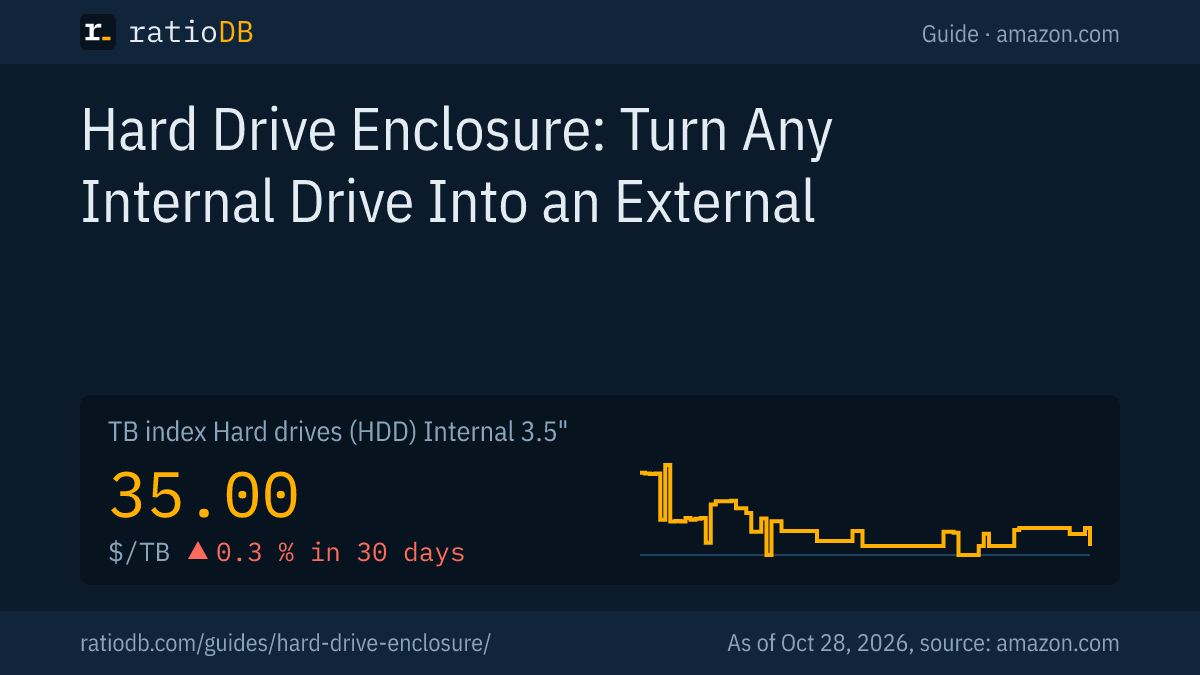
The TB index adds context: external 3.5-inch drives cost $42.64 per TB on Amazon.com right now, internal ones $35.00 per TB. The internal drive is cheaper per TB, but you still have to add the enclosure.
Cheapest new 3.5-inch hard drive per capacity: internal versus external on Amazon.com, as of Oct 28, 2026 at 7:17 PM UTC
| Capacity | Cheapest internal drive | Cheapest external drive | Result |
|---|---|---|---|
| 4 TB | WD Blue 4 TB: $179.99 | Seagate Expansion 4 TB: $175.16 | external $4.83 cheaper |
| 6 TB | HGST Ultrastar He6 6 TB: $138.50 | Seagate Expansion 6 TB: $219.00 | internal $80.50 cheaper |
| 8 TB | Seagate BarraCuda 8 TB: $269.00 | Seagate Expansion 8 TB: $279.99 | internal $10.99 cheaper |
| 10 TB | Seagate Exos X10 10 TB: $399.95 | no offer | no comparison |
| 12 TB | Toshiba MG07ACA 12 TB: $469.99 | no offer | no comparison |
| 14 TB | Seagate SkyHawk AI 14 TB: $635.00 | no offer | no comparison |
| 16 TB | Synology Plus HAT3310 16 TB: $694.66 | no offer | no comparison |
| 18 TB | Seagate Exos X18 18 TB: $712.00 | no offer | no comparison |
| 20 TB | no offer | WD Elements 20 TB: $829.99 | no comparison |
| 24 TB | WD Red Pro 24 TB: $1,899.99 | SanDisk Professional G-Drive Enterprise-Class 24 TB: $1,379.99 | external $520.00 cheaper |
The biggest saving for the external drive right now is at 24 TB: the internal WD Red Pro 24 TB costs $1,899.99, the external SanDisk Professional G-Drive Enterprise-Class 24 TB $1,379.99, a gap of $520.00. The line matters too: large internal drives are often NAS or enterprise lines such as WD Red Pro or Seagate IronWolf Pro, which Western Digital (WD Red Pro) and Seagate (32 TB IronWolf Pro) each back with a 5-year limited warranty (WD Red Pro, Seagate).
Cheapest new 2.5-inch hard drive per capacity: internal versus external on Amazon.com, as of Oct 28, 2026 at 7:17 PM UTC
| Capacity | Cheapest internal drive | Cheapest external drive | Result |
|---|---|---|---|
| 1 TB | Toshiba MQ01ABD 1 TB: $53.89 | WD My Passport 1 TB: $123.72 | internal $69.83 cheaper |
| 2 TB | Seagate BarraCuda 2 TB: $199.00 | WD Elements 2 TB: $127.00 | external $72.00 cheaper |
| 4 TB | Seagate BarraCuda 4 TB: $213.99 | WD My Passport 4 TB: $189.99 | external $24.00 cheaper |
| 5 TB | Seagate BarraCuda 5 TB: $244.79 | WD My Passport 5 TB: $218.00 | external $26.79 cheaper |
Seagate only builds 4 TB and 5 TB internal 2.5-inch drives at 15 mm, so they do not fit every enclosure. The TB index is at $47.74 per TB for external 2.5-inch drives and $55.62 for internal ones right now. For a new portable drive, the ready-made model is usually the simpler buy. The best models are compared in Best external hard drive.
How do I install a hard drive in an enclosure?
Install the drive by plugging it into the enclosure's SATA connector as the enclosure manual describes, closing the case and connecting it over USB. Then set up a new drive in Disk Management on Windows or in Disk Utility on a Mac. Both steps erase everything on the drive.
Warning, data loss: Initializing or erasing a drive removes all data on it. If you want to recover files from an old drive, copy them first and do not initialize it. Microsoft warns that initialization erases all data on the disk (Microsoft Learn).
To set up a new, empty drive in Windows, Microsoft Learn lists these steps (Microsoft Learn):
- Install and connect the drive: Follow the enclosure manual, connect it over USB and, for 3.5-inch, to its power adapter.
- Open Disk Management: Type "Create and format hard disk partitions" in the Start menu, right-click the result and select Run as administrator.
- Find the disk: If the disk is Offline, right-click it and select Online.
- Initialize: Right-click the disk, select Initialize Disk, check the partition style and select OK. The default is GPT (GUID Partition Table).
- Create a volume: Right-click the Unallocated space, select New Simple Volume, then set the size, drive letter and file system.
On a Mac, Apple's steps are: open Disk Utility, choose View > Show All Devices, select the storage device in the sidebar and click the Erase button, choose GUID Partition Map in the Scheme menu and a file system in the Format menu, enter a name, then click Erase and Done (Apple Support). Apple also points out that erasing deletes everything on the device.
Why is my hard drive not showing up in the enclosure?
A new drive in an enclosure does not appear in File Explorer until it is initialized and formatted. Until then it only shows up in Disk Management. Drives larger than 2 TB need the GPT partition style according to Microsoft, because MBR only addresses about 2.2 TB.
Microsoft explains the limit: the older MBR scheme uses 32 bits with 512-byte sectors and tops out at about 2.2 TB. Beyond that, a drive needs GPT, with a theoretical limit of 9.4 ZB (Microsoft Learn). If Windows only shows 2 TB of a larger drive, it was most likely set up with MBR.
Other common causes: the 3.5-inch power adapter is not plugged in, the drive is not fully seated on the SATA connector, or the enclosure does not support the drive's capacity. A 4 TB drive showing up as 3.63 TB is normal, as TB vs TiB explains. Full troubleshooting steps are in External hard drive not showing up.
Which internal drive should go in an enclosure?
Any internal SATA hard drive or SATA SSD fits a SATA enclosure of the matching form factor and height. Per TB, 3.5-inch hard drives are the cheapest: on Amazon.com they cost $35.00 per TB according to the TB index right now, internal 2.5-inch drives $55.62 per TB.
For a desk backup drive, a 3.5-inch hard drive gives you the most TB for the money. Watch the recording method on large drives, CMR or SMR (shingled, overlapping tracks), as CMR vs SMR explains. Seagate's datasheet lists SMR for every 2.5-inch BarraCuda capacity.
For a fast portable drive, a 2.5-inch SATA SSD in an enclosure is an option. The TB index for internal 2.5-inch SATA SSDs is at $122.93 per TB right now. The cheapest new 1 TB SATA SSD from a known brand is SP Silicon Power A55 Boost 1 TB at $119.67. Every offer is listed under internal 3.5" hard drives, internal 2.5" hard drives and 2.5" SATA SSDs, and the long-term US trend is on our hard drive price history page.
How does ratioDB compare drives for enclosures?
ratioDB pulls Amazon.com prices for every listed hard drive at regular intervals and converts them into price per TB, with 1 TB equal to 1,000,000,000,000 bytes. The TB index is the median of the 10 cheapest new offers per form factor.
For the internal versus external comparison, we take the cheapest new single drive per capacity. Internal drives only count under a hard drive maker's name, external drives only from known brands. We do not list enclosures, so their cost comes on top of the internal drive. All rules are on our methodology page. The full lists are under hard drives, external 3.5" drives and external 2.5" drives.
Hard drive enclosure FAQ
What hard drive enclosure do I need?
It depends on the drive: 2.5-inch for laptop drives and SATA SSDs, 3.5-inch for desktop drives. Also check the height, 7, 9.5 or 15 mm for 2.5-inch drives, and the maximum capacity the enclosure supports.
Does a 3.5-inch hard drive enclosure need a power adapter?
Yes. Enclosures and docks for 3.5-inch drives come with their own power adapter. ICY BOX calls it important for large 3.5-inch drives, and Inateck ships its dock with a 12 V, 3 A adapter.
Is USB 3.0 fast enough for a hard drive enclosure?
For hard drives, yes. USB 3.0 equals USB 5Gbps, or 625 MB/s on paper. Western Digital lists a 24 TB WD Red Pro at up to 287 MB/s. For SATA SSDs, choose USB 10Gbps with UASP.
Is an enclosure cheaper than an external hard drive?
Only if you already have the drive. On Amazon.com, the ready-made external 3.5-inch drive is cheaper than the internal one in 2 of 4 compared capacities right now. The enclosure still comes on top of the internal drive.
Will I lose data when I put a drive in an enclosure?
Installing the drive does not erase anything. Initializing or formatting it afterwards does. To recover files, copy them straight from File Explorer or Finder and do not set the drive up again.
Why does Windows not show my drive in the enclosure?
New drives are not initialized yet and only appear in Disk Management. Initialize them with GPT there and create a volume. With 3.5-inch drives, also check the power adapter.
Sources
- Microsoft Learn: Initialize new disks, Microsoft Learn: Windows support for hard disks larger than 2 TB
- Apple Support: Erase and reformat a storage device in Disk Utility
- USB-IF: USB Data Performance Language Usage Guidelines (January 2024)
- Seagate: BarraCuda 2.5" datasheet, Western Digital: WD Red Pro, Seagate: 32TB press release (Jan 12, 2026)
- Enclosures and docks: Sabrent EC-UASP, ICY BOX Spade Base 388, Inateck SA02002
- ratioDB: Amazon.com prices, hard drive price history, methodology