Best SD Card for Raspberry Pi: A2, Size and Live Prices
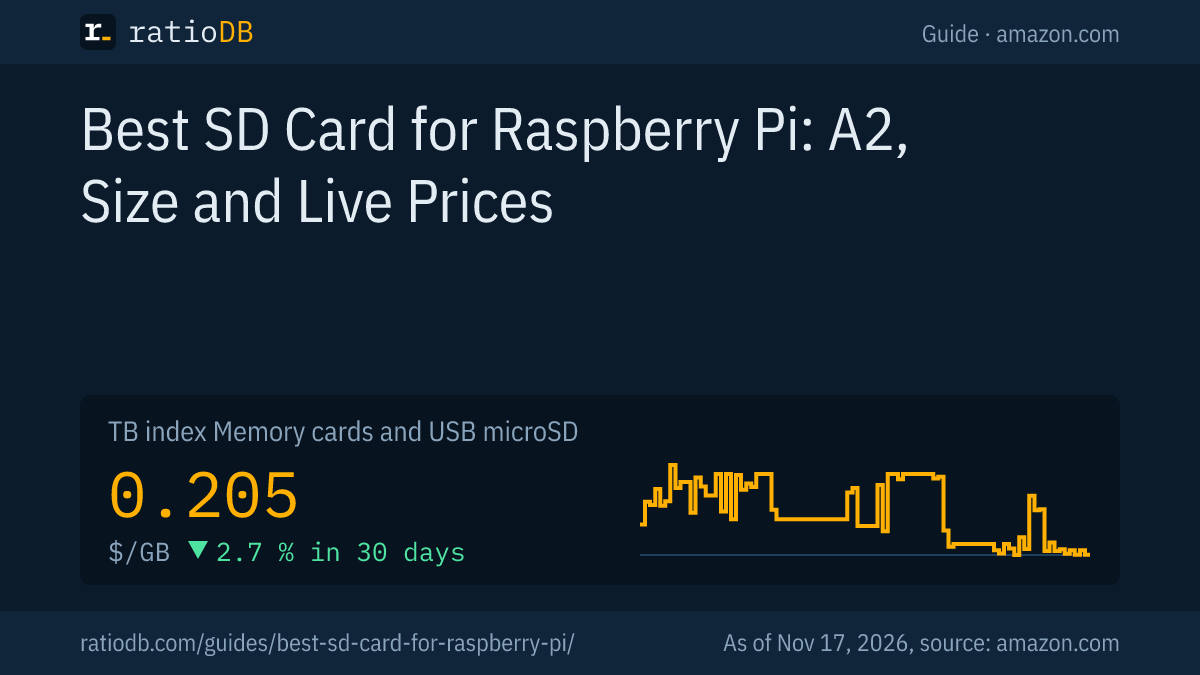
For a Raspberry Pi, the best pick is a microSD card with application performance class A2, at least U3 and 32 GB or more. That is how the official Raspberry Pi card is built: C10, U3, V30 and A2, with 5,000 random reads per second on a Raspberry Pi 5. The Pi 5 can drive A2 cards with command queueing and can also boot from an NVMe SSD. On amazon.com, a microSD card currently costs $0.205 per GB according to the ratioDB GB index (as of Nov 17, 2026 at 4:17 PM UTC).
On a Raspberry Pi the memory card takes the role of the hard drive. The operating system boots from it, programs load from it, log files land on it. So what counts most is how fast the card handles many small accesses. This guide explains what A1 and A2 mean, which size makes sense, what the official card can do and when an SSD is the better choice. ratioDB does not test memory cards. We compare prices and spec sheets. The details come from the linked sources from Raspberry Pi, the SD Association, Transcend and Kingston.
Why does the SD card matter so much on a Raspberry Pi?
Because the Raspberry Pi boots its operating system from the microSD card and reads and writes to it constantly. A slow card makes the whole computer sluggish. Raspberry Pi engineer JDB put it this way: your choice of SD card makes a huge difference to your Raspberry Pi experience.
A regular PC has an SSD, while a stock Raspberry Pi only has the card slot. At boot the system loads many small files, and while you work, programs write settings and logs. Such small, scattered accesses are called random accesses. They are measured in IOPS, input/output operations per second. The write speed for video says nothing about IOPS, which is why the SD Association created separate application performance classes.
The 3 things that matter on a Raspberry Pi:
- Random access: Application class A1 or A2 guarantees a minimum number of IOPS.
- Reliability: The Pi writes all the time. Kingston therefore recommends a card that can handle many write cycles.
- Size: The system, your programs and data need to fit with room to spare.
What do A1 and A2 mean on a memory card?
A1 and A2 are application performance classes from the SD Association. A1 guarantees at least 1,500 random reads and 500 random writes per second, A2 at least 4,000 reads and 2,000 writes. Both also guarantee 10 MB/s sustained writing.
| Class | Random reads per second | Random writes per second | Sustained write | Needs from the device |
|---|---|---|---|---|
| A1 | at least 1,500 | at least 500 | 10 MB/s | nothing new |
| A2 | at least 4,000 | at least 2,000 | 10 MB/s | command queueing and cache |
The SD Association introduced A1 with the SD 5.1 standard and added A2 in March 2017. The catch with A2: the card has to support command queueing and cache, and the device has to use them too. Command queueing means the device sends several commands at once and the card works through them in the best order. The device also has to flush the card's cache before powering down. The Raspberry Pi 5 can do that, more on that below.
The familiar write speed symbols exist on top: U3 and V30 stand for at least 30 MB/s of sequential writing. On a Raspberry Pi they matter less than A1 or A2, but they don't hurt. What every symbol means is covered in the guide SD card speed classes.
What can the official Raspberry Pi SD card do?
The official card comes in 32, 64 and 128 GB. It carries C10, U3, V30 and A2 and supports command queueing. Raspberry Pi states 5,000 random reads and 2,000 random writes per second on the Raspberry Pi 5 and 3,200 and 1,200 on the Raspberry Pi 4.
Raspberry Pi announced the cards in October 2024, and they are made by Longsys. According to Tom's Hardware, Raspberry Pi priced them at $10 for 32 GB and $15 for 64 GB. The figures from the product page:
| Test | Raspberry Pi 4 (DDR50 mode) | Raspberry Pi 5 (SDR104 mode) |
|---|---|---|
| Random read, 4 KB | 3,200 per second | 5,000 per second |
| Random write, 4 KB | 1,200 per second | 2,000 per second |
More points from Raspberry Pi: the cards come blank or with Raspberry Pi OS preinstalled, the product page says they will stay in production until at least January 2028, and they work in any device that reads microSDHC and microSDXC. According to Tom's Hardware, the cards survived over 100,000 sudden power cuts under heavy load in testing. For a Raspberry Pi that sometimes gets unplugged without a shutdown, that is a point in their favor.
On amazon.com, ratioDB currently lists 1 microSD card from well-known brands with A2 in the listing title. The cheapest per GB is SanDisk Extreme 512 GB at $0.223 per GB (512 GB). Not every listing names the application class in its title, so check the card itself or the spec sheet.
What does the Raspberry Pi 5 bring for SD cards?
The Raspberry Pi 5 drives the SD card in SDR104, the fastest UHS-I mode, which the SD Association rates at up to 104 MB/s. It also supports A2 cards with command queueing. The Raspberry Pi 4 uses the slower DDR50 mode.
According to Tom's Hardware, the Pi 5 added support for A2 and command queueing. When the system detects a suitable card, it switches to a queued interface, and the controller can reorder and buffer commands. Per Hackster, Raspberry Pi wrote its own driver for this, and the Raspberry Pi kernel filters out cards with known broken implementations. JDB of Raspberry Pi also says that even without command queueing the official cards are very fast.
For you this means: an A2 card pays off most on the Pi 5, because it uses command queueing. On the Pi 4, Raspberry Pi says the official A2 card reaches 3,200 random reads per second, more than double the A1 minimum of 1,500.
A note for older projects: Kingston writes that the very first Model A and Model B take full-size SD cards, while every model from the Model B+ of 2014 onward needs microSD.
What size SD card does a Raspberry Pi need?
32 GB is a sensible starting point, and it is also the size of the smallest official card. For a desktop, media center or lots of data, go for 64 or 128 GB. Larger cards mainly pay off if you also store data on the card.
ratioDB's recommendation in short:
| Use | Recommended size | Why |
|---|---|---|
| Headless server, smart home, Pi-hole | 32 GB | small system, little data |
| Desktop with Raspberry Pi OS | 64 GB | programs and updates need space |
| Media center, camera, data logger | 128 GB or more | recordings and media grow |
| Lots of data, NAS, database | NVMe SSD on the Pi 5 | M.2 HAT+ with up to 500 MB/s |
Kingston gave at least 8 GB for the older Raspbian and 4 GB for the Lite version. That is enough to boot, but hardly enough for updates and your own programs.
Cheapest microSD card by size on amazon.com, well-known brands, as of Nov 17, 2026 at 4:17 PM UTC
| Capacity | Cheapest microSD card |
|---|---|
| 32 GB | Patriot LX Series Micro 32 GB: $11.49 ($0.359 per GB) |
| 64 GB | SanDisk Ultra 64 GB: $22.30 ($0.348 per GB) |
| 128 GB | SanDisk Made 128 GB: $24.50 ($0.191 per GB) |
| 256 GB | SanDisk Extreme UHS 256 GB: $61.27 ($0.239 per GB) |
At 32 GB, Patriot LX Series Micro 32 GB is currently the cheapest card from a well-known brand at $11.49. At 64 GB, SanDisk Ultra 64 GB is at $22.30.
When is an NVMe SSD on the Raspberry Pi 5 the better choice?
When the Pi writes a lot, runs as a server or should boot fast. The M.2 HAT+ gives the Raspberry Pi 5 an M.2 slot for NVMe SSDs in the 2230 or 2242 size. The link runs over 1 PCIe 2.0 lane at up to 500 MB/s, and with no SD card inserted the Pi boots from the SSD automatically.
The details from the Raspberry Pi documentation:
- Connection: The M.2 HAT+ connects the Pi 5's PCIe connector to an M.2 slot with an M key.
- Sizes: The standard HAT+ takes 2230 and 2242 SSDs, the compact version only 2230.
- Speed: PCIe 2.0 with 1 lane, up to 500 MB/s. PCIe 3.0 can be enabled, but Raspberry Pi warns that the Pi 5 is not certified for it and the link might be unstable.
- Boot: Write Raspberry Pi OS to the SSD with Raspberry Pi Imager. Without an SD card the Pi boots from the SSD, with an SD card it tries the card first. You change the order in raspi-config.
The cheapest NVMe SSD with 2230 in the title on amazon.com right now is Acer MA200 512 GB (512 GB) at $124.99. An SSD costs more than a card, but on the Pi 5 at up to 500 MB/s it is almost 5 times as fast as the SDR104 SD mode at 104 MB/s. For a server that runs around the clock, ratioDB sees it as the better choice. For tinkering and getting started, the SD card is enough. All NVMe SSDs are on NVMe SSDs, external SSDs for the USB port on external SSDs.
All offers are on microSD cards, by size on 128 GB microSD, 256 GB microSD, and every card type on memory cards and USB.
How do I set up the SD card for a Raspberry Pi?
Write Raspberry Pi OS to the card with Raspberry Pi Imager, insert it into the Pi and power up. Test new cards for their real capacity first, because according to TP-Link the most common fake reports more storage than it has.
The steps:
- Check it is genuine: With H2testw (Windows) or F3 (Mac) you test whether the full capacity can be written. TP-Link names cards with a smaller real capacity as the most common fake.
- Open Imager: In Raspberry Pi Imager you choose the Pi model, the operating system and the card.
- Write: Imager writes the system to the card. Everything on the card is erased.
- Boot: Card into the Pi, power on. On first boot the system sets itself up.
- Shut down properly: Pull the power only after shutting down. That protects the card and the file system.
- Back up: Make a copy of a fully set-up card. If the card fails, you are back in minutes.
You can of course reuse a card from a camera or phone. Look for A1 or A2 then. If you later want to use the card in a camera again, the guide How to format an SD card helps you reset it.
What mistakes happen with SD cards on a Raspberry Pi?
The most common mistakes are a card without A1 or A2, a card that is too small, pulling the power without shutting down, fake cards and no backup. On the Pi 5 there is one more: enabling PCIe 3.0 for the SSD although Raspberry Pi warns that the Pi 5 is not certified for it.
| Mistake | Result | How to avoid it |
|---|---|---|
| Card without A1 or A2 | system feels sluggish | look for A1 or A2, A2 on the Pi 5 |
| Card too small | no room for updates | at least 32 GB |
| Pulling the power without shutting down | the file system can be damaged | shut down first |
| Fake card | wrong capacity, data loss | test with H2testw or F3 |
| No backup | set everything up again after a failure | keep a copy of the finished card |
| PCIe 3.0 on the M.2 HAT+ | link might be unstable | stay on PCIe 2.0 |
A word on troubleshooting: if the Pi no longer boots, the card may be the cause. A 2nd card with a freshly written system quickly shows whether the old card is the problem. On a Pi 5 with an NVMe SSD, the boot order also matters: if an SD card is inserted, Raspberry Pi says the Pi tries to boot from it first.
How does ratioDB compare microSD cards for the Raspberry Pi?
ratioDB regularly pulls the amazon.com prices of all listed microSD cards and converts them into price per GB. The GB index is the median of the 10 cheapest new offers per product type.
ratioDB only recognizes the A1 or A2 class when it appears in the listing title. Used offers are labeled and never count toward the index. The tables in this guide show only new single cards from well-known brands. ratioDB does not test cards itself. The figures on the official card and the M.2 HAT+ come from Raspberry Pi, the classes from the SD Association and Transcend. All rules are on the methodology page.
Frequently asked questions about SD cards for Raspberry Pi
Which SD card is best for the Raspberry Pi 5?
A microSD card with A2, U3 and 32 GB or more, for example the official Raspberry Pi card. The Pi 5 supports A2 with command queueing and the fast SDR104 mode. According to Raspberry Pi, the official card reaches 5,000 random reads and 2,000 random writes per second there.
Is an A1 card good enough for a Raspberry Pi?
Yes. A1 guarantees 1,500 random reads and 500 random writes per second and works in every Pi. A2 guarantees more but needs a device with command queueing such as the Pi 5.
How many GB does a Raspberry Pi need?
32 GB is a good start and the smallest size of the official card. For a desktop and media, go for 64 or 128 GB. For lots of data, an NVMe SSD pays off on the Pi 5.
Does the official card work in a Raspberry Pi 4?
Yes. Raspberry Pi states 3,200 random reads and 1,200 random writes per second for the Pi 4 in DDR50 mode. According to the product page, the card works in any device that reads microSDHC and microSDXC.
Can a Raspberry Pi 5 boot without an SD card?
Yes. With the M.2 HAT+ and an NVMe SSD, the Pi 5 boots from the SSD automatically when no SD card is inserted. You set the boot order in raspi-config.
Why do SD cards fail in a Raspberry Pi?
The Pi writes to the card all the time, and flash memory only survives a limited number of writes. Kingston therefore recommends cards built for many write cycles. Shutting down properly and keeping a copy of the card protect you further.
How much does a microSD card for a Raspberry Pi cost?
The cheapest 32 GB card from a well-known brand on amazon.com currently costs $11.49 (as of Nov 17, 2026 at 4:17 PM UTC). The GB index for microSD cards is $0.205 per GB.
Is a U3 or V30 card better for a Raspberry Pi?
U3 and V30 guarantee 30 MB/s of sequential writing. On a Raspberry Pi, though, random access counts most, and that is what A1 and A2 guarantee. The official card carries both: U3, V30 and A2.
Which SSD fits the M.2 HAT+?
According to Raspberry Pi, the standard M.2 HAT+ takes NVMe SSDs in the 2230 and 2242 sizes, the compact version only 2230. The link runs at PCIe 2.0 with up to 500 MB/s.
Sources
- Raspberry Pi: Official SD cards, classes and IOPS, M.2 HAT+ documentation
- Tom's Hardware: Raspberry Pi releases A2 cards and Bumper, October 2024
- Hackster: Raspberry Pi launches own-brand microSD cards
- SD Association: Application performance class A2, 24.03.2017, UHS-I up to 104 MB/s and UHS-III, 22.02.2017 (PDF)
- Transcend: Application performance classes A1 and A2
- Kingston: Choosing storage for Raspberry Pi, Memory card speed classes
- TP-Link VIGI: How to spot and test a fake microSD card
- ratioDB: amazon.com prices, methodology