How to Move Steam Games to Another Drive or SSD
You move Steam games to another drive without reinstalling them by using the "Move" feature in the Steam client. According to Steam Support, you first add a new Steam Library folder on the target SSD under Settings and Storage, then select the games and click "Move". Saves and settings stay intact.
This guide walks you through moving single games or several at once to another SSD or hard drive, moving the entire Steam installation, what applies to the Steam Deck with a microSD card, and when a bigger SSD is the better fix. The steps come from the support pages of Valve, the company behind Steam. ratioDB does not test drives, we compare prices. Live prices from amazon.com are further down (as of Oct 29, 2026 at 1:17 PM UTC).
How do I move a Steam game to another drive?
First add a Steam Library folder on the new drive. Then open Steam's Settings, go to the "Storage" tab, select the drive the game is on, select the game and click "Move". Steam copies the files and tells you when it is done.
According to Steam Support, the Move feature works between drives on the same computer. Here is how:
- Get the new drive ready: the new SSD or hard drive has to be installed or connected and formatted in Windows. The guide install an SSD covers the hardware side.
- Open Steam Settings: open the "Settings" menu in the Steam client.
- Go to the "Storage" tab: it shows your drives with Steam libraries and how full they are.
- Add a library folder: use the "+" button at the top to add the new drive as a Steam Library folder.
- Move the game: select the drive the game is on, select the game and click "Move". Pick the new library folder as the destination.
After the move, the game launches from your library as usual. New games can go straight into the new folder when you install them.
Can I move several Steam games at once?
Yes. In the "Storage" tab of Steam's Settings, select several games at the same time and click "Move" once. Steam then moves all selected games. With large libraries, this can take a while depending on the drives.
According to Steam Support, you first select the drive the games are on in the "Storage" tab and then select all the games you want to move. How long it takes depends mostly on the slower of the two drives. Hard drive to hard drive is much slower than SSD to SSD. Keep the PC running during the move and only launch the affected games once Steam is finished.
How do I add a new Steam Library folder?
In Steam's Settings under "Storage", click "+" and pick the drive. According to Steam Support, you can create an alternate location on any drive and choose it for future installs. By default, games go to C:\Program Files (x86)\Steam\steamapps\common.
A dedicated library folder on a fast NVMe SSD makes sense for big games, a folder on a hard drive for older or small games you rarely play. You can have as many library folders as you like, but each game lives in exactly one place. When you install a new game, Steam asks which folder it should go into.
A sensible way to split a library:
| Drive | Good for | Note |
|---|---|---|
| NVMe SSD | big new games, open world, online games | short load times, some games require an SSD |
| SATA SSD | most games | fast enough for almost everything |
| Internal hard drive | older and small games, archive | lots of space per dollar, long load times |
| External SSD over USB | games on the go, second PC | speed depends on the USB port |
| External hard drive | archive | Steam advises against installing Steam itself on one |
How do I move my entire Steam installation?
Exit Steam, delete everything in the Steam folder except the steamapps and userdata folders and steam.exe, then move the Steam folder to its new location. According to Steam Support, you then launch Steam from there and verify the game files. Back up the steamapps folder first.
You only need this if Steam itself should move, for example because your system drive is full. For individual games, the Move feature is enough. The steps according to Steam Support:
- Have your login ready: you need your Steam account name and password, and the email on the account should be current.
- Make a backup: Steam highly recommends backing up the steamapps folder. If something goes wrong without a backup, you have to reinstall every game.
- Exit Steam and open the Steam folder, by default C:\Program Files (x86)\Steam.
- Clean up: delete all files and folders except steamapps, userdata and steam.exe.
- Move it: cut and paste the whole Steam folder to the new location, for example D:\Games\Steam.
- Launch: start Steam from there and log in. Steam updates briefly.
- Verify files: for installed games, verify the integrity of the game files.
Steam also notes that saves from games without Steam Cloud are often in your Documents folder under "My Games". Take that folder with you to a new drive. If you want to move the whole system drive to a new SSD, cloning is often easier, as shown in the guide clone a drive.
What happens if I move Steam games to a hard drive?
The games still run, but they load much more slowly, because a hard drive reads data far slower than an SSD. Some new games explicitly require an SSD: for Starfield, the Steam store lists 125GB of free space and "SSD Required" in the minimum requirements.
A hard drive uses spinning platters and a read head. With the many small files games load, it is much slower than any SSD. You notice it in longer loading screens and, in open-world games, in stutter while new areas stream in. If a game's system requirements say SSD, put it on an SSD. Older games, strategy games or titles you rarely play are fine on a hard drive. Why SSDs and hard drives differ so much in speed is explained in the guide SSD vs HDD.
Valve advises against installing Steam itself on an external hard drive because of potential performance issues. Individual games in a library folder on an external drive are possible. For games, an external SSD is the faster choice.
Is a bigger SSD better than moving games around?
Often, yes. If your gaming SSD is constantly full, a second NVMe SSD adds space for good. The cheapest 2TB NVMe SSD on amazon.com right now costs $249.00 (Crucial E100 2 TB, $124.50 per TB) and has room for about 16 games the size of Starfield at 125GB.
Cheapest new NVMe SSDs on amazon.com by capacity, as of Oct 29, 2026 at 1:17 PM UTC
| Capacity | Cheapest NVMe SSD | Price | Price per TB | Room for 125 GB games |
|---|---|---|---|---|
| 1 TB | Adata Legend 710 1 TB | $146.99 | $146.99 | 8 |
| 2 TB | Crucial E100 2 TB | $249.00 | $124.50 | 16 |
| 4 TB | Crucial P3 Plus 4 TB | $669.77 | $167.44 | 32 |
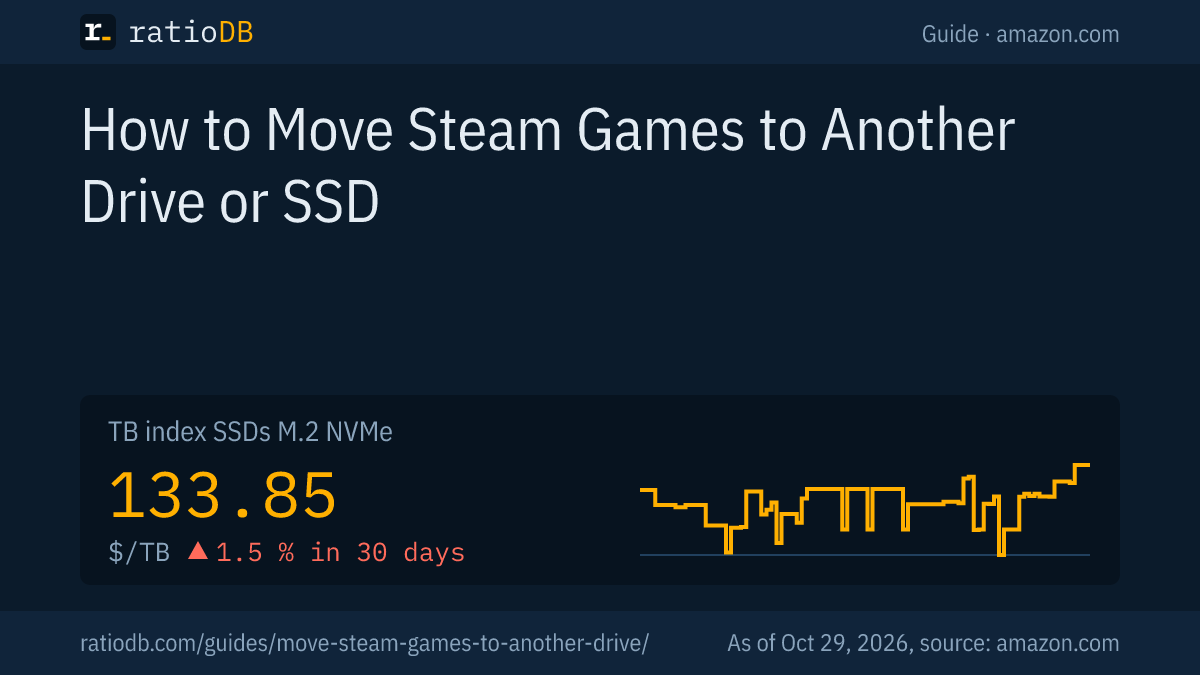
The column "Room for 125 GB games" divides the manufacturer's capacity, with 1TB equal to 1,000GB, by the 125GB the Steam store lists for Starfield. Windows actually shows a little less free space, and games vary in size, so treat it as a rough guide. The TB index for NVMe SSDs is $133.85 per TB, for SATA SSDs $121.57 and for internal 3.5" hard drives $36.25. Per TB, an NVMe SSD costs about 3.7 times as much as a hard drive.
Which SSD suits gaming, and whether it has to be an expensive PCIe 5.0 model, is covered in the guide gaming SSD. The difference between NVMe and SATA is explained in NVMe vs SATA. All models are under NVMe SSD prices per TB and specifically 2TB NVMe SSD.
How do I move games to a microSD card on the Steam Deck?
According to Valve, the microSD card has to be formatted in the Steam Deck first: insert it, then go to Steam, Settings, System, Format SD card. After that, you manage your drives under Steam, Settings, Storage and move games between internal storage and the card.
Valve supports any UHS-I microSD card of class 3 or better in the Steam Deck. UHS-II and UHS-III cards are expected to work as well, but the Steam Deck does not use their higher speeds. Formatting takes a few minutes according to Valve and erases the card. For much more space in the device itself, you can swap the internal SSD, as explained in the guide Steam Deck SSD. Matching cards are under microSD card prices per GB.
Why can't I move a Steam game?
Usually the target drive has no library folder yet, the game is running, or an update is downloading. Also check the free space on the target and whether the drive has a drive letter in Windows. After that, the move normally works.
Go through these points in order:
- No library folder: without a Steam Library on the target drive, Steam does not offer it as a destination. Add one as described above.
- Game running or updating: close the game and wait until downloads and updates are done.
- Not enough space: the target needs at least as much free space as the game takes up.
- Drive not visible: if the new SSD does not show up in Windows at all, see the guide SSD not showing up.
- Errors after the move: let Steam verify the integrity of the game files. Steam then downloads missing or broken files again.
How does ratioDB compare SSDs and hard drives?
ratioDB checks amazon.com prices for all listed SSDs and hard drives regularly and converts them to price per TB, with 1TB equal to 1,000,000,000,000 bytes. The TB index is the median of the 10 cheapest new offers in a form factor.
The table in this guide shows the cheapest new NVMe SSD from well-known brands for each capacity, single drives only. Used and refurbished offers are labeled and never count toward the index. ratioDB does not test drives or measure load times. All rules are on the methodology page, and all SSDs are under SSD prices per TB.
Frequently asked questions about moving Steam games
Do I have to reinstall a Steam game to move it?
No. According to Steam Support, you move installed games with the "Move" feature in the "Storage" tab of Steam's Settings, without uninstalling them. You just need a library folder on the target drive.
Will I lose my saves when moving games?
Moving a game through Steam keeps the game and its saves. If you move the whole Steam installation or Windows, back up the steamapps folder first, plus saves outside Steam Cloud, which Steam says are often under Documents in "My Games".
Can I move Steam games to an external hard drive?
Yes, with a library folder on the external drive. Valve advises against installing Steam itself on an external hard drive because of potential performance issues. For games, an external SSD is the faster choice.
Where does Steam install games by default?
According to Steam Support, in C:\Program Files (x86)\Steam\steamapps\common. Every additional library folder has its own folder structure on its drive.
How much space do modern games need?
Check the system requirements in the Steam store. Starfield, for example, lists 125GB of free space and requires an SSD. A 2TB SSD fits roughly 16 games of that size on paper.
Do I need an SSD for Steam games?
For many new games, yes, and some list it in their minimum requirements. Older and smaller games also run from a hard drive, but they load more slowly.
Can I move games between two PCs?
According to Steam Support, the Move feature only works on the same computer. For another PC, download the game again there or use Steam's backup feature.
Sources
- Valve, Steam Support: Moving a Steam installation and games, Steam Deck basic use and troubleshooting, data storage section
- Steam store: Starfield, system requirements
- ratioDB: amazon.com prices, methodology