How to Enable XMP and EXPO: Run Your RAM at Full Speed
Enabling XMP means turning on the Intel Extreme Memory Profile (XMP) in your motherboard BIOS. On AMD systems with socket AM5, the counterpart is called EXPO. According to Intel, memory first boots with the default JEDEC settings; only the profile brings it to the speed and timings printed on the box.
This guide explains what XMP, EXPO and DOCP are, how to turn the profile on in the BIOS, where the setting lives on ASUS and MSI boards, how to check in Windows that it worked, and what to do if your PC won't boot afterward. The facts come from pages by Intel, AMD, ASUS, MSI and Corsair. ratioDB does not test memory itself, we compare prices. What timings like CL30 and true latency mean is covered in the guide EXPO vs XMP and DDR5 timings. Live amazon.com prices are further down (as of Oct 29, 2026 at 1:17 PM UTC).
What is XMP?
XMP (Intel Extreme Memory Profile) is a memory profile that stores faster settings for speed, timings and voltage on the RAM module. According to Intel, XMP overclocks compatible DDR5 and DDR4 memory to higher speeds. XMP 2.0 is for DDR4, XMP 3.0 is designed for DDR5.
The profile lives on a small memory chip on every module, the SPD (Serial Presence Detect). It holds the JEDEC default values every motherboard boots with, plus the manufacturer's values for the advertised speed. When you enable XMP in the BIOS, Intel says the system automatically applies the best settings from the profile.
According to Intel, XMP 3.0 for DDR5 supports up to 5 profiles: 3 from the memory vendor and 2 rewritable ones where you can store your own settings. Corsair recommends starting with the first profile. According to MSI, the profile sets memory to its advertised speed with one click.
What are EXPO and DOCP?
EXPO (AMD Extended Profiles for Overclocking) is AMD's memory profile for DDR5 on socket AM5. DOCP (Direct Over Clock Profile) is an ASUS feature: it loads a kit's profile data from the SPD, for example XMP on an AMD board or EXPO on an Intel board.
AMD describes EXPO as technology for easy DDR5 memory overclocking with Ryzen processors on socket AM5. In its support article, ASUS explains which options show up in the BIOS on each platform:
| Platform per ASUS | BIOS options | Which kit |
|---|---|---|
| Intel 600 series and later | XMP and DOCP | XMP kit with XMP, EXPO kit with DOCP |
| Intel before 600 series | XMP only | XMP kit |
| AMD AM5 and later | EXPO and DOCP | EXPO kit with EXPO, XMP kit with DOCP |
| AMD before AM5 | DOCP only | XMP kit via DOCP |
The profiles at a glance:
| Profile | From | Memory | Made for |
|---|---|---|---|
| XMP 2.0 | Intel | DDR4 | Intel systems |
| XMP 3.0 | Intel | DDR5 | Intel systems |
| EXPO | AMD | DDR5 | Ryzen on socket AM5 |
| DOCP | ASUS | profile data from the SPD | ASUS motherboards |
In our database, 13 of 30 DDR5 desktop kits on amazon.com list XMP in the title, 17 list EXPO and 8 list both. 8 kits name neither profile in the title; the manufacturer's data sheet tells you more. For a Ryzen PC on AM5, a kit with EXPO is the simplest choice; for Intel, pick one with XMP. The detailed comparison of the two profiles is in the guide EXPO vs XMP and DDR5 timings.
Why is my RAM slower without XMP?
Because every motherboard runs memory at the JEDEC default settings on first boot. MSI writes that all motherboards operate memory at these defaults during the initial boot, and that the default speed depends on what the chipset and processor support. A kit only reaches its rated speed with a profile.
According to Corsair, JEDEC settings are safe settings that favor compatibility over performance. That makes sense, because every PC boots reliably that way, even with a new kit. But a kit rated at 6,000 MT/s runs below its potential without a profile. You paid for the higher speed and don't use it.
Fast memory isn't necessarily more expensive: on amazon.com, the cheapest DDR5 kit at 4,800 MT/s costs $15.62 per GB (A-Tech PC/Computer Upgrade 16 GB), the cheapest at 6,000 MT/s costs $14.37 per GB (Crucial Pro 2 × 16 GB). The 6,000 MT/s kit is actually about 8.0% cheaper per GB. (As of Oct 29, 2026 at 1:17 PM UTC)
How do I enable XMP in the BIOS?
Restart your PC and press the BIOS key, usually Del. In the BIOS, change the memory profile from Standard to XMP 1, or EXPO 1 on AMD. Press F10 to save and restart. Then check in Windows that your memory runs at the new speed.
The general steps; menu names differ by vendor:
- Open the BIOS: Turn on the PC and press the BIOS key repeatedly right away. On MSI and ASUS boards that's Del; ASUS also names F2. If the key isn't shown on the boot screen, check the manual.
- Find the profile: In the simple mode (EZ Mode), the setting is often right on the main page. In the advanced mode, Corsair says it sits in sections such as Overclocking, AI Tweaker, Memory or Extreme Tweaker.
- Pick the profile: Change Standard or Auto to XMP 1, EXPO 1 or DOCP. If your kit has several profiles, Corsair says to start with Profile 1.
- Save: Press F10 and confirm. The PC restarts.
- Check: Look at the speed in Windows Task Manager (see below).
If the profile doesn't apply, Corsair recommends resetting the BIOS to defaults and updating the BIOS. Your motherboard vendor's support page explains how to update.
Where is XMP on ASUS and MSI motherboards?
On ASUS, press F7 for Advanced Mode, go to Ai Tweaker and set Ai Overclock Tuner to XMP I, EXPO I or DOCP. On MSI, change the Memory setting at the top left of EZ Mode from Standard to XMP1, or EXPO1 on AMD. Both save with F10.
The paths according to the vendors' support pages:
| Vendor | BIOS key | Path to the setting | Options |
|---|---|---|---|
| ASUS | Del (or F2) | EZ Mode, F7 for Advanced Mode, Ai Tweaker, Ai Overclock Tuner | XMP I, XMP II, XMP Tweaked (Intel), EXPO I (AMD), DOCP |
| MSI | Del | EZ Mode, top left under Memory | XMP1 (Intel), EXPO1 (AMD) |
| MSI, advanced | Del | Advanced Mode, Overclocking, Memory Extension Mode | extra modes (Intel) |
About the extra profiles, the vendors themselves say: ASUS calls XMP Tweaked an aggressive overclocking profile with no guarantee of stability, and MSI writes that the memory manufacturer does not guarantee stability in Memory Extension Mode. To start, the regular first profile is the right choice.
According to Corsair, Gigabyte and ASRock use similar labels, but there are enough differences to make things tricky. Corsair's advice is to check your motherboard manual. Manuals are available as PDFs on the vendor's support site; search for the exact model name of your motherboard.
How do I check if XMP is enabled?
Open Task Manager with Ctrl, Shift and Esc, go to Performance and click Memory. Speed shows the current rate in MT/s. If it matches the box, for example 6,000 MT/s, the profile is active. MSI names exactly this check in Windows 11.
For more detail, Corsair recommends the free tool CPU-Z: the Memory tab shows the current settings, the SPD tab shows the profiles stored on the module. Careful when reading it: CPU-Z's Memory tab shows the actual memory bus clock. For DDR memory that's half the MT/s figure; in Corsair's DDR5-6000 example, the memory bus runs at 3,000 MHz.
How to read the values:
| Display | Where | Value for a DDR5-6000 kit with profile |
|---|---|---|
| Speed | Task Manager, Performance, Memory | 6,000 MT/s |
| DRAM Frequency | CPU-Z, Memory tab | about 3,000 MHz |
| Stored profiles | CPU-Z, SPD tab | XMP or EXPO with speed and timings |
If Task Manager still shows the lower value, the profile didn't apply. Go through the BIOS steps again and make sure you saved with F10.
What if my PC won't boot after enabling XMP?
MSI suggests loading defaults in the BIOS with F6, saving with F10 and trying the profile again. Corsair says to check that the modules are fully seated in the recommended slots and to update the BIOS. ASUS recommends kits from the motherboard's qualified vendors list (QVL).
The steps in a sensible order:
- Load defaults: If you can get into the BIOS, MSI boards load defaults with F6; save with F10. MSI also mentions its Memory Try It feature with prepared settings.
- Check the modules: According to Corsair, modules should click into place and sit in the slots your motherboard manual recommends.
- Update the BIOS: If problems persist, Corsair recommends a BIOS update.
- Check compatibility: ASUS recommends modules from your motherboard's QVL (qualified vendors list). According to ASUS, the maximum memory speed depends on the memory, the motherboard and the CPU together.
If the PC doesn't get to the BIOS at all, your motherboard manual explains how to reset the settings. After that, memory runs at JEDEC defaults again. How to test memory for errors after installing it is covered in the guide How to test RAM. Why 2 modules in the right slots matter is explained in the guide Dual channel RAM.
Does XMP void my warranty?
Intel writes that altering voltage or clock frequency may void the product warranty and reduce stability. For EXPO, AMD writes that operating AMD processors or memory outside published specifications, including altered clocks, timings or voltages, will void any applicable AMD product warranty.
Both vendors point to a risk that always comes with overclocking. XMP and EXPO are profiles prepared by the memory vendor, so you don't enter values by hand. How the memory maker handles its own warranty when a profile is used is up to the kit's manufacturer and its warranty terms. Read them before you buy if this matters to you.
If you don't want any risk, leave the memory at JEDEC defaults. The PC runs reliably, just slower than it could.
Which RAM kits with XMP or EXPO are available now?
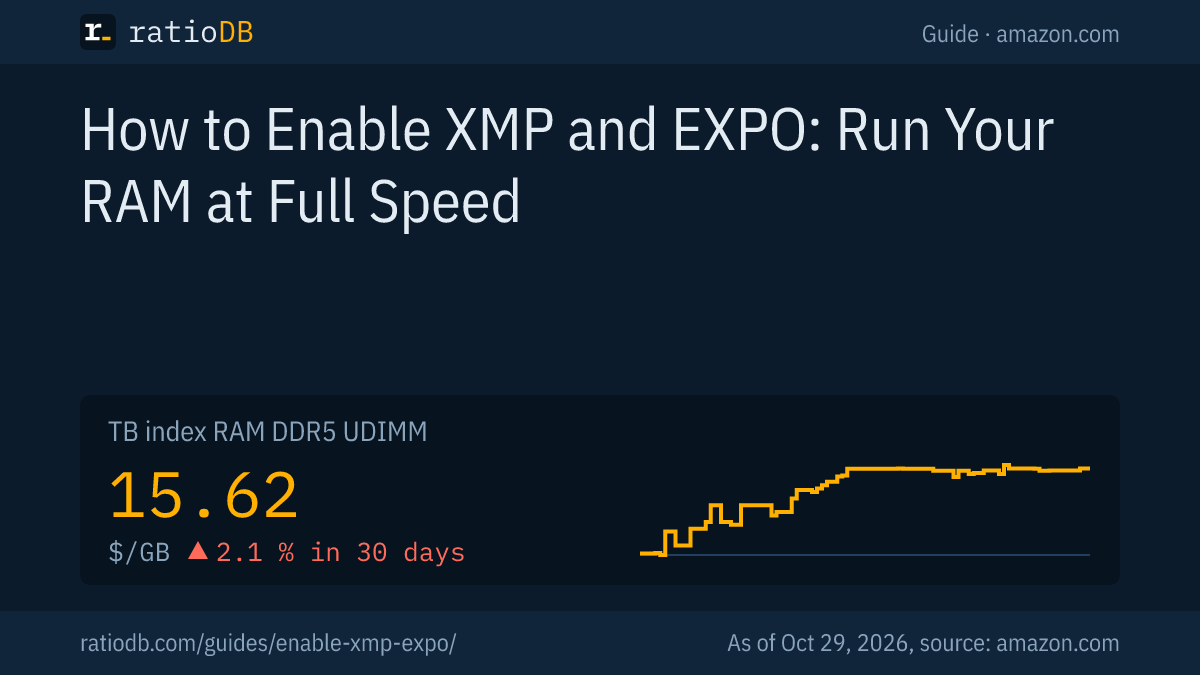
The DDR5 desktop RAM index on amazon.com is at $15.62 per GB, the median of the 10 cheapest new offers. The cheapest 6,000 MT/s kit is Crucial Pro 2 × 16 GB (CL36) at $14.37 per GB (as of Oct 29, 2026 at 1:17 PM UTC).
DDR5 desktop kits on amazon.com by speed, as of Oct 29, 2026 at 1:17 PM UTC
| Speed | Offers | Cheapest kit per GB | Modules | CL per title | Price per GB |
|---|---|---|---|---|---|
| 4,800 MT/s | 1 | A-Tech PC/Computer Upgrade 16 GB | 1 × 16 GB | CL40 | $15.62 |
| 5,600 MT/s | 3 | PNY 8 GB | 1 × 8 GB | CL46 | $16.25 |
| 6,000 MT/s | 18 | Crucial Pro 2 × 16 GB | 2 × 16 GB | CL36 | $14.37 |
| 6,400 MT/s | 4 | Crucial Pro 2 × 32 GB | 2 × 32 GB | CL40 | $15.62 |
| 6,800 MT/s | 2 | Kingston FURY Beast 2 × 16 GB | 2 × 16 GB | CL34 | $23.03 |
| 7,200 MT/s | 1 | TeamGroup T-Force Delta RGB 2 × 24 GB | 2 × 24 GB | CL34 | $16.67 |
| 7,400 MT/s | 1 | Patriot Viper Venom RGB 2 × 16 GB | 2 × 16 GB | CL36 | $43.57 |
We read speed and CL from the listing titles. The fastest kit in our list runs at 7,400 MT/s; the cheapest of those costs $43.57 per GB (Patriot Viper Venom RGB 2 × 16 GB). Whether your motherboard and CPU handle speeds that high is shown in the board's QVL and the CPU maker's specs. All kits are under DDR5 RAM for desktop PCs, 32 GB kits under DDR5 32 GB.
Is there XMP for DDR4 and laptops?
Yes, DDR4 has XMP 2.0, which Intel says is meant for DDR4. AMD developed EXPO for DDR5 on socket AM5. For laptops with SO-DIMM modules, the manufacturer's manual tells you whether the BIOS offers a memory profile.
On amazon.com, 14 of 42 DDR4 desktop kits in our database list XMP in the title. The DDR4 desktop RAM index is at $6.51 per GB. On an older ASUS AMD board from before AM5, ASUS says you load the XMP profile via DOCP.
DDR4 desktop kits on amazon.com by speed, as of Oct 29, 2026 at 1:17 PM UTC
| Speed | Offers | Cheapest kit per GB | Modules | CL per title | Price per GB |
|---|---|---|---|---|---|
| 2,133 MT/s | 1 | A-Tech 4 × 8 GB | 4 × 8 GB | CL15 | $7.50 |
| 2,400 MT/s | 2 | Timetec 4 × 16 GB | 4 × 16 GB | CL17 | $5.94 |
| 2,666 MT/s | 4 | Timetec 2 × 16 GB | 2 × 16 GB | CL19 | $6.06 |
| 3,200 MT/s | 30 | Acclamator 2 × 16 GB | 2 × 16 GB | CL18 | $6.25 |
| 3,600 MT/s | 4 | G.skill Trident RGB Series 2 × 16 GB | 2 × 16 GB | CL18 | $8.12 |
| 4,000 MT/s | 1 | G.skill Trident RGB Series 2 × 16 GB | 2 × 16 GB | CL18 | $8.44 |
All DDR4 kits are under DDR4 RAM for desktop PCs. What to look for when buying DDR4 is covered in the guide Buying DDR4 RAM. Whether switching to DDR5 pays off is in the guide DDR5 vs DDR4. Laptop memory is under DDR5 SO-DIMM and DDR4 SO-DIMM, upgrade tips in the guide Laptop RAM upgrade.
Do I need XMP when I buy new RAM?
If your kit is faster than your system's JEDEC default speed, yes. Otherwise the advertised speed goes unused. When buying, check which profile your motherboard understands: EXPO for Ryzen on AM5, XMP for Intel, DOCP on ASUS boards for the other profile.
Questions that help before you buy:
- How much do I need? The guide How much RAM do I need? answers that.
- 1 or 2 modules? 2 modules run in dual channel mode, more in the guide Dual channel RAM.
- Which profile? EXPO for AM5, XMP for Intel. Many kits have both.
- Will the kit work? The motherboard's QVL lists tested kits.
A buying guide with prices per capacity is in the guide Buying DDR5 RAM.
How does ratioDB compare RAM?
ratioDB regularly pulls amazon.com prices for all listed RAM kits and converts them to price per GB. A kit of 2 modules counts with its total capacity. The index is the median of the 10 cheapest new offers in a list.
Speed, CL and profile come from the listing titles, so from the manufacturer or seller. If a value is missing from the title, the tables show "n/a". Used offers are labeled and never count toward the index. ratioDB does not test memory itself. All rules are on the methodology page, all memory under RAM prices per GB.
XMP and EXPO FAQ
Should I enable XMP?
Yes, if your kit is faster than your system's default speed. Without a profile, MSI and Corsair say memory runs at JEDEC default settings. Intel and AMD note that overclocking can affect the warranty.
Is XMP the same as EXPO?
Both store faster settings on the module. XMP comes from Intel, as XMP 2.0 for DDR4 and XMP 3.0 for DDR5. EXPO comes from AMD and is made for DDR5 on socket AM5.
What is DOCP?
DOCP (Direct Over Clock Profile) is a feature of ASUS motherboards. According to ASUS, it loads speed and timings from the module's SPD chip. On AMD boards you use DOCP for XMP kits, on Intel boards from the 600 series on for EXPO kits.
How do I see if XMP is on?
In Task Manager under Performance and Memory, Speed shows the rate in MT/s. If it matches the box, the profile is active. CPU-Z's Memory tab shows half that value in MHz.
What do I do if my PC won't boot after XMP?
Load defaults in the BIOS, F6 on MSI boards, and save with F10. Check that the modules are seated in the slots the manual recommends and update the BIOS. If you can't get into the BIOS, the manual explains how to reset the settings.
Which profile do I pick if there are several?
Start with Profile 1, as Corsair recommends. Other profiles or modes like XMP Tweaked on ASUS are more aggressive and, per the vendor, carry no guarantee of stability.
Is fast RAM much more expensive?
Not necessarily. On amazon.com, the cheapest DDR5 kit at 6,000 MT/s costs $14.37 per GB, the cheapest at 4,800 MT/s costs $15.62 per GB (as of Oct 29, 2026 at 1:17 PM UTC). The individual offer is what counts.
Sources
- Intel: Intel Extreme Memory Profile (XMP), XMP 2.0 and 3.0, warranty and stability note (Spanish page)
- AMD: AMD EXPO Technology with warranty footnote
- ASUS: Setting XMP, EXPO and DOCP in the BIOS
- MSI: Enabling XMP and EXPO, checking in Task Manager
- Corsair: How to enable XMP and EXPO in the BIOS, checking with CPU-Z, troubleshooting
- ratioDB: amazon.com prices, methodology