How to Build a PC: Step-by-Step Guide for Beginners
Building a PC means mounting the processor, cooler, memory and M.2 SSD on the motherboard, screwing the motherboard into the case, connecting the power supply and graphics card, then turning on the XMP or EXPO memory profile in the UEFI and installing Windows 11. What matters most is that the processor, motherboard and DDR5 or DDR4 RAM are compatible.
This guide walks you through the build in 10 steps, from checking the parts to installing drivers. We put extra focus on storage, because ratioDB tracks current prices for SSDs, memory and hard drives. The assembly and compatibility details come from documentation by AMD, ASUS, Supermicro, Noctua, Intel and Microsoft. ratioDB does not build or test PCs itself. Live amazon.com prices are further down (as of Oct 29, 2026 at 1:17 PM UTC).
What parts do you need to build a PC?
You need 7 parts: a processor (CPU), motherboard, memory (RAM), SSD, power supply, case and CPU cooler. Add a graphics card if the processor has no built-in graphics or you want to play demanding games, plus Windows 11 and a USB drive for the installation.
| Part | Job | What to check |
|---|---|---|
| Processor (CPU) | does the computing | socket, supported RAM generation, cooler included or not |
| Motherboard | connects everything | matching socket, RAM generation, number of M.2 slots, size for the case |
| Memory (RAM) | holds running programs | DDR5 or DDR4 per CPU and motherboard, 2 modules are better than 4 |
| SSD | stores the system, programs and games | M.2 with NVMe, capacity, slot on the motherboard |
| Power supply | powers everything | enough wattage for CPU and graphics card, the right connectors |
| Case | holds everything | room for motherboard, graphics card and cooler |
| CPU cooler | removes heat | fits the socket and the case |
| Graphics card | display and games | length in the case, power connectors on the PSU |
| Hard drive (optional) | lots of space for data | 3.5" with SATA, drive bay in the case |
How much memory and storage you need is covered in the guides How much RAM do I need? and How much storage do I need?.
How do you check that the parts are compatible?
The processor and motherboard need the same socket, and the memory must be a RAM generation both support. Example AMD Ryzen 7 9800X3D: socket AM5, DDR5 only, PCI Express 5.0 and, according to AMD, no cooler in the box.
Go through the parts in this order:
- Socket: Listed on the spec sheet of the CPU and the motherboard. An AM5 processor only fits an AM5 motherboard.
- RAM generation: DDR5 and DDR4 modules have different notches and do not fit the wrong slot. According to AMD, the Ryzen 7 9800X3D supports only DDR5 UDIMMs, the regular desktop modules. The guide DDR5 vs DDR4 explains the difference.
- Number of RAM modules: For the Ryzen 7 9800X3D, AMD lists a maximum of DDR5-5600 with 2 modules and DDR5-3600 with 4 modules. With 2 modules you keep more speed. Why 2 modules beat 1 is explained in the guide Dual channel.
- SSD: Check the motherboard manual for the number of M.2 slots, the lengths they take, such as 2280, and whether they run NVMe over PCI Express 4.0 or 5.0. The guide NVMe vs SATA shows how NVMe differs from SATA.
- Cooler: If the processor comes without a cooler, you need one that fits the socket.
- Power supply, case and graphics card: Compare the PSU wattage and connectors, the graphics card length and the cooler height with the manufacturers' specs.
Motherboard makers also publish lists of tested memory modules, the QVL (Qualified Vendors List). When memory causes trouble, ASUS explicitly recommends modules from that list.
What tools do you need, and how do you protect the parts?
You need a Phillips screwdriver, the motherboard manual and a clear, solid table. Against static discharge, Supermicro recommends a grounded wrist strap and touching a grounded metal object before taking the motherboard out of its antistatic bag.
The precautions from a Supermicro motherboard manual:
- Wear a grounded wrist strap designed to prevent static discharge.
- Touch a grounded metal object before unpacking the board.
- Hold the motherboard by its edges only, never by components, memory modules or gold contacts.
- Do not touch the pins of chips and modules.
- Put parts you are not using back in their antistatic bags.
According to ASUS, unplug the power cord before installing or removing memory. That applies to the whole build: work only with the power disconnected.
In what order do you build a PC?
A proven order is: mount the CPU, cooler, memory and M.2 SSD on the motherboard while it sits outside the case. Then install the power supply and motherboard in the case, add the graphics card and cables, and finish with the first boot, the UEFI, Windows 11 and drivers.
The 10 steps at a glance:
- Check parts: Match socket, RAM generation and slots against the spec sheets.
- Install the processor: Open the socket lever, align the CPU with the marking, drop it in without force, close the lever.
- Install memory: With 2 modules, use the slots the manual names.
- Install the M.2 SSD: Insert at an angle, press it flat, secure it with the screw or latch.
- Mount the cooler: Apply thermal paste as instructed, set the cooler on top, plug the fan cable into the CPU fan header.
- Install the power supply: Screw it into its spot in the case.
- Install the motherboard: Fit the I/O shield if there is one, check the standoffs, screw the board in.
- Install the graphics card: Into the top long PCI Express slot, screw it down, connect the power cables.
- Connect cables: Power for motherboard and CPU, front panel connectors like the power button and USB, drives.
- First boot and software: Check the UEFI, turn on the memory profile, install Windows 11, install drivers.
The exact position of connectors and slots is in your motherboard manual. The next sections cover the key steps.
How do you install the processor, cooler and thermal paste?
Align the CPU with the marking on the processor and the socket and drop it in without force. For mid-size processors such as AM5, LGA1700 and LGA1851, Noctua applies thermal paste as 4 small dots plus 1 larger dot in the center, without spreading it.
Noctua says its NT-H1 and NT-H2 pastes generally don't need to be spread by hand. The cooler's mounting pressure spreads them. For small processors such as LGA1200, Noctua recommends 1 dot, for large ones such as LGA4677 9 small and 4 larger dots. If your cooler comes with paste already on the base plate, follow the cooler's instructions. The cooler's fan cable goes into the CPU fan header on the motherboard.
For the Ryzen 7 9800X3D, AMD lists the cooler as "Not Included" and recommends liquid cooling. So always check whether a cooler is in the box.
How do you install memory and an M.2 SSD?
Memory: open the latch on the slot, line up the notch on the module with the notch in the slot, push straight down until the latch clicks. For 2 modules, ASUS names the slots DIMM_A2 and DIMM_B2. Insert the M.2 SSD at an angle, press it flat and secure it with a screw or latch.
ASUS describes the memory installation like this: open the latch, align the notch, push the module straight in. When the latch locks on its own, the module is seated. Which slots your board uses for 2 modules is in the manual. In the ASUS example, they are A2 and B2.
The M.2 SSD goes into an M.2 slot on the motherboard. If the slot has a heatsink, remove it first, and on a new board peel the protective film off the thermal pad. Whether your SSD needs its own heatsink is explained in the guide SSD heatsink, every step in detail in the guide How to install an SSD.
Which SSD, how much RAM and which hard drive suit a new PC?
An M.2 NVMe SSD works well as the system drive. A current game like Indiana Jones and the Great Circle needs 120 GB on an SSD according to its Steam page, with 16 GB of RAM as the minimum and 32 GB recommended. A 3.5" hard drive adds cheap space for photos, videos and backups.
What each storage part costs at minimum right now (as of Oct 29, 2026 at 1:17 PM UTC, new offers on amazon.com):
| Part | Cheapest offer | Price | Price per unit |
|---|---|---|---|
| NVMe SSD 1TB | Adata Legend 710 1 TB | $146.99 | $146.99 per TB |
| NVMe SSD 2TB | Crucial E100 2 TB | $249.00 | $124.50 per TB |
| NVMe SSD 4TB | Crucial P3 Plus 4 TB | $669.77 | $167.44 per TB |
| DDR5 RAM 32GB (2 × 16GB) | Crucial Pro 2 × 16 GB | $459.99 | $14.37 per GB |
| DDR5 RAM 64GB (2 × 32GB) | Crucial Pro 2 × 32 GB | $999.99 | $15.62 per GB |
| Hard drive 4TB (3.5") | WD Blue 4 TB | $179.99 | $45.00 per TB |
| Hard drive 8TB (3.5") | Seagate BarraCuda 8 TB | $269.00 | $33.63 per TB |
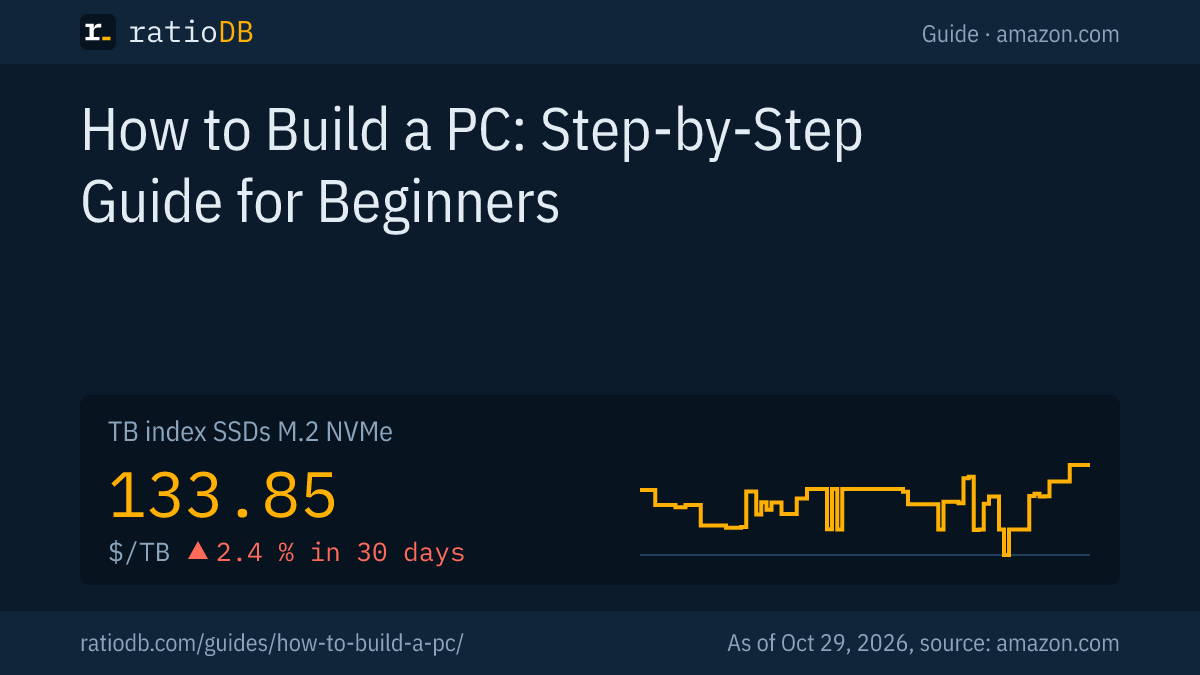
A 2TB NVMe SSD and a 32GB DDR5 kit currently cost at least $708.99 together. With a 4TB hard drive for data, it is $888.98. Keep an eye on memory prices: the TB index for DDR5 desktop RAM is at $15.62 per GB, with a 30-day change of +2.1%. The guide Why RAM prices are so high explains the trend. For NVMe SSDs, the TB index is at $133.85 per TB (+1.5% in 30 days).
These questions help you choose:
- SSD: According to Microsoft, Windows 11 needs at least 64 GB, a single big game like Indiana Jones and the Great Circle 120 GB. With several big games, 2TB keeps you on the safe side. The guide Best SSD for gaming shows suitable models. All sizes are under 1TB NVMe SSD and 2TB NVMe SSD.
- Memory: 2 modules of the same size as a kit. The cheapest 32GB DDR5 kit right now is Crucial Pro 2 × 16 GB (2 × 16 GB, 6,000 MT/s CL36) for $459.99. All kits are under 32GB DDR5 RAM.
- Hard drive: Cheap bulk storage for large files. The cheapest 4TB drive from a hard drive maker right now is WD Blue 4 TB for $179.99. More choice under internal 3.5" hard drives.
What do you do at first boot?
Check in the UEFI that the processor, memory and SSD are detected. Then turn on the memory profile: XMP on Intel, EXPO on AMD. Without a profile, memory runs at standard speed. Intel notes that higher clocks can affect the warranty and reduce stability.
After the first power-on, open the UEFI with the key your motherboard manual names. There you can see whether the CPU, the full amount of memory and the SSD show up. According to Intel, XMP lets you overclock compatible DDR4 and DDR5 modules. Intel also writes that altering clock frequency or voltage may void product warranties and reduce stability and lifespan. How to turn the profile on and how EXPO differs from XMP is covered in the guide How to enable XMP and EXPO, what the timings mean in the guide DDR5 timings.
What if the PC does not start?
ASUS motherboards with Q-LED show the problem with 4 lights: CPU, DRAM, VGA and BOOT. According to ASUS, a DRAM light that stays on means the memory is not seated properly or is faulty. With BOOT, the board finds no boot drive, so check cables and the M.2 screw.
What ASUS recommends for each light:
| Light | Meaning per ASUS | What to check |
|---|---|---|
| CPU | no processor or faulty processor | reseat the CPU, check the socket for bent pins |
| DRAM | no memory or faulty memory | seat modules firmly, boot with 1 module, use modules from the QVL |
| VGA | no graphics card or faulty card | reseat the graphics card, clean the contacts |
| BOOT | no boot drive or faulty drive | check SATA cables, reseat the M.2 SSD and check its screw |
If that doesn't help, ASUS recommends clearing the CMOS (resetting the saved UEFI settings) and updating the UEFI via USB BIOS FlashBack if your board supports it. Whether your motherboard needs a specific UEFI version for your processor is on the supported CPU list on the motherboard maker's site.
How do you install Windows 11 and drivers?
For Windows 11, Microsoft lists among other things 4 GB of RAM, 64 GB of storage, UEFI with Secure Boot and TPM 2.0. For the installation drive, Microsoft says you need a blank USB flash drive with at least 8 GB, and any content on it is deleted.
Microsoft's minimum requirements for Windows 11:
| Part | Minimum per Microsoft |
|---|---|
| Processor | 1 GHz or faster, 2 or more cores, compatible 64-bit processor |
| Memory | 4 GB |
| Storage | 64 GB or larger |
| Firmware | UEFI, Secure Boot capable |
| TPM | Trusted Platform Module 2.0 |
| Graphics | DirectX 12 or later with WDDM 2.0 driver |
Create the drive with Microsoft's tool, boot the PC from it and pick the new SSD as the target. After installation, download drivers for the motherboard and graphics card from the manufacturers' sites. The full process, including a clean install on a new SSD, is in the guide How to reinstall Windows 11. Suitable USB drives are in the guide Best USB flash drive.
How does ratioDB compare storage prices for your PC?
ratioDB regularly pulls amazon.com prices for SSDs, memory and hard drives and converts them to price per TB or per GB, with 1 TB equal to 1,000,000,000,000 bytes. The TB index is the median of the 10 cheapest new offers in a product type.
The tables in this guide show only new offers from known manufacturers. RAM kits count with their total capacity, speed and CL come from the listing title. Used and refurbished offers are labeled and never count toward the index. ratioDB does not build or test PCs itself. All rules are on the methodology page, all SSDs under SSD prices per TB and all memory under RAM prices per GB.
Frequently asked questions about building a PC
Is it hard to build your own PC?
With the motherboard manual and some patience, it works the first time too. Memory and CPU only fit one way thanks to a notch and a marking. What matters is the right socket, the matching RAM generation and working with the power disconnected.
What should I buy first?
Start with the processor and motherboard, because they set the socket and RAM generation. Then pick memory, SSD, power supply, case and cooler to match.
Which slots do I use for 2 RAM modules?
Your motherboard manual names the slots. For 2 modules, ASUS names DIMM_A2 and DIMM_B2.
Do I need thermal paste?
Yes, thermal paste goes between the CPU and the cooler. Some coolers come with it pre-applied, then follow the cooler's instructions. Otherwise apply it as instructed: for AM5 and LGA1700, Noctua recommends 4 small dots plus 1 larger dot in the center.
Do I need to turn on XMP or EXPO?
Without a profile, memory runs at standard speed. With XMP or EXPO, it runs at the higher speed from the module's profile. Intel notes that higher clocks can affect warranty and stability.
How much does storage for a new PC cost?
A 2TB NVMe SSD and 32GB of DDR5 RAM currently cost at least $708.99 together on amazon.com (as of Oct 29, 2026 at 1:17 PM UTC). Current individual prices are in the table above.
What do I do if the PC does not start after the build?
Watch the CPU, DRAM, VGA and BOOT lights on the motherboard. According to ASUS, the light that stays on points to the problem part. Reseat it, boot with 1 memory module and clear the CMOS if needed.
Sources
- AMD: Ryzen 7 9800X3D specifications
- ASUS: How to install memory on the motherboard, Troubleshooting with Q-LED indicators
- Supermicro: Static-sensitive devices, X14SBM manual
- Noctua: How to apply NT-H1 and NT-H2 thermal paste
- Intel: Intel Extreme Memory Profile (XMP)
- Steam: Indiana Jones and the Great Circle, system requirements
- Microsoft: Windows 11 specifications, Create installation media for Windows
- ratioDB: amazon.com prices, methodology