How to install an SSD: M.2 and 2.5" step by step
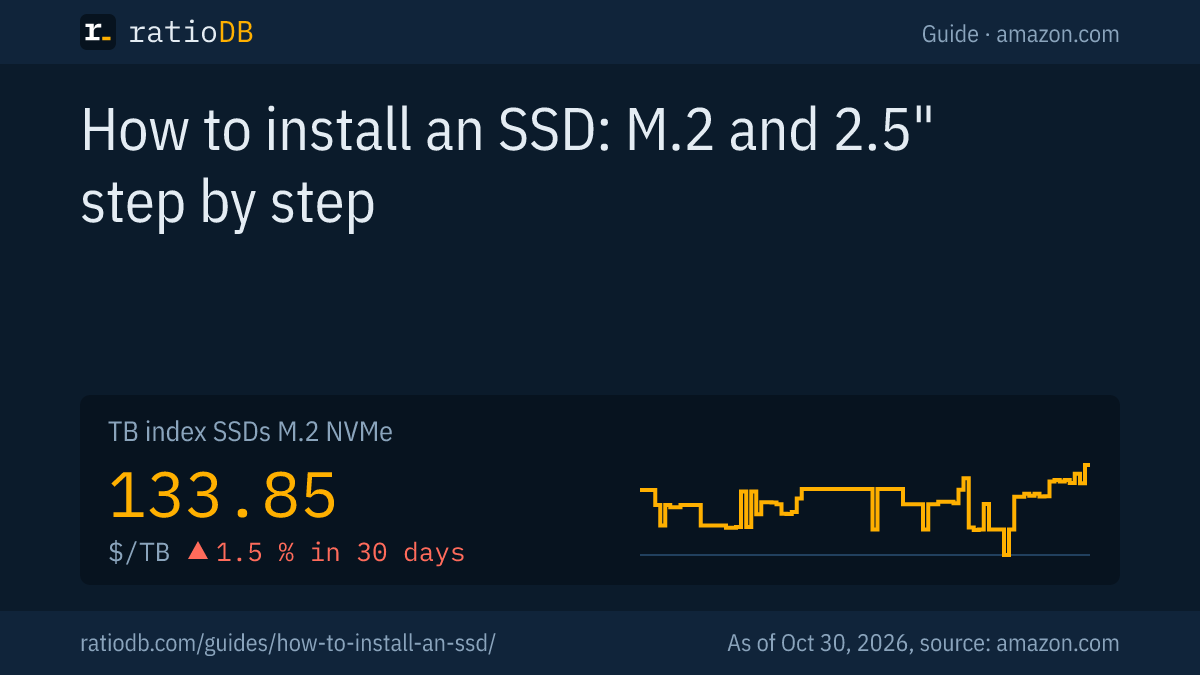
Installing an SSD takes 4 steps: back up your data, power down and ground yourself, seat the SSD in the M.2 slot or the 2.5" bay, then clone your old drive or install Windows fresh. Kingston, Crucial and Samsung describe the process in similar terms in their install guides. On amazon.com, M.2 NVMe SSDs currently cost $133.85 per TB according to the TB index (as of Oct 30, 2026 at 1:17 AM UTC).
This guide walks through installing an M.2 SSD and a 2.5" SATA SSD in a desktop and a laptop, cloning your old drive, a clean Windows install and the BIOS settings. ratioDB does not test SSDs itself. The steps come from manufacturer guides, the prices live from the ratioDB database.
Which SSD fits my desktop or laptop?
An M.2 SSD fits if your motherboard has an M.2 slot, otherwise a 2.5" SATA SSD goes into a drive bay. Samsung's M.2 SSDs use the 2280 form factor, 22 mm wide and 80 mm long. Your device's manual lists which slots it has.
Before you buy, check 3 things in the manual of your PC, motherboard or laptop:
- Slot: M.2 or only a 2.5" bay with a SATA connector.
- M.2 interface: NVMe (PCIe) or SATA. Samsung explains that "B-Key" slots support up to 2 PCIe lanes and "M-Key" slots up to 4, and its NVMe SSDs "cannot be inserted into the M.2 slot with B-Key."
- Length: 2280 is the format of Samsung's NVMe SSDs. Some laptops and handhelds need shorter formats, and the manual states the length.
Samsung also notes that its NVMe SSDs are not compatible with PCIe x1 slots and recommends the native M.2 slot (Samsung, internal SSD installation FAQ). How NVMe and SATA differ in daily use is covered in the guide NVMe vs SATA. Which models are worth buying is in the guide best SSD.
What do I need to install an SSD?
To install an SSD you need a screwdriver, your device's manual, the new SSD and a current backup of your data. For M.2 you often need a small screw from the motherboard, and for a 2.5" drive in a desktop a SATA cable and possibly a 3.5" adapter bracket.
The list in detail:
| Item | M.2 SSD | 2.5" SATA SSD |
|---|---|---|
| Tool | Phillips screwdriver | Phillips screwdriver |
| Mounting | screw or latch on the motherboard | screws, sled or bracket |
| Cables | none | SATA data cable and SATA power plug (desktop) |
| For cloning | second M.2 slot or USB enclosure | SATA-to-USB cable |
| For a clean install | USB flash drive with at least 8 GB | USB flash drive with at least 8 GB |
Samsung states that its NVMe M.2 SSDs "do not come with screws," and motherboards typically include standard screws and spacers. Crucial mentions a 2.5" to 3.5" converter for desktop bays that are much larger than the SSD. For a clean install, Microsoft requires "a blank USB flash drive with at least 8 GB of space", and the guide best USB flash drive shows suitable models.
How do I install an M.2 SSD?
To install an M.2 SSD, shut down the PC, unplug the power cable, ground yourself on unpainted metal, hold the SSD by its sides, insert it into the M.2 slot at a 30-degree angle and secure it with the screw. That is how Kingston describes it.
The steps for a desktop PC according to Kingston:
- Back up: copy important files to external storage, a USB flash drive or the cloud first.
- Power down: shut the computer down completely and remove the power cable.
- Open: open the case following the owner's manual.
- Ground yourself: touch an unpainted metal surface to discharge static electricity.
- Find the slot: the M.2 slot is on the motherboard, and the manual shows its position.
- Hold the SSD: by the sides only, never by the gold connector pins.
- Insert: align the SSD and insert it at a 30-degree angle. According to Kingston it should connect without forcing.
- Secure: screw the SSD to the mount if needed. Kingston warns not to overtighten, or you risk damaging the SSD.
- Close up: reassemble the computer and turn it on.
Source: Kingston, How to Install an M.2 SSD. If your motherboard has a heat spreader over the M.2 slot, put it back after installing the drive.
How do I install an SSD in a laptop?
In a laptop, shut it down, remove the charger and, if possible, the battery, hold the power button for 5 seconds, open the bottom panel as the manual describes and swap the SSD. Kingston and Crucial list these steps for M.2 and 2.5" SSDs.
The steps at a glance:
- Cut the power: shut the laptop down, unplug the charger and remove the battery if it is removable.
- Drain residual power: hold the power button for 5 seconds, as Kingston and Crucial recommend.
- Open: the slot is usually under the bottom panel, sometimes under the keyboard. The manual shows where.
- Remove the old drive: take out the screw, pull the drive out at an angle, and for 2.5" drives remove brackets and frames.
- Insert the new SSD: M.2 at a 30-degree angle, 2.5" with the old drive's brackets. Crucial includes a spacer for drives that sit too loose.
- Close up: screw the panel back on, reinsert the battery and power on.
Sources: Kingston, How to Install an M.2 SSD, Crucial, 2.5" SSD install guide. Check the manual first to see whether your laptop's SSD is soldered on. In that case it cannot be replaced.
How do I install a 2.5" SATA SSD in a desktop?
To install a 2.5" SATA SSD, screw it into a drive bay or an adapter bracket, connect it to the motherboard with a SATA data cable and plug in a SATA power connector from the power supply. Kingston lists these steps in its install guide.
- Prepare: shut down the PC, unplug the power cable, open the case and ground yourself on unpainted metal.
- Mount: screw the SSD into a 2.5" bay or, with a bracket, into a 3.5" bay.
- Data cable: connect 1 end of the SATA data cable to a SATA port on the motherboard and the other end to the SSD. Kingston notes that SATA connectors are keyed so they only fit 1 way.
- Power: plug a SATA power connector from the power supply into the SSD.
- Close up and power on: reassemble the case and start the PC.
Source: Kingston, SSDNow Installation Guide. If the cloning software does not see the second drive, Kingston advises checking the cables and enabling spare SATA ports in the BIOS.
On amazon.com, 2.5" SATA SSDs currently cost $123.73 per TB in the TB index, M.2 NVMe SSDs $133.85. All models are listed under 2.5" SATA SSDs and M.2 SATA SSDs.
Should I clone my drive or do a clean install?
Cloning copies your entire system including programs to the new SSD, so you keep working as before. A clean install starts with a fresh Windows without leftovers but takes time to set up programs and settings. For a laptop drive swap, cloning is usually the faster route.
The 2 options compared:
| Feature | Clone | Clean install |
|---|---|---|
| Programs and settings | kept | set up again |
| Time | usually 1 run | several hours with programs |
| Leftovers | copied over | gone |
| Requirement | used data fits on the new SSD | USB flash drive with at least 8 GB |
| Tool | SSD maker's cloning software | Microsoft Media Creation Tool |
Kingston and Crucial describe cloning with Acronis software: choose "Clone Disk," pick the "Automatic" mode, set the old drive as source and the new SSD as destination. Crucial connects the new 2.5" SSD with a SATA-to-USB cable beforehand. Samsung recommends its own Data Migration or Magician software and notes that "the source disk must be smaller than the target disk," so you may need to move movies, music and photos first (Samsung FAQ).
For a clean install, you create an installation drive with Microsoft's Media Creation Tool. Microsoft lists a PC with a reliable internet connection and a blank USB flash drive with at least 8 GB. A product key is not needed for digital licenses, according to Microsoft (Microsoft, create installation media).
What do I need to change in the BIOS after installing?
After installing, set the boot order in the BIOS so that the new SSD starts first. For a fresh install on a SATA SSD, Samsung recommends switching the SATA mode from IDE to AHCI before installing the operating system. You open the BIOS at startup with a key such as Delete, F1, F12 or Esc.
The key settings:
- Open the BIOS: Kingston names keys such as ESC, F1, F12 or DELETE that you press repeatedly during startup. Your manual lists the right key.
- Boot order: after cloning, move the new SSD to the first position of the "Hard Drive Boot Priority," as Kingston describes. For a clean install, boot from the USB drive first.
- AHCI: Samsung states: "The best way to enable AHCI is to go to BIOS, activate AHCI mode, and then install the operating system."
- SATA ports: if ports are disabled in the BIOS, the PC will not see the SSD. Kingston recommends enabling all SATA ports.
On modern PCs the BIOS is usually called UEFI, a newer form of motherboard firmware. Kingston points out that Windows 7 does not support NVMe drives natively.
Why doesn't my new SSD show up in Windows?
A new, empty SSD only appears in File Explorer after it has been initialized and formatted in Disk Management. Microsoft describes it like this: right-click Start, choose Disk Management, right-click the disk, select "Initialize Disk," then create a new simple volume.
The steps according to Microsoft:
- Open: right-click the Start button and select Disk Management, or press Windows + R and enter diskmgmt.msc.
- Initialize: right-click the new SSD and select "Initialize Disk."
- Partition style: "Use GPT if you have a modern system with UEFI firmware," and MBR only for older hardware without UEFI, as Microsoft advises.
- Create a volume: right-click the unallocated space, choose "New Simple Volume," pick a drive letter and format.
Source: Microsoft, Disk Management in Windows. After cloning you can skip this step because the SSD already has partitions. Samsung also explains why Windows shows less capacity: manufacturers count 1 GB as 1,000 MB, while the operating system counts 1,024.
What are the most common SSD installation mistakes?
The most common SSD installation mistakes are an SSD for the wrong slot, a missing screw, an overtightened screw, cloning to an SSD that is too small and an empty SSD that was never initialized in Windows. Manufacturer guidance helps you avoid all of them.
| Mistake | Result | Fix per manufacturer |
|---|---|---|
| NVMe SSD in a B-Key slot | SSD does not fit | Samsung: use an M-Key slot |
| NVMe SSD in a PCIe x1 slot | not compatible | Samsung: install it directly in the M.2 slot |
| No screw at hand | SSD sits loose | Samsung: screws usually come with the motherboard |
| Screw too tight | SSD can be damaged | Kingston: do not overtighten |
| Clone fails | data does not fit | Samsung: source must be smaller than target, move media first |
| SSD missing in File Explorer | no partition | Microsoft: initialize it in Disk Management |
| PC boots from the old drive | new SSD unused | Kingston: change the boot order in the BIOS |
| Second drive invisible | cloning tool finds no target | Kingston: check cables, enable SATA ports in the BIOS |
Another point confuses many people: Windows shows less space than the box says. Samsung explains this with IDEMA standards (IDEMA is a hard drive industry association): manufacturers count 1 GB as 1,000 MB, while the operating system counts 1,024 MB. A 1 TB SSD therefore shows up in Windows as about 931 GB. That is not a defect.
Static electricity is another risk. Kingston and Crucial both advise touching an unpainted metal surface before handling the SSD and holding it only by its sides.
How much does an SSD to install cost right now?
The cheapest 1 TB M.2 NVMe SSD from a known brand on amazon.com currently costs $146.99 (Adata Legend 710 1 TB). At 2 TB it is $249.00, or $124.50 per TB. The TB index for M.2 NVMe SSDs is $133.85, +1.5% over 30 days. As of Oct 30, 2026 at 1:17 AM UTC.
Cheapest new SSD per capacity, known brands on amazon.com, as of Oct 30, 2026 at 1:17 AM UTC
| Capacity | Cheapest M.2 NVMe SSD | Cheapest 2.5" SATA SSD |
|---|---|---|
| 500 GB | Patriot P320 512 GB: $84.99 | Patriot Burst Elite 480 GB: $64.99 |
| 1 TB | Adata Legend 710 1 TB: $146.99 | SP Silicon Power A55 Boost 1 TB: $119.67 |
| 2 TB | Crucial E100 2 TB: $249.00 | SP Silicon Power A55 Boost 7mm 2 TB: $229.97 |
| 4 TB | Crucial P3 Plus 4 TB: $669.77 | Samsung 870 EVO 4 TB: $1,249.90 |
Per TB, 2.5" SATA SSDs are currently cheaper than M.2 NVMe SSDs in the index, and NVMe costs 8.2% more. For older PCs without M.2, SATA is the only option anyway. All offers of 1 size are on the pages 1TB NVMe SSD and 2TB NVMe SSD. Why SSDs have become more expensive since fall 2025 is explained in the guide SSD prices, and the trend is on the SSD price history chart.
What should I do with my old drive?
Your old hard drive or SSD can stay in the PC as a second drive, go into a USB enclosure as external storage or serve as a backup. Before you sell or recycle it, wipe the data securely.
The options:
- Second drive: in a desktop PC as storage for photos and games. For large amounts of data a hard drive is still cheaper per TB, as the guide SSD vs HDD shows.
- External drive: a USB enclosure turns the old SSD into external storage. Kingston has a separate guide on this.
- Backup: as 1 of the copies under the 3-2-1 rule (see 3-2-1 backup rule).
How long an SSD lasts and what TBW means is covered in the guide SSD lifespan.
How does ratioDB compare SSDs?
ratioDB regularly collects amazon.com prices for all listed SSDs and converts them to price per TB, with 1 TB equal to 1,000,000,000,000 bytes. The TB index is the median of the 10 cheapest new offers per SSD type.
The installation steps come from the linked Kingston, Crucial, Samsung and Microsoft guides, as of October 24, 2026. We do not run our own measurements. The table above only shows single drives from known brands. All rules are on the methodology page, and all NVMe SSDs are listed under M.2 NVMe SSDs.
SSD installation FAQ
Can I install an SSD myself?
Yes. Kingston says you need a screwdriver and your device's manual. The key points are cutting the power, grounding yourself on unpainted metal and holding the SSD only by its sides. Laptops with a soldered SSD cannot be upgraded.
At what angle do I insert an M.2 SSD?
Kingston specifies a 30-degree angle. The SSD should slide into the slot without force. Then secure it with the screw if needed, without overtightening.
Do I have to reinstall Windows after installing an SSD?
No, you can clone your system instead. Kingston and Crucial describe cloning with Acronis, Samsung with its own software. A clean install needs a USB flash drive with at least 8 GB and Microsoft's Media Creation Tool.
Why doesn't Windows detect my new SSD?
An empty SSD has to be initialized and formatted in Disk Management first. Microsoft recommends GPT for modern systems with UEFI. If the BIOS does not see the SSD either, check the cable and slot and, as Kingston advises, enable spare SATA ports in the BIOS.
Do M.2 SSDs come with screws?
Samsung's do not: Samsung states that its NVMe M.2 SSDs do not come with screws. Motherboards typically include standard screws and spacers, so check the motherboard box before you start.
How much does a 1 TB SSD cost to install?
The cheapest 1 TB M.2 NVMe SSD from a known brand on amazon.com currently costs $146.99, the cheapest 2.5" SATA SSD $119.67 (as of Oct 30, 2026 at 1:17 AM UTC).
Sources
- Kingston: How to Install an M.2 SSD, SSDNow Installation Guide
- Crucial: 2.5" SSD install guide
- Samsung: Internal SSD installation FAQ
- Microsoft: Disk Management in Windows, Create installation media for Windows
- ratioDB: amazon.com prices, methodology