How to Turn Off BitLocker in Windows 11 and 10
BitLocker is the drive encryption built into Microsoft Windows. You turn it off in Control Panel under BitLocker Drive Encryption with "Turn off BitLocker" or with the command manage-bde -off. Windows then decrypts the drive, which Dell says takes 20 minutes to several hours. Make sure you know your recovery key first.
This guide explains what BitLocker and device encryption are, how to check whether your drive is encrypted, how to turn BitLocker off or just suspend it, where to find the recovery key and when turning it off makes sense, for example before swapping your SSD. The facts come from Microsoft's support pages, the Microsoft Learn command reference and Dell's support guide. ratioDB does not test drives, we compare prices. Live SSD prices are further down (as of Oct 30, 2026 at 9:17 AM UTC).
What is BitLocker?
BitLocker is a Windows feature that encrypts entire drives. Without signing in or the recovery key, nobody can read the data, even if the SSD is pulled out of the computer. According to Microsoft, full BitLocker Drive Encryption is available in Windows Pro, Enterprise and Education.
Besides full BitLocker Drive Encryption, there is device encryption. According to Microsoft, it turns on BitLocker automatically for the operating system drive and fixed drives and is available on a wider range of devices, including Windows Home. If you sign in with a Microsoft account or a work or school account during setup, Microsoft says device encryption is turned on at first sign-in and a recovery key is attached to that account. With a local account, it is not turned on automatically.
| Feature | Device encryption | BitLocker Drive Encryption |
|---|---|---|
| Windows edition according to Microsoft | includes Windows Home | Pro, Enterprise, Education |
| Turned on | usually automatic with a Microsoft account | manually or by IT |
| Settings | Settings, Device encryption | Control Panel, BitLocker Drive Encryption |
| Recovery key | in the Microsoft account | depends on the choice made when turning it on |
How do I check if BitLocker is on?
The quickest way is the command manage-bde -status in a Command Prompt with administrator rights. It shows for each drive whether it is encrypted. In Control Panel, the BitLocker Drive Encryption page shows the status. For device encryption, check Settings.
How to do it:
- Command Prompt: open Command Prompt as administrator and type manage-bde -status. Dell lists this command in its guide.
- Control Panel: open "BitLocker Drive Encryption" in Control Panel. It shows whether BitLocker is on for each drive.
- Device encryption: according to Microsoft, Settings has a "Device encryption" entry with a toggle under Privacy & security.
If the Device encryption entry is missing, Microsoft says your device may not support it, or you may be signed in with a standard account without administrator rights. Menu names can differ slightly between Windows versions.
How do I turn off BitLocker?
Open "BitLocker Drive Encryption" in Control Panel, click "Turn off BitLocker" next to the drive and confirm. Windows then decrypts the drive in the background. According to Dell, this takes 20 minutes to several hours, depending on drive size and computer speed.
The steps according to Dell's guide:
- Start Windows and sign in with an administrator account.
- Open BitLocker management: select "BitLocker Drive Encryption" in Control Panel.
- Turn off BitLocker: click "Turn off BitLocker" for the drive.
- Confirm: confirm the prompt.
- Wait: let the computer finish decrypting. Dell says not to force a shutdown during decryption. Sleep or shutdown interrupts the process, and it resumes where it left off.
On Windows Home with device encryption, there is no Control Panel page. There you use the same toggle Microsoft describes for turning it on, under Privacy & security, Device encryption in Settings, and switch it to Off.
How do I turn off BitLocker with manage-bde?
With the command manage-bde -off followed by the drive letter, for example manage-bde -off C: for the system drive. According to Microsoft Learn, the command decrypts the drive and turns off BitLocker. All key protectors are removed when decryption is complete.
How to do it:
- Open Command Prompt as administrator.
- Type the command: manage-bde -off C: for drive C. Change the letter for another drive.
- Check progress: manage-bde -status shows how far decryption has come.
Where do I find my BitLocker recovery key?
Usually in your Microsoft account. According to Microsoft, go to aka.ms/myrecoverykey on another device and sign in. The key is a 48-digit number. It can also be on a printout, on a USB flash drive, in a work or school account or with your IT department.
The possible places according to Microsoft:
| Place | How to find it |
|---|---|
| Microsoft account | https://account.microsoft.com/devices/recoverykey (short link aka.ms/myrecoverykey) |
| Work or school account | https://aka.ms/aadrecoverykey, then Devices, the device and View BitLocker Keys |
| Printout | printed when BitLocker was turned on |
| USB flash drive | plug in the drive or open the text file on another device |
| Company device | ask your IT department |
Important: according to Microsoft, Microsoft Support cannot retrieve, provide or recreate a lost BitLocker recovery key. If the startup screen shows a key ID, match the first 8 digits with the ID in your account. Check that you can find the key before you turn anything off. Without it, you may lose access to your data after a problem.
When should I turn off or suspend BitLocker?
Turning it off makes sense if you want to use the drive without encryption for good, for example for some hardware changes or a change of operating system. Before a BIOS update, Dell says suspending is enough. Suspending does not decrypt anything, it only pauses protection.
Common situations at a glance:
| Situation | Suggestion |
|---|---|
| BIOS or UEFI update | suspend BitLocker first, always according to Dell |
| Cloning or swapping the SSD | keep the recovery key ready, decrypt first if problems come up |
| Moving the drive to another PC | keep the recovery key ready or decrypt first |
| Second operating system (dual boot) | keep the recovery key ready |
| Selling the device | securely erase the drive, see the guide below |
| No encryption for good | turn off BitLocker |
Dell is clear about this: if BitLocker is active during a BIOS update, the keys stored in the TPM are lost and Windows asks for the recovery key on the next start. According to Dell, a suspended BitLocker stays suspended across reboots until you click "Resume protection". The guide BIOS update explains how to update the BIOS safely.
The guides clone a drive and install an SSD cover what to watch out for when cloning or installing a new SSD. If you plan to set up Windows from scratch anyway, see reinstall Windows 11.
How do I just suspend BitLocker?
In Control Panel under BitLocker Drive Encryption, click "Suspend protection" next to the drive. The data stays encrypted, but Windows does not ask for a key at startup. According to Dell, protection stays suspended until you choose "Resume protection".
Suspending is the quicker route before a BIOS or firmware update, because it does not decrypt anything. Remember to resume protection afterwards. While it is suspended, the data on the drive is not protected.
Does BitLocker slow down an SSD?
BitLocker encrypts either with the processor (software) or with the SSD's own encryption (hardware). Since the Windows update KB4516071 from September 2019, BitLocker uses software encryption by default for new encryptions on self-encrypting drives. ratioDB has not measured how much this slows an SSD in everyday use.
Background: according to Tom's Hardware, the KB4516071 notes said BitLocker now defaults to software encryption when encrypting a self-encrypting drive. Drives that are already encrypted keep their type. The change followed security flaws in the hardware encryption of some SSDs that researchers published in November 2018. To see how fast an SSD really is, use a tool like CrystalDiskMark. The guide SSD speed test explains how to run it and read the results.
How much does a new SSD cost right now?
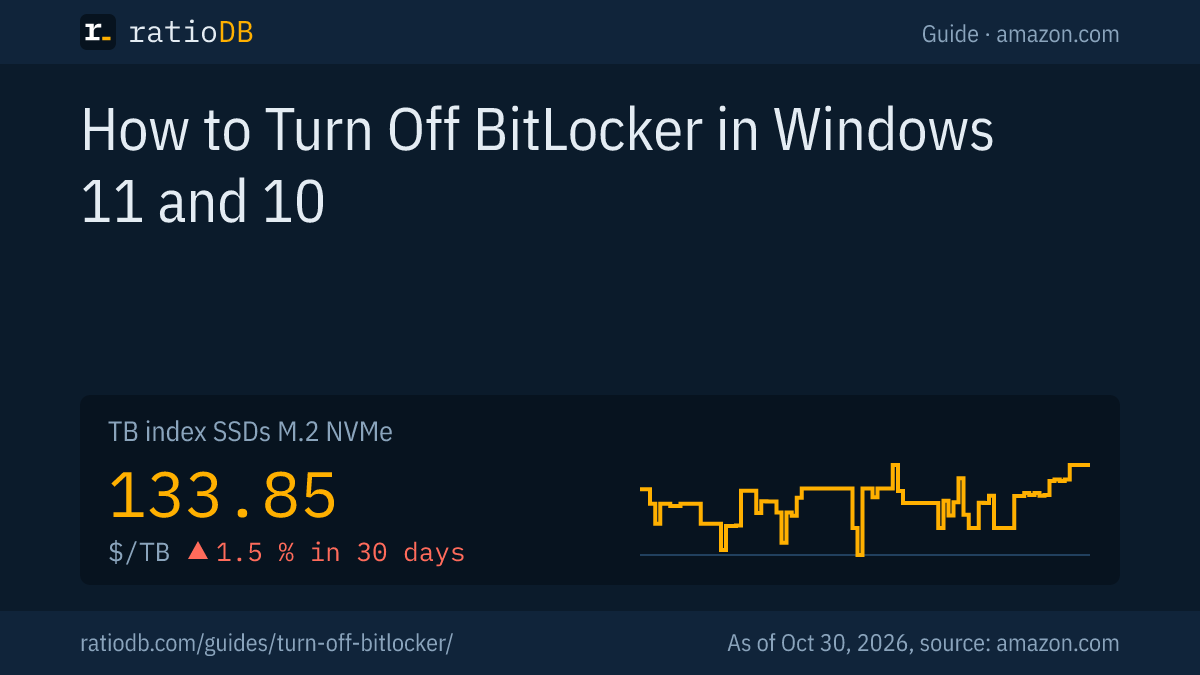
If an SSD swap is coming up, the cheapest 1TB NVMe SSD from a well-known brand costs $146.99 on amazon.com right now (Adata Legend 710 1 TB). The TB index for NVMe SSDs is $133.85 per TB (as of Oct 30, 2026 at 9:17 AM UTC).
Cheapest new NVMe SSD per size on amazon.com (well-known brands), as of Oct 30, 2026 at 9:17 AM UTC
| Capacity | Cheapest NVMe SSD | Price | Price per TB |
|---|---|---|---|
| 1 TB | Adata Legend 710 1 TB | $146.99 | $146.99 |
| 2 TB | Crucial E100 2 TB | $249.99 | $125.00 |
| 4 TB | Crucial P3 Plus 4 TB | $669.77 | $167.44 |
You can find all models under NVMe SSD prices per TB. For a USB flash drive to store your recovery key on, see USB flash drive prices per GB.
What happens to my data when I turn off BitLocker?
Nothing is lost. When you turn it off, Windows decrypts the drive, and all files stay where they are, just no longer encrypted. Anyone with access to the SSD can then read them. If you plan to pass a drive on, turning off BitLocker is not enough, erase it securely.
The guide wipe a drive explains how to securely erase an SSD or hard drive before selling it. For formatting and splitting a drive, see format a drive and partition a drive.
How does ratioDB compare SSDs?
ratioDB checks amazon.com prices for all listed SSDs and hard drives regularly and converts them to price per TB, with 1TB equal to 1,000,000,000,000 bytes. The TB index is the median of the 10 cheapest new offers in a form factor.
The table in this guide shows the cheapest new NVMe SSD from well-known brands for each size, single drives only. Used and refurbished offers are labeled and never count toward the index. ratioDB does not test drives or measure speeds. All rules are on the methodology page, and all SSDs are under SSD prices per TB.
Frequently asked questions about BitLocker
How do I turn off BitLocker in Windows 11?
In Control Panel under BitLocker Drive Encryption, click "Turn off BitLocker" next to the drive and confirm, or type manage-bde -off C: in Command Prompt as administrator. On Windows Home with device encryption, switch it off in Settings under Privacy & security.
How long does decryption take?
According to Dell, 20 minutes to several hours, depending on drive size and computer speed. After a restart, decryption picks up where it left off.
Will I lose data if I turn off BitLocker?
No. Windows decrypts the drive and all files stay in place. They are just no longer encrypted.
Where is my BitLocker recovery key?
Usually in your Microsoft account at aka.ms/myrecoverykey. According to Microsoft, it can also be on a printout, a USB flash drive, in a work or school account or with your IT department. It is a 48-digit number.
Does Windows 11 Home have BitLocker?
According to Microsoft, Windows Home has device encryption, which uses BitLocker automatically for the system drive. Full BitLocker Drive Encryption comes with Pro, Enterprise and Education.
Do I have to turn off BitLocker before a BIOS update?
Suspending is enough. According to Dell, you should suspend BitLocker before every BIOS update, otherwise Windows asks for the recovery key afterwards. Suspending does not decrypt anything.
What is the difference between suspending and turning off?
Suspending pauses protection, the data stays encrypted and Windows starts without asking for a key. Turning off decrypts the whole drive and takes much longer.
Sources
- Microsoft: Device encryption in Windows, Find your BitLocker recovery key, manage-bde off, Microsoft Learn
- Dell: How to enable or disable BitLocker with TPM in Windows
- Tom's Hardware: Microsoft stops trusting SSD makers, 2019
- ratioDB: amazon.com prices, methodology