BIOS Update: How to Update Your Motherboard Safely
A BIOS update replaces your motherboard's firmware with a newer version from the manufacturer. According to AMD, you may need one when a motherboard does not yet support a newer Ryzen processor. ASUS, MSI and Gigabyte build their own update tools into the BIOS, and these tools read the new file from a USB drive formatted as FAT32.
This guide shows how to find your BIOS version, what to prepare before updating, how the update works with the tools from ASUS, MSI, Gigabyte and ASRock, how some boards update even without a processor, and what to keep in mind on Dell and Lenovo laptops. The information comes from the manufacturers' instructions, from AMD and from Microsoft. ratioDB does not test motherboards itself; we compare prices for storage and memory. Live prices from amazon.com are further down (as of Oct 30, 2026 at 9:17 AM UTC).
What is a BIOS and what is UEFI?
The BIOS (Basic Input/Output System) is the firmware on your motherboard. It runs first when you power on, checks the hardware and then hands over to the operating system. UEFI (Unified Extensible Firmware Interface) is the modern form of this firmware. Manufacturers still mostly call it the BIOS in their instructions.
Lenovo, for example, calls the update file a "UEFI/BIOS update package," while ASUS, MSI and Gigabyte talk about a BIOS update. In every case it is the same firmware stored on a memory chip on the motherboard. An update overwrites this chip with a new version.
The firmware also stores your settings, such as the memory profile for your RAM. How to turn that profile on is covered in the guide how to enable XMP.
When do I need a BIOS update?
Mainly when new hardware is not yet known to your current BIOS. AMD writes that a BIOS update may be needed when a motherboard does not already support a newer Ryzen processor, and that the computer may fail to boot in that case. Other reasons are listed in the manufacturer's release notes for each version.
Typical reasons to update:
- New processor: According to AMD, an older motherboard may need an update before it boots a newer Ryzen processor.
- Memory profile problems: If XMP or EXPO does not apply, an update is one troubleshooting step; see the guide how to enable XMP.
- Bug fixes and security: What each version changes is listed on your motherboard's download page next to that version. Read it before you decide.
If your PC runs stable and you need none of the changes, an update is optional. Either way, check which version you have first.
How do I check my BIOS version?
On Windows, type msinfo32 into the search box and press Enter. The System Summary shows the line BIOS Version/Date. That is how Acer describes it. Lenovo also lists the command wmic bios get smbiosbiosversion for the Command Prompt.
3 ways to read the version:
| Method | How | Source |
|---|---|---|
| System Information | Type msinfo32 into Windows search, press Enter, find BIOS Version/Date | Acer |
| Command Prompt | Open cmd, enter wmic bios get smbiosbiosversion | Lenovo |
| In the BIOS itself | Press the BIOS key at startup, the version is on the main screen | Acer, Lenovo |
Compare the version with the latest one on your motherboard's support page. You need the exact model name for that; it is printed on the board and the box, and System Information lists it under BaseBoard Product.
What should I prepare before a BIOS update?
Download the BIOS file for your exact model, back up important data and prepare a USB drive formatted as FAT32. If BitLocker is on, suspend it first. Microsoft writes that otherwise Windows asks for the recovery key at every restart after the firmware update.
Preparation at a glance:
- Correct file: ASUS stresses that the file must match your exact model. A file for a similar sounding board is the wrong one.
- Back up data: ASUS recommends backing up all drive data before updating. Tips are in the guide 3-2-1 backup.
- Format the USB drive: ASUS requires FAT16 or FAT32 and recommends at least 1 GB, MSI lists FAT32, Gigabyte FAT32, FAT16 or FAT12. Formatting erases everything on the drive. The guide how to format a USB drive explains how.
- File in the root folder: MSI advises against putting the file in a subfolder so the BIOS can find it.
- Suspend BitLocker: Microsoft names manufacturer firmware updates explicitly as a case where you suspend protection first, for example in PowerShell with Suspend-BitLocker -MountPoint "C:" -RebootCount 0. With the value 0, protection stays suspended until you turn it back on with Resume-BitLocker -MountPoint "C:". More in the guide how to turn off BitLocker.
A small drive is enough for the update. The cheapest USB flash drive in our list right now is SanDisk Cruzer Blade Drive 32 GB with 32 GB for $9.98 (as of Oct 30, 2026 at 9:17 AM UTC).
Low-cost USB flash drives on amazon.com, as of Oct 30, 2026 at 9:17 AM UTC
| Capacity | Cheapest USB flash drive | Price | Price per GB |
|---|---|---|---|
| 32 GB | SanDisk Cruzer Blade Drive 32 GB | $9.98 | $0.312 |
| 64 GB | SanDisk Ultra Dual Go 64 GB | $18.40 | $0.288 |
All drives are listed under USB flash drives. What to look for when buying is covered in the guide buying a USB flash drive.
How do I update the BIOS from within the BIOS?
Copy the file to the USB drive, restart the PC and open setup with the BIOS key, usually Delete. Start the manufacturer's tool there, select the file and confirm. While the update runs, do not turn off the PC and do not unplug the USB drive.
The tools of the major motherboard makers according to their instructions:
| Maker | Tool | How to start it | USB format |
|---|---|---|---|
| ASUS | EZ Flash 3 | Delete at the ASUS logo, F7 for Advanced Mode, Tool page | FAT16 or FAT32, at least 1 GB recommended |
| MSI | M-FLASH | Press Delete repeatedly at startup, then M-FLASH | FAT32 |
| Gigabyte | Q-Flash | End during startup or F8 in BIOS setup | FAT32, FAT16 or FAT12 |
| ASRock | Instant Flash | in BIOS setup | see your motherboard manual |
The general process:
- Open the BIOS: Restart the PC and press the BIOS key; on ASUS and MSI boards that is Delete.
- Start the tool: EZ Flash 3 on ASUS, M-FLASH on MSI, Q-Flash on Gigabyte, Instant Flash on ASRock.
- Select the file: Choose the USB drive and the BIOS file.
- Confirm and wait: The update starts. MSI writes that you must not power off the PC, cut the power or remove the USB drive during this step.
- Restart: After the update the PC restarts. Use msinfo32 to check that the new version is running.
After an update many settings are back at their defaults. Turn the memory profile back on as described in the guide how to enable XMP. ASRock notes in a help article that early AM4 boards with BIOS versions from before March 7, 2017 had no Instant Flash option in the BIOS yet; on those, you had to update from DOS or Windows.
Can I update the BIOS without a CPU?
Yes, on motherboards with a BIOS Flashback button. MSI writes about its Flash BIOS Button that neither a processor nor memory has to be installed. ASUS describes USB BIOS FlashBack for boards that will not turn on or show no display. Your manual tells you whether your board has the button.
The 2 methods according to the manufacturers:
| Feature | ASUS USB BIOS FlashBack | MSI Flash BIOS Button |
|---|---|---|
| Processor needed | not stated in the instructions | no, and no memory either |
| Prepare the file | rename with the included BIOSRenamer | rename to MSI.ROM |
| USB drive | FAT16 or FAT32 with MBR, at least 1 GB | file in the root folder |
| Start | hold the button for 3 seconds, LED flashes 3 times | press the button, LED flashes |
| Done | LED turns off, about 8 minutes according to ASUS | LED turns off |
ASUS writes: if the LED flashes for 5 seconds and then stays solid, FlashBack is not working correctly. During the process, ASUS says not to remove the USB drive, unplug the power or turn on the PC, because the update will be interrupted and the system will not boot. MSI writes that the CPU_PWR1 and ATX_PWR1 power connectors must be plugged in first.
This is especially handy when you build a new PC with a processor the factory BIOS does not know yet. A step by step build walkthrough is in the guide how to build a PC.
How do I update the BIOS on a laptop?
On laptops, the manufacturer's app usually handles the update. Dell names SupportAssist and, for business PCs, Dell Command Update; Lenovo names Lenovo Vantage with System Update. Dell advises plugging in the AC adapter and charging the battery to at least 50%.
How the manufacturers describe it:
| Maker | App | Alternative | Note |
|---|---|---|---|
| Dell | SupportAssist; Dell Command Update for Latitude, OptiPlex and Precision | download by Service Tag on Dell's support site | AC adapter plugged in, battery at least 50% |
| Lenovo | Lenovo Vantage, System Update, check for updates | download on support.lenovo.com | select and install the UEFI/BIOS package |
Dell also writes: if the laptop is encrypted with BitLocker, enter the recovery key when Windows asks for it. Dell does not store these keys. Keep the key at hand before updating, or suspend BitLocker as described above.
What happens if the power fails during a BIOS update?
The motherboard may no longer boot afterward. ASUS warns not to shut down or reset the system during the update to avoid boot failure. For boards that will not turn on or show no display, ASUS describes USB BIOS FlashBack as the way out.
How to lower the risk:
- Secure power: On a desktop, do not use a power strip you might switch off by accident. On a laptop, plug in the AC adapter as Dell recommends.
- Hands off: Press no keys, leave the USB drive in and keep the PC on until the tool reports it is done.
- Know your fallback: If your board has a Flashback button, you can often repeat a failed update with it. The exact steps are in your manual.
If the PC no longer detects a hard drive or SSD after the update, see the guides hard drive not detected and SSD not detected.
Do I need new RAM after a BIOS update?
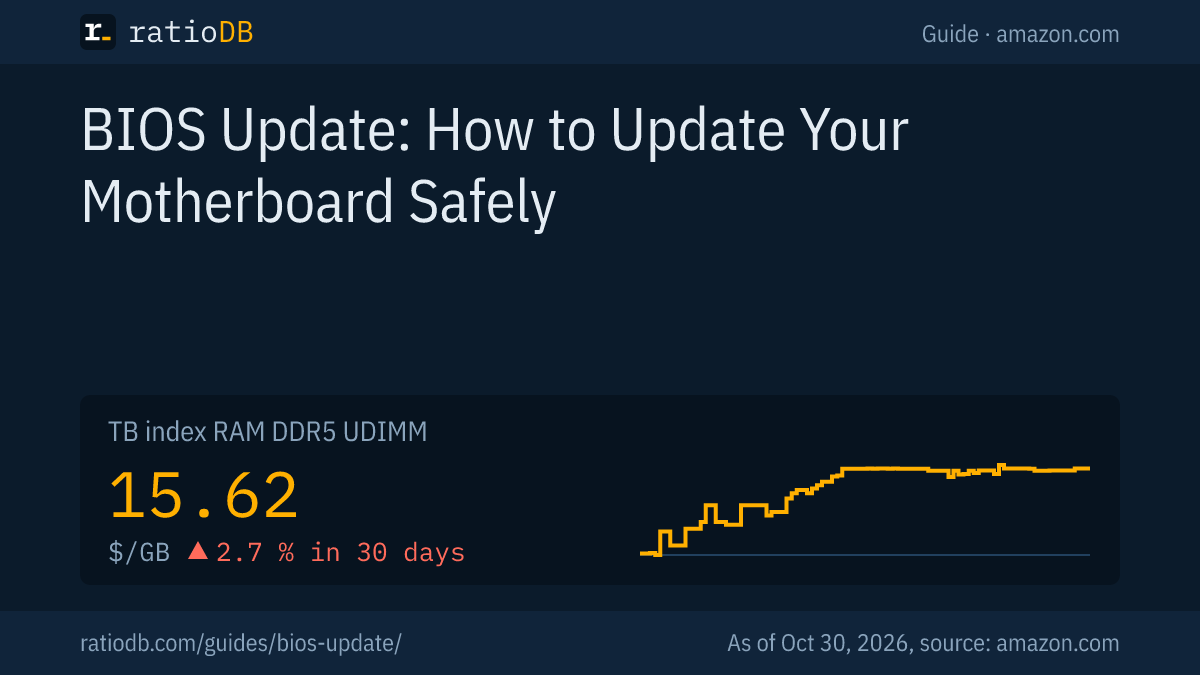
No, the update itself needs no new hardware. It is often the first step before an upgrade, though: a new processor, more memory or a faster kit with XMP or EXPO. The index for DDR5 desktop RAM on amazon.com is $15.62 per GB (as of Oct 30, 2026 at 9:17 AM UTC).
Cheapest DDR5 kits on amazon.com by size, as of Oct 30, 2026 at 9:17 AM UTC
| Capacity | Cheapest DDR5 kit | Modules | Speed per title | Price | Price per GB |
|---|---|---|---|---|---|
| 16 GB | A-Tech PC/Computer Upgrade 16 GB | 1 × 16 GB | 4,800 MT/s | $249.99 | $15.62 |
| 32 GB | Crucial Pro 2 × 16 GB | 2 × 16 GB | 6,000 MT/s | $459.99 | $14.37 |
| 64 GB | Crucial Pro 2 × 32 GB | 2 × 32 GB | 6,400 MT/s | $999.99 | $15.62 |
We read speed and size from the listing titles. For a typical gaming PC with 32 GB, the cheapest kit right now is Crucial Pro 2 × 16 GB (2 × 16 GB) for $459.99. All kits are listed under DDR5 desktop RAM, kits with 32 GB under DDR5 32 GB. How much you need is covered in the guide how much RAM do I need?.
After installing new memory, it is a good idea to check it for errors as described in the guide how to test RAM.
How does ratioDB compare RAM and USB flash drives?
ratioDB pulls the amazon.com prices of all listed products regularly and converts them to price per GB. A RAM kit of 2 modules counts with its total capacity. The index is the median of the 10 cheapest new offers in a list.
Speed and size come from the listing titles. For USB flash drives, the tables only show well-known brands. Used offers are labeled and never count toward the index. ratioDB tests neither motherboards nor memory itself. All rules are on the methodology page, all memory under RAM prices per GB.
BIOS update FAQ
Is a BIOS update dangerous?
An update overwrites the motherboard's firmware. If the power fails or the PC is turned off during it, ASUS says the system may not boot afterward. With the right file, secure power and no interruptions, the risk is low.
How long does a BIOS update take?
ASUS gives about 8 minutes for USB BIOS FlashBack and says the time depends on the file size. Always wait until the tool reports it is done or the LED turns off.
What format does the USB drive need?
FAT32 works for ASUS, MSI and Gigabyte. ASUS also accepts FAT16 and recommends at least 1 GB; Gigabyte also lists FAT12. Put the file in the root folder of the drive.
Do I have to turn off BitLocker before a BIOS update?
Microsoft recommends suspending protection before manufacturer firmware updates. Otherwise Windows asks for the recovery key at every restart. You can suspend it, for example, with Suspend-BitLocker in PowerShell.
Can I update the BIOS without a CPU?
Yes, if the motherboard has a Flashback button. MSI writes about its Flash BIOS Button that neither a processor nor memory is needed. ASUS offers USB BIOS FlashBack for boards that will not turn on.
Do I need a BIOS update for a new processor?
Sometimes. AMD writes that an update may be needed when a motherboard does not already support a newer Ryzen processor. Which processors run from which version is listed on your motherboard's support page.
Will a BIOS update delete my files?
The update affects the motherboard's firmware. ASUS still recommends backing up all data first. Formatting the USB drive erases the data on that drive.
Sources
- AMD: Article CPU-99, BIOS update for newer Ryzen processors
- ASUS: EZ Flash 3 introduction
- ASUS: How to use USB BIOS FlashBack
- MSI: BIOS update with M-FLASH
- MSI: BIOS update with the Flash BIOS Button
- Gigabyte: What is Q-Flash
- ASRock: Instant Flash on AM4 motherboards
- Microsoft: Suspend BitLocker protection for non-Microsoft updates
- Dell: How to update the BIOS
- Lenovo: Update UEFI/BIOS, user guide
- Lenovo: Check the BIOS version on Windows 10 and 11
- Acer: Find the BIOS version (German)
- ratioDB: amazon.com prices, methodology