How to Check Hard Drive Health on Windows and Mac
To check hard drive health, read the drive's hardware status first: on Windows with the PowerShell command Get-PhysicalDisk, on a Mac with the S.M.A.R.T. status in Disk Utility. Then check the file system with chkdsk on Windows or First Aid on macOS. If either step reports a problem, back up your data right away.
This guide covers the health checks built into Windows and macOS, no extra software needed, using the steps from Microsoft's and Apple's help pages. It explains what each result means, when a repair makes sense and when a drive needs replacing. At the end you will find current replacement drive prices on amazon.com (as of Oct 28, 2026 at 1:17 AM UTC).
How do I know if my hard drive is healthy?
Two checks tell you whether a hard drive is healthy: the hardware health status and a file system scan. Windows reports health through Get-PhysicalDisk, macOS through the S.M.A.R.T. status. chkdsk on Windows and First Aid on a Mac check the file system.
The two checks answer different questions:
| Check | Question | Windows | Mac |
|---|---|---|---|
| Hardware health | Is the drive itself OK? | Get-PhysicalDisk | S.M.A.R.T. status in Disk Utility |
| File system | Is the file structure intact? | chkdsk or Repair-Volume | First Aid in Disk Utility |
You need both. A file system error can come from a crash or a pulled cable on a perfectly healthy drive. A drive that is starting to fail can still have an intact file system. Checking only one gives you half the picture.
Before any repair: back up important files first. Apple is explicit for drives that are about to fail: back up your data and replace the disk, because you can't repair it (Apple Support).
What is S.M.A.R.T. and what does its status mean?
S.M.A.R.T. (Self-Monitoring, Analysis and Reporting Technology) lets hard drives and SSDs monitor their own condition. Apple describes the S.M.A.R.T. status as the disk's general working condition. Windows shows a health status for each drive.
Apple lists the S.M.A.R.T. status among the details Disk Utility shows for a drive (Apple Support). On Windows, Get-PhysicalDisk returns a HealthStatus column with the values Healthy, Warning, Unhealthy and Unknown (Microsoft Learn: Get-PhysicalDisk).
Behind the status sit individual counters, such as reallocated sectors or read errors, which dedicated tools can read in detail. For SSDs, see our SSD lifespan guide.
How do I check hard drive health on Windows?
On Windows, open PowerShell as administrator and run Get-PhysicalDisk. The HealthStatus column shows Healthy, Warning, Unhealthy or Unknown for each drive. Then scan the file system with Repair-Volume -DriveLetter C -Scan or chkdsk /scan.
Step by step:
- Open PowerShell with administrator rights.
- Query the health: run Get-PhysicalDisk. Microsoft's example output shows the columns FriendlyName, CanPool, OperationalStatus, HealthStatus, Usage and Size (Microsoft Learn: Get-PhysicalDisk).
- Read the result: Healthy means the drive reports no problems. Warning or Unhealthy means back up now.
- Scan the file system: run Repair-Volume -DriveLetter C -Scan, replacing C with the drive you want to check. According to Microsoft, -Scan checks the volume without repairing it and equals chkdsk /scan (Microsoft Learn: Repair-Volume).
- Look at Disk Management: right-click Start and select Disk Management for an overview of every drive and volume (Microsoft Support).
How do I fix file system errors with chkdsk?
Fix file system errors with chkdsk or its PowerShell twin Repair-Volume. chkdsk /scan checks while the drive stays online, chkdsk /spotfix briefly takes it offline to fix only logged problems, and chkdsk /f takes it offline to fix everything. That is how Microsoft maps them.
Microsoft lists the three Repair-Volume actions next to their chkdsk equivalents (Microsoft Learn: Repair-Volume):
| chkdsk | Repair-Volume | What happens according to Microsoft |
|---|---|---|
| chkdsk /scan | -Scan | scans without repairing; problems go into the $corrupt system file |
| chkdsk /spotfix | -SpotFix | takes the volume briefly offline and fixes only issues logged in $corrupt |
| chkdsk /f | -OfflineScanAndFix | takes the volume offline, scans it and fixes all errors found |
The order that follows from this:
- Back up while the drive is still readable.
- Run chkdsk E: /scan in an elevated Command Prompt, where E: is your drive.
- Run chkdsk E: /spotfix if the scan found errors.
- Run chkdsk E: /f only if errors remain. The drive goes offline, so close every app that uses it.
NTFS fixes many problems on its own. It keeps a transaction log and restores a consistent state at the next startup after a failure, and when it finds a bad sector it remaps the cluster to a healthy one and marks the old one unusable (Microsoft Learn: NTFS overview). Microsoft adds that chkdsk can scan and repair NTFS volumes while they stay online. exFAT and FAT32 drives have no such log; see exFAT vs NTFS for the details.
How do I check hard drive health on a Mac?
On a Mac, open Disk Utility, choose View > Show All Devices, select the drive and click Info to see the S.M.A.R.T. status. Then run First Aid on each volume, each container and finally the drive itself, in that order, as Apple recommends.
Apple's steps for the S.M.A.R.T. status (Apple Support: get detailed information):
- Open Disk Utility (Applications > Utilities).
- Choose View > Show All Devices.
- Select the drive in the sidebar and click the Info button in the toolbar.
- Read the S.M.A.R.T. status entry.
First Aid checks and repairs the file system. Apple's order: run First Aid on each volume, then each container, then the storage device itself (Apple Support: repair a storage device). Select each item in the sidebar, click First Aid and start the check.
If Disk Utility says the disk is about to fail, Apple leaves no room for doubt: back up your data and replace the disk, it can't be repaired (Apple Support).
Which commands check a drive at a glance?
The key commands are Get-PhysicalDisk for hardware health, Repair-Volume -Scan or chkdsk /scan for the file system, and chkdsk /spotfix or chkdsk /f for repairs. On a Mac, Info and First Aid in Disk Utility cover the same jobs.
| Task | Windows | Mac | Changes data? |
|---|---|---|---|
| Hardware health | Get-PhysicalDisk | Info, S.M.A.R.T. status | no |
| Scan file system only | chkdsk E: /scan or Repair-Volume -DriveLetter E -Scan | First Aid (checks and repairs) | no, First Aid repairs if needed |
| Fix logged errors | chkdsk E: /spotfix or Repair-Volume -DriveLetter E -SpotFix | First Aid | yes |
| Scan and fix everything | chkdsk E: /f or Repair-Volume -DriveLetter E -OfflineScanAndFix | First Aid on volume, container and device | yes |
The chkdsk to Repair-Volume mapping comes from Microsoft (Microsoft Learn: Repair-Volume), the First Aid order from Apple (Apple Support). All commands need administrator rights. Replace E with your drive letter.
How do I check SSD health?
Check an SSD with the same tools as a hard drive: Get-PhysicalDisk lists every physical drive in the PC with its health status, and Info in Disk Utility shows the S.M.A.R.T. status on a Mac. chkdsk and First Aid check the file system whether an SSD or a hard drive sits underneath.
Microsoft describes Get-PhysicalDisk as returning all physical disks visible to the system (Microsoft Learn: Get-PhysicalDisk). SSDs also report wear counters. How much of the rated write volume is used up, and what TBW means, is covered in SSD lifespan.
How do I check drives in a NAS or RAID?
Check NAS drives in the NAS storage manager, which shows the health and status of each bay. If a RAID reports a degraded state, at least one drive has failed or dropped out of the array. Back up first, then replace the affected drive.
In RAID 1, 5, 6 or 10, the array keeps running after one failure. After you swap the drive, the NAS rebuilds it, using parity from the remaining drives in RAID 5 and 6 (Synology DSM help). The replacement must be at least as large as the smallest drive in the array. How RAID levels work and what an array costs per usable TB is covered in RAID levels explained.
What are the signs a hard drive is failing?
Signs of a failing hard drive include a S.M.A.R.T. or health status warning, file system errors that keep coming back, very slow copying and files that suddenly will not open. Any of these means back up your data immediately.
| Sign | How to check | What to do |
|---|---|---|
| HealthStatus Warning or Unhealthy | Get-PhysicalDisk | back up now, buy a replacement |
| Mac reports the disk is about to fail | S.M.A.R.T. in Disk Utility | back up and replace, per Apple |
| Errors return after chkdsk | repeat chkdsk /scan a few days later | back up, suspect the hardware |
| Drive disappears now and then | cable, port, Disk Management | swap the cable, then check again |
How do I check an external hard drive?
Check an external hard drive with the same tools as an internal one: Get-PhysicalDisk and chkdsk on Windows, the S.M.A.R.T. status and First Aid on a Mac. If it doesn't appear at all, the cause is usually the port, the cable or a missing drive letter.
A short routine for external drives:
- Detection: does the drive appear in Disk Management or Disk Utility? If not, see external hard drive not showing up.
- Health: Get-PhysicalDisk, or Info in Disk Utility.
- File system: chkdsk E: /scan, or First Aid.
- Backup: at any warning, copy everything to a second drive.
An inexpensive external hard drive makes a fine emergency copy: at 2TB, the cheapest from a known brand on amazon.com is $127.00 (WD Elements 2 TB), at 4TB $183.89 (WD Elements 4 TB). All models are under external 2.5" hard drives.
What should I do if my hard drive reports errors?
If a hard drive reports errors, back up important data to another drive first, then check the file system, and replace the drive if its health status shows a warning. File system repairs only help when the hardware itself is healthy.
The emergency order:
- Stop saving new files until your backup is done.
- Back up what matters most first: photos, documents and password files before large media libraries.
- Check health: Get-PhysicalDisk or the S.M.A.R.T. status.
- Check the file system: chkdsk /scan or First Aid, and repair only after the backup.
- Replace: at a warning or failure in the health status, buy a new drive. To move over, copy your data or clone the drive.
If a drive can no longer be read and the data matters, a professional data recovery service is the right contact. To avoid getting there, keep every important file in two places, as our 3-2-1 backup rule guide explains.
How much does a replacement hard drive cost?
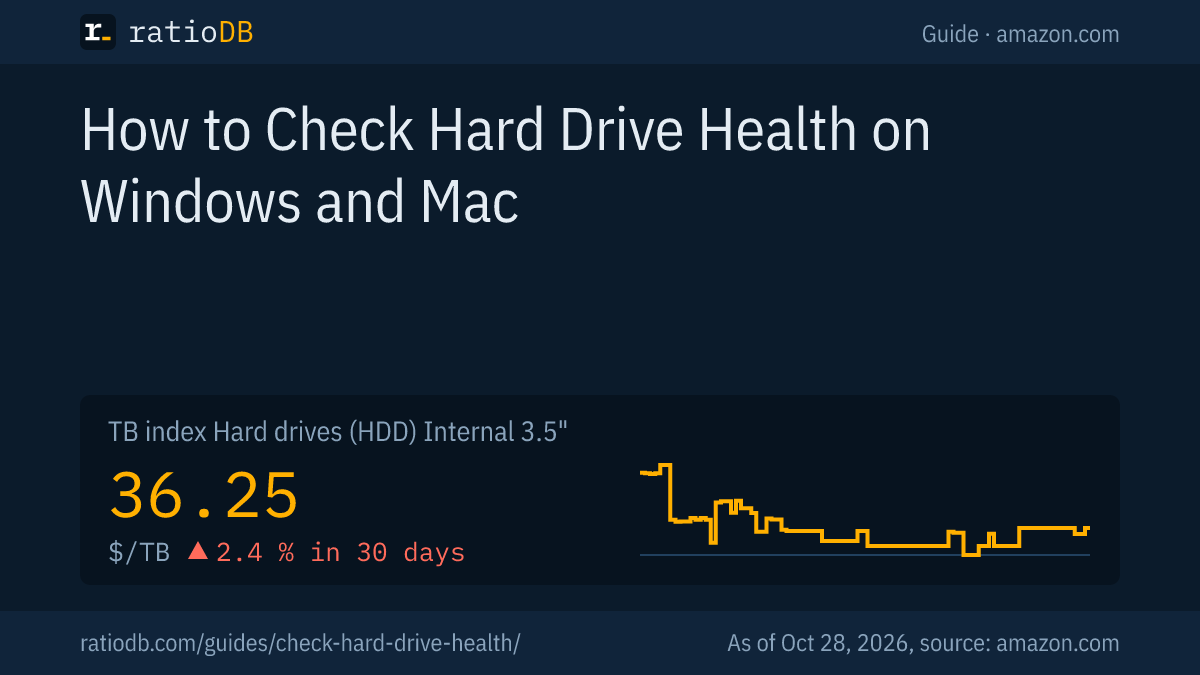
Internal 3.5" hard drives cost $36.25 per TB on amazon.com according to the ratioDB TB index, +2.4% over 30 days. The lowest price per TB right now belongs to the WD HGST Ultrastar He8 Helium 6 TB at $28.08 per TB.
Cheapest internal 3.5" hard drive by capacity on amazon.com, as of Oct 28, 2026 at 1:17 AM UTC
| Capacity | Cheapest internal 3.5" hard drive | Price | Price per TB |
|---|---|---|---|
| 2 TB | Seagate Desktop HDD 2 TB | $114.99 | $57.50 |
| 4 TB | WD Blue 4 TB | $179.99 | $45.00 |
| 6 TB | WD HGST Ultrastar He8 Helium 6 TB | $168.48 | $28.08 |
| 8 TB | Seagate BarraCuda 8 TB | $264.00 | $33.00 |
| 12 TB | Toshiba MG07ACA 12 TB | $469.99 | $39.17 |
| 16 TB | Synology Plus HAT3310 16 TB | $694.66 | $43.42 |
| 24 TB | WD Red Pro 24 TB | $1,899.99 | $79.17 |
The table lists new single drives sold under the manufacturer's name, named after the model line in the datasheet. A like-for-like replacement for an old 4TB drive costs $179.99 (WD Blue 4 TB), double the space $264.00 (Seagate BarraCuda 8 TB). Browse every offer of one size on 4TB hard drives and 8TB hard drives. The full list is under internal 3.5" hard drives, laptop drives under internal 2.5" hard drives. Price trends are on the hard drive price history page.
For a NAS, use a dedicated NAS line; our guide to the best NAS hard drive lists them.
Should I replace a hard drive with an SSD?
For the system drive in a PC, an SSD is the better replacement; for bulk storage, a hard drive. An M.2 NVMe SSD costs $132.05 per TB on amazon.com right now, about 3.6 times an internal 3.5" hard drive. For large amounts of data, the hard drive stays far cheaper.
A 2.5" SATA SSD, which fits a laptop hard drive bay, costs $122.93 per TB according to the TB index. The trade-offs are covered in SSD vs HDD. All SSDs are listed under M.2 NVMe SSDs and 2.5" SATA SSDs.
How does ratioDB compare hard drives?
ratioDB pulls amazon.com prices for every listed hard drive on a schedule and converts them to price per TB, with 1TB equal to 1,000,000,000,000 bytes. The TB index is the median of the 10 cheapest new offers per product type.
The health check steps in this guide come from Microsoft's and Apple's help pages as of October 26, 2026. We do not test drives ourselves. Model line, recording technology and spindle speed come from manufacturer datasheets. Our rules are on the methodology page.
Hard drive health FAQ
How do I check hard drive health on Windows 11?
Open PowerShell as administrator and run Get-PhysicalDisk. The HealthStatus column shows Healthy, Warning, Unhealthy or Unknown. Then check the file system with chkdsk C: /scan or Repair-Volume -DriveLetter C -Scan.
What does chkdsk /f do?
chkdsk /f takes the drive offline, scans the file system and fixes every error it finds. Microsoft equates it with Repair-Volume -OfflineScanAndFix. Back up your data before you run it.
How do I check hard drive health on a Mac?
In Disk Utility: choose View > Show All Devices, select the drive, click Info and read the S.M.A.R.T. status. Then run First Aid on the volumes, the containers and finally the drive.
Can chkdsk fix a failing hard drive?
chkdsk repairs the file system, not the hardware. If the health status reads Warning or Unhealthy, only a new drive helps. Back up your data before you start any repair.
What does HealthStatus Unknown mean?
Windows cannot determine the drive's condition. In that case, also run chkdsk /scan, try another port, or check the drive in Disk Utility on a Mac.
How often should I check my hard drive?
There is no fixed rule. A quick look at Get-PhysicalDisk or the S.M.A.R.T. status every few months takes a minute. At warning signs such as read errors or crashes, check right away.
Sources
- Microsoft: Get-PhysicalDisk (Microsoft Learn), Repair-Volume (Microsoft Learn), NTFS overview (Microsoft Learn), Disk Management in Windows (Microsoft Support)
- Synology DSM help: RAID types
- Apple: Get detailed information about a disk in Disk Utility, Repair a storage device in Disk Utility
- ratioDB: amazon.com prices, manufacturer datasheets, methodology