How to Clone an HDD to an SSD Without Reinstalling Windows
Cloning a hard drive copies Windows, your apps, your files and the boot data one to one onto another drive, so the computer starts from the new SSD exactly as it did from the old HDD. Samsung Data Migration, Acronis True Image for Kingston and the free Clonezilla do this at no cost, as long as the target SSD can hold everything that is in use on the old drive. Anything already stored on the target SSD is erased in the process.
This guide covers which tool fits which SSD, how large the new drive must be, what to back up first and what to do if the PC refuses to boot afterwards. Every step comes from documentation by Samsung, Kingston, Clonezilla, Microsoft and Apple that we read for this guide. ratioDB does not run its own hardware tests. We compare prices and spec sheets. Further down you will find live amazon.com prices for suitable SSDs (as of Oct 28, 2026 at 1:17 AM UTC).
What does cloning a hard drive mean?
Cloning copies an entire drive, including every partition, the boot sector and the operating system, onto a 2nd drive. The copy boots just like the original. Dragging folders in File Explorer only moves files and never produces a bootable system.
People mix these terms up all the time. Here is how they differ:
| Method | What gets copied | Result | Typical use |
|---|---|---|---|
| Clone | the whole drive with all partitions | a bootable drive | moving from HDD to SSD |
| Image | the whole drive as a file | a file on another drive | backup you can restore later |
| File copy | selected folders and files | files without apps or Windows | saving photos and documents |
| Clean install | nothing, Windows starts fresh | an empty system | a fresh start without old clutter |
A clone is a migration tool and no substitute for a backup: it copies old errors and clutter along with everything else, and without a 2nd copy your data once again depends on a single drive. To keep data safe over time you still need a backup on a separate drive. If you are weighing a clone against a fresh Windows install, the guide How to install an SSD compares both routes. This guide is about the route where everything stays the way it is.
What do I need to clone an HDD to an SSD?
You need the new SSD, a way to connect it, cloning software and a fresh backup of your important files. In a desktop the SSD goes into a free slot. On a laptop with a single drive bay a USB adapter is usually the only option, but Samsung warns that Data Migration may not work properly with the target on a USB adapter.
Checklist before you start:
| Item | Purpose | Note |
|---|---|---|
| New SSD | target of the clone | must hold all used data from the old drive |
| Connection | old drive and SSD attached at the same time | free SATA or M.2 slot in a desktop, SATA to USB or M.2 to USB adapter for a laptop |
| Cloning software | copies the drive and boot data | Samsung and Kingston tools need their own brand, Clonezilla works with any |
| Backup | in case something goes wrong | important files on a 3rd drive or in the cloud |
| Recovery key | if BitLocker is on | write it down before you start |
| Time | the copy itself | depends on the amount of data and the connection |
Not sure whether your machine takes a 2.5 inch SATA SSD or an M.2 NVMe SSD? The guide NVMe vs SATA explains it. For an older laptop with a 2.5 inch hard drive, a 2.5 inch SATA SSD is the direct replacement because it shares the same size and connector.
How big does the SSD need to be for cloning?
The new SSD needs at least as much space as is used on the old drive. Samsung requires the source to be smaller than the target before Data Migration starts. Clonezilla requires each target partition to be equal to or larger than the source partition.
The rules differ in the details:
- Samsung Data Migration: Samsung's FAQ says the source must be smaller than the target. Movies, music and photos should be moved to other storage or deleted wherever possible beforehand. Samsung says Data Migration offers features for this, but you should have enough spare storage ready to move files to.
- Clonezilla: The project lists as a limitation that the destination partition must be equal to or larger than the source. Its documentation uses cloning a small disk to a larger one as the standard example.
- Acronis True Image for Kingston: Kingston shows a before and after summary prior to the transfer. That is where you check whether everything fits.
Our advice: leave headroom. An SSD that is full the moment the clone finishes has no room for updates or new apps. The table maps the space you use today to an SSD size with some breathing room. The column "Target SSD with headroom" is a ratioDB rule of thumb, not a manufacturer requirement.
Suitable SSD size and the cheapest new SSD per size on amazon.com, known brands, as of Oct 28, 2026 at 1:17 AM UTC
| Used on the old drive | Target SSD with headroom | Cheapest 2.5" SATA SSD | Cheapest M.2 NVMe SSD |
|---|---|---|---|
| up to 350 GB | 500 GB | Patriot Burst Elite 480 GB: $64.99 ($135.40 per TB) | Patriot P320 512 GB: $84.99 ($166.00 per TB) |
| up to 750 GB | 1 TB | SP Silicon Power A55 Boost 1 TB: $119.67 ($119.67 per TB) | Adata Legend 710 1 TB: $146.99 ($146.99 per TB) |
| up to 1.5 TB | 2 TB | SP Silicon Power A55 Boost 7mm 2 TB: $234.97 ($117.49 per TB) | Crucial E100 2 TB: $249.00 ($124.50 per TB) |
| up to 3 TB | 4 TB | Samsung 870 EVO 4 TB: $1,249.90 ($312.48 per TB) | Crucial P3 Plus 4 TB: $669.77 ($167.44 per TB) |
Windows shows how much space is used under This PC in File Explorer. Samsung notes that the cloned drive can end up a few GB smaller than the original because the page file and the hibernation file are not copied. That is expected. Also expected: a 1 TB SSD shows up as roughly 931 GB in Windows, because manufacturers count in decimal and Windows counts in binary. The guide TB vs TiB walks through the math.
What is the best free cloning software?
The best free option is usually the tool from your SSD's maker, such as Samsung Data Migration for Samsung drives or Acronis True Image for Kingston for Kingston drives. For any other brand, the open source Clonezilla works. Macrium Reflect Free stopped receiving security patches on January 1, 2024.
The main tools, their conditions and the cheapest matching SSD in our database:
Cloning software and the cheapest matching SSD per TB on amazon.com, as of Oct 28, 2026 at 1:17 AM UTC
| Software | Condition per vendor | Cheapest matching SSD per TB |
|---|---|---|
| Samsung Data Migration | Samsung SSDs as target only, Windows | Samsung 970 EVO Plus 2 TB: $160.86 per TB |
| Acronis True Image for Kingston | a Kingston SSD must be installed, Windows 11, 10, 8.1 | Kingston NV3 1 TB: $156.25 per TB |
| Clonezilla | any brand, boots from a USB stick, target equal or larger | any SSD in the list |
What the vendors say about their tools:
- Samsung Data Migration: According to Samsung's Magician 7 installation guide, Data Migration runs on Windows 7, 8, 8.1, 10 and 11 and only supports the listed Samsung SSDs as the target. Drives that PC makers ship under their own label (OEM drives) are not supported. The source must have an operating system installed.
- Acronis True Image for Kingston: Kingston delivers it through Kingston SSD Manager under the Acronis tab. A Kingston SSD has to be installed, otherwise the software asks for activation. Kingston lists Windows 11, 10 and 8.1 and says the tool is not compatible with macOS or Linux.
- Clonezilla: Clonezilla is free software under the GNU GPL version 2. It boots from a USB stick, needs at least 196 MB of RAM according to the project and handles NTFS, FAT32, exFAT, ext4, HFS+ and APFS among others. It cannot clone a drive that is in use, which is why it runs as its own system.
- Macrium Reflect Free: Macrium says the free version 8 received security patches only until January 1, 2024, and gets no support for Windows releases newer than Windows 11 22H2. Plenty of older tutorials still recommend it.
If you want to use Samsung Data Migration, you need a Samsung SSD. The cheapest Samsung SSD per TB in our list right now is Samsung 970 EVO Plus 2 TB at $160.86 per TB. For other brands, check the maker's support page before you buy. If there is no in-house tool, Clonezilla covers every brand.
How do I prepare a drive for cloning?
Back up your most important files, write down your BitLocker recovery key and close every app. Samsung lists outdated chipset drivers, several installed operating systems, dynamic disks and bad sectors on the old drive as common causes of trouble.
Prepare the clone like this:
- Make a backup: As long as you do not wipe the old drive, it remains your way back. Still, back up your most important files to a 3rd drive in case you mix up source and target. The guide 3-2-1 backup rule shows what a proper backup looks like.
- Sort out encryption: Samsung says encrypted drives cannot be cloned until the password is removed. If BitLocker is on, write down the recovery key first. Microsoft warns that if Windows asks for the key and you do not have it, you risk data loss or a reinstall.
- Clear or check the target: The clone overwrites the target. Kingston shows a warning if the target holds data and says to continue only if you no longer need it. Apple likewise says that restoring a volume erases all files on the destination.
- Update drivers: Samsung names outdated motherboard chipset drivers as a possible cause of errors.
- Close apps: Samsung recommends closing other programs and freeing memory. Instant PC recovery software can interfere with the clone.
- Judge the old drive: Bad sectors on the source can affect the clone. If the old hard drive sounds odd or reports errors, copy your most important files one by one first. The guide How long do hard drives last covers the warning signs.
Microsoft also documents pausing BitLocker with the PowerShell command Suspend-BitLocker -MountPoint "C:" -RebootCount 0 and turning it back on with Resume-BitLocker -MountPoint "C:". A value of 0 keeps protection paused until you resume it yourself. Microsoft describes this for software updates. Whether your cloning tool accepts a drive with BitLocker paused is up to its documentation. Samsung asks for an unencrypted drive.
What do I need to know about Samsung Data Migration?
Samsung Data Migration only clones to listed Samsung SSDs, only from a source with an installed operating system and never from an encrypted drive. The source must be smaller than the target. According to Samsung, Data Migration is now a feature of Samsung Magician.
Samsung does not publish a click by click guide to the current version in the documents we read. The Samsung Magician 7 installation guide does set out clear rules. The key ones:
| Rule per Samsung | What it means for you |
|---|---|
| Only listed Samsung SSDs as target, no OEM drives | buy a retail Samsung SSD |
| Source must have an installed operating system | clone pure data drives with Clonezilla |
| Drive C: plus 2 more volumes, System Reserved partition automatically | tidy up extra partitions first |
| The PC maker's OEM partition is not cloned | get recovery media from the PC maker |
| Encrypted drives only after removing the password | remove encryption first |
| Target on a USB adapter can cause errors | connect directly inside the PC where possible |
| Older Windows without GPT and a target above 2 TB | space beyond 2 TB stays unallocated |
Samsung also notes that source and target can differ by a few GB after cloning because page and hibernation files are not copied. Several installed operating systems, bad sectors on the source, instant recovery software or a dynamic disk can make the clone fail, per Samsung. If Data Migration ends abnormally, it may take a while before the feature is available again.
Samsung's FAQ points to its download page for Magician and Data Migration. For Samsung portable SSDs, Samsung requires Windows 8 or later and Security Mode turned off.
How do I clone with Acronis True Image for Kingston?
In Acronis True Image for Kingston, choose Tools, then Clone Disk, select the Automatic method, the old drive as source and the Kingston SSD as destination. Review the summary, start the transfer and shut the PC down when it finishes.
Kingston describes 8 steps:
- Launch the software and pick Clone Disk under Tools.
- Choose the Automatic method and click Next.
- Select the old hard drive as the source disk.
- Select the Kingston SSD as the destination disk.
- Pick the clone method you need, for example replacing the current system disk.
- Review the before and after summary, then click Proceed.
- Wait for the transfer, then close all apps and shut down.
- Cloning is complete. With the PC off, you can remove the source disk.
Kingston warns that a message appears if the destination holds data. Continue only if you are sure you no longer need it and both disks are the right ones. When you power on, the PC boots from the Kingston SSD, according to Kingston.
When is Clonezilla the better choice?
Clonezilla is the better choice when your new SSD comes from a brand without its own cloning tool or when you prefer not to clone from inside Windows. It boots from a USB stick and copies one drive to another in its disk_to_local_disk mode.
The Clonezilla documentation walks through a disk to disk clone like this:
- Put Clonezilla Live on a USB stick and boot the computer from it.
- Pick language and keyboard layout, then start Clonezilla.
- Choose the disk_to_local_disk mode, which clones to a local drive.
- Select the source disk and the target disk.
- Start the clone and wait until Clonezilla reports that it is done.
Check source and target by their capacity before you start. Pick the wrong target and you overwrite the old drive. The project also lists that you cannot restore single files from a Clonezilla image and that incremental backups are not implemented.
What should I do after cloning?
Shut down, remove the old drive or move the new SSD to the top of the boot order in the BIOS, and boot from the SSD. Then check that Windows runs cleanly, turn BitLocker back on and put any free space on the SSD to use.
After the clone:
- Shut down and swap: Kingston says you can remove the old drive once the PC is off. In a laptop, this is when the SSD goes into the old drive's bay.
- Check the boot order: If the old drive stays in, set the new SSD first in the BIOS or UEFI. The guide How to install an SSD shows how.
- Test Windows: Open a few apps and files. Only wipe or reformat the old drive once everything works.
- Resume BitLocker: If you paused protection, turn it back on with Resume-BitLocker or in Control Panel.
- Use the free space: If Disk Management shows unallocated space after the Windows partition, right-click the partition and choose Extend Volume. Microsoft says this only works when the free space sits immediately after the partition.
The old hard drive can live on as a data drive or as a backup drive in an external enclosure. Wipe it securely before you sell or recycle it.
Why won't my PC boot after cloning?
A PC usually fails to boot after cloning because the boot order still points to the old drive, BitLocker asks for the recovery key or the boot data never made it onto the SSD. The table matches symptoms to fixes.
| Symptom | Possible cause | What to do |
|---|---|---|
| PC keeps booting from the old drive | boot order unchanged in BIOS | move the SSD to the top or unplug the old drive |
| Windows asks for the BitLocker key | BitLocker was not paused before the change | enter the recovery key, then set protection up again |
| No boot device found | boot data missing, clone method without system disk replacement | repeat the clone with the system disk option, the source stays unchanged |
| Clone aborts | bad sectors, too little space, encrypted source | copy files one by one, free up space, sort out encryption |
| Maker's recovery is gone | Samsung does not copy the OEM recovery partition | get recovery media from the PC maker |
| Multi-boot setup fails | Samsung notes problems with several operating systems | clone with another tool or reinstall |
The good news: as long as you have not wiped the old drive, nothing is lost. Put it back as the boot drive and try again. If the cloning tool does not see the new SSD at all, the problem sits before the clone, in the connection or the BIOS.
Can I clone a drive on a Mac?
Yes. Disk Utility in macOS copies one volume to another with its Restore feature. Apple warns that the destination is erased and becomes an exact copy of the source.
Apple's steps:
- Open Disk Utility and choose View > Show All Devices.
- In the sidebar, select the volume you want to overwrite and click Restore.
- In the pop-up menu, choose the source volume to copy.
- Click Restore, then Done.
Apple advises saving any files on the destination that you want to keep before you start. The Samsung and Kingston tools do not exist for this on the Mac. The guide Best external hard drive for Mac covers drives for Time Machine.
How much does an SSD for cloning cost right now?
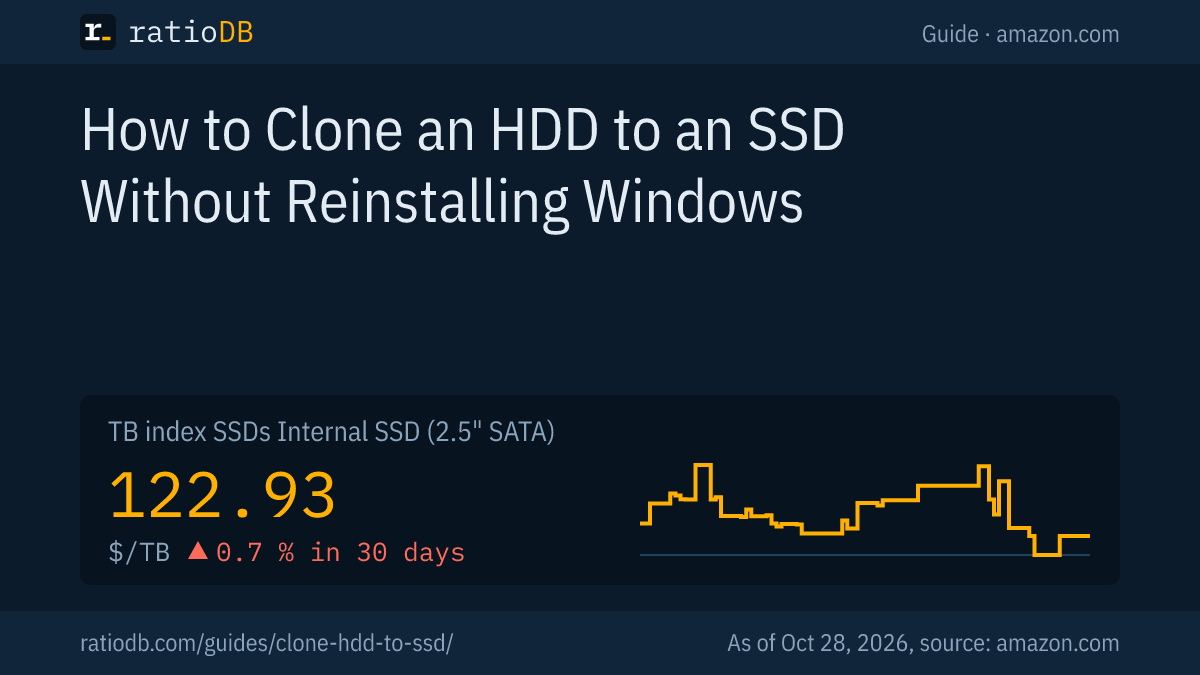
A 2.5 inch SATA SSD costs $122.93 per TB on amazon.com according to the ratioDB TB index, an M.2 NVMe SSD $132.05 per TB (as of Oct 28, 2026 at 1:17 AM UTC). The cheapest 1 TB SATA SSD costs $119.67.
At 1 TB, SP Silicon Power A55 Boost 1 TB is the cheapest 2.5 inch SATA SSD from a known brand at $119.67. For M.2 NVMe, Adata Legend 710 1 TB leads at $146.99. That makes NVMe about 7.4% more expensive per TB than SATA. The lowest price per TB among SATA SSDs is SP Silicon Power A55 Boost 7mm 2 TB at $117.49 per TB (2 TB). Among NVMe drives, Crucial E100 2 TB leads at $124.50 per TB (2 TB).
For comparison, an internal 2.5 inch hard drive costs $55.62 per TB on the index. The SATA SSD therefore costs about 2.2 times as much per TB as the hard drive it replaces. How SSDs and hard drives differ in daily use is covered in SSD vs HDD, picks by spec sheet in Best SSD. Price trends live on the SSD price history page.
Browse every offer by size on 500 GB SSD, 1 TB SSD, 2 TB SSD, or by form factor on 2.5 inch SATA SSD, M.2 NVMe SSD and M.2 SATA SSD.
What are the most common cloning mistakes?
The most common cloning mistakes are swapping source and target, buying an SSD that is too small, cloning an encrypted source, using a tool that does not match the SSD brand and wiping the old drive too early. The vendor documentation helps you avoid all of them.
| Mistake | Result | How to avoid it |
|---|---|---|
| Source and target swapped | the old drive gets overwritten | check drives by capacity and name, back up first |
| SSD too small | clone aborts or will not boot | check used space, move media off |
| Encrypted source | Samsung refuses to clone | remove the password, note the BitLocker key |
| Tool does not match the brand | software asks for activation | Samsung tool for Samsung, Kingston tool for Kingston, otherwise Clonezilla |
| Old drive wiped too early | no way back | wipe only after the SSD has run for days without trouble |
| Outdated freeware | no security updates | use current software from the SSD maker |
How does ratioDB compare SSDs?
ratioDB pulls amazon.com prices for every listed SSD at regular intervals and converts them into price per TB, with 1 TB equal to 1,000,000,000,000 bytes. The TB index is the median of the 10 cheapest new offers per product type.
2.5 inch SATA SSDs, M.2 NVMe SSDs and M.2 SATA SSDs sit in separate lists with their own index. Used and renewed offers are labeled and never count toward the index. The tables in this guide show only new single drives from known brands. ratioDB does not test SSDs or cloning software. The instructions come from the vendor help pages and manuals linked below. All rules are on the methodology page, every SSD under SSD prices per TB.
Frequently asked questions about cloning a hard drive
How long does it take to clone a hard drive?
It depends on the amount of data, the condition of the old drive and the connection. Samsung, Kingston and Clonezilla give no fixed times in their documentation. Set aside enough time and leave the PC alone while it runs.
Can I clone a larger hard drive to a smaller SSD?
Yes, as long as the used data fits. Samsung requires the source to be smaller than the target and suggests moving movies, music and photos off first. Clonezilla, on the other hand, needs target partitions that are equal or larger.
Is cloning software free?
Yes, if you use the SSD maker's tool with a drive of that brand, such as Samsung Data Migration or Acronis True Image for Kingston. The open source Clonezilla works with any brand. Macrium Reflect Free has received no security patches since January 1, 2024.
Does cloning erase the new SSD?
Yes. The clone overwrites the target, which is why Kingston warns you before starting if data is present. The software only reads the old drive, so it remains your way back until you wipe it yourself.
Can I clone an SSD to a larger SSD?
Yes, the process is the same as with a hard drive. Clonezilla uses exactly this case, a small disk to a larger one, as its example. If space is left over, extend the Windows partition in Disk Management with Extend Volume.
Can I clone a laptop HDD without a 2nd drive bay?
Usually, yes. Connect the new SSD with a USB adapter, clone, then install it in the old drive's bay. Samsung warns, though, that Data Migration may not work properly with the target on a USB adapter. If it fails, Clonezilla is an alternative.
How much does an SSD for cloning cost right now?
On amazon.com the TB index sits at $122.93 per TB for 2.5 inch SATA SSDs and $132.05 per TB for M.2 NVMe SSDs (as of Oct 28, 2026 at 1:17 AM UTC). The table above lists the cheapest offers by size.
Sources
- Samsung: Samsung Magician 7 installation guide with Data Migration notes (PDF), Internal SSD installation FAQ
- Kingston: Acronis True Image for Kingston download and installation, Cloning with Acronis
- Clonezilla: Project page with limitations, Disk to disk clone documentation
- Macrium: Product support policy for Reflect Free
- Microsoft: Suspend BitLocker protection, Extend a basic volume
- Apple: Restore a volume in Disk Utility
- ratioDB: amazon.com prices, methodology