How to Partition a Hard Drive or SSD on Windows 11 and Mac
To partition a hard drive on Windows, open Disk Management, shrink an existing volume and create a New Simple Volume in the unallocated space it leaves behind. On a Mac, Disk Utility splits a drive, although Apple recommends extra APFS volumes over partitions. GPT supports up to 128 partitions in Windows, while MBR is limited to disks of 2 TB or smaller.
Partitioning sounds like expert territory, but Windows and macOS do it with built-in tools in a few minutes. This guide covers the steps for Windows 11, the diskpart command and the Mac, explains GPT and MBR, and tells you plainly when a partition makes sense and when a 2nd drive is the better buy. Every procedure comes from Microsoft and Apple documentation. ratioDB compares prices and spec sheets, with live amazon.com prices as of Oct 28, 2026 at 1:17 AM UTC.
Back up first: Microsoft states that shrinking does not cause data loss, but a power cut or a wrong click can still hurt. Apple explicitly advises backing up before creating new partitions. Deleting a partition erases everything on it.
What does partitioning a hard drive mean?
Partitioning divides one physical drive into separate sections. Each partition gets its own file system and, on Windows, its own drive letter. To Windows and your programs, every partition looks like a separate drive.
The layout is stored in the partition table at the start of the drive. There are 2 formats: MBR (Master Boot Record), the older scheme, and GPT (GUID Partition Table), which Microsoft describes as part of the UEFI initiative. You decide each partition's size and file system when you create it.
One point matters more than any other: partitions share the same hardware. If the drive fails, every partition on it goes down together. A partition helps you keep things organized and makes reinstalling Windows easier. It does nothing against a hardware failure.
Is it a good idea to partition your hard drive?
Partitioning makes sense when you want to keep Windows and your files apart, install a 2nd operating system, or split a drive between different file systems. A 2nd partition is useless as a backup because it sits on the same hardware. On a Mac, Apple advises against partitioning in most cases.
When a partition helps and when it does not
| Goal | Partition a good idea? | Better option |
|---|---|---|
| Keep Windows and personal files apart | yes, a reinstall leaves the data partition alone | partition or 2nd drive |
| Dual boot, for example Linux | yes | partition |
| One drive for Windows and Mac (NTFS plus exFAT) | yes | partition |
| Back up your files | no, same hardware | external drive or cloud |
| More speed | no | faster SSD |
| Split a Mac drive with APFS | usually not, per Apple | multiple APFS volumes |
The classic mistake is treating a partition as a backup. If an SSD controller dies or a hard drive fails mechanically, both partitions are gone. What a real backup looks like is explained in the 3-2-1 backup rule. A Windows partition plus a data partition is handy, though: when you reinstall Windows, you only format the first one.
GPT or MBR: which partition style should I use?
GPT is the right partition style for almost every current PC. Microsoft states that MBR is limited to disks of 2 TB or smaller and supports up to 4 primary partitions per disk, while GPT handles larger disks and, in Windows, up to 128 partitions.
GPT vs MBR (based on Microsoft documentation)
| Feature | GPT | MBR |
|---|---|---|
| Disk size | larger than 2 TB | 2 TB or smaller |
| Partitions | up to 128 in Windows | 4 primary, more only via an extended partition |
| Booting with UEFI | yes, UEFI systems need GPT for the boot disk | no |
| Recommended for | modern systems with UEFI | older hardware without UEFI |
| Converting | only when the disk is empty | only when the disk is empty |
Microsoft notes that Disk Management can only change a disk's partition style when it contains no partitions or volumes. Switching from MBR to GPT therefore means deleting every volume and losing the data on it. Get the partition style right when you first initialize a new disk.
Any disk larger than 2 TB needs GPT, because MBR is limited to disks of 2 TB or smaller. Smaller data drives should also use GPT today. MBR only remains relevant for very old computers.
How do I partition a hard drive on Windows 11?
On Windows 11, shrink an existing volume in Disk Management, then create a New Simple Volume in the unallocated space. Microsoft states that shrinking causes no data loss. You need administrator rights.
The steps from Microsoft:
- Open Disk Management: Right-click Start and select Disk Management.
- Shrink a volume: Right-click the volume that should give up space, for example C:, and choose Shrink Volume. Windows calculates how much space is available.
- Enter the amount: Type how much space to free in MB. 100,000 MB is roughly 100 GB. Then click Shrink.
- Create the new volume: Right-click the new unallocated area and choose New Simple Volume.
- Finish the wizard: Accept the size, pick a drive letter, choose NTFS and a label, then Finish.
The new partition then appears in File Explorer as its own drive, such as D:. Microsoft notes that you can only shrink basic volumes that have no file system or that use NTFS, so an exFAT or FAT32 volume cannot be shrunk this way.
How much can I shrink a partition?
You can only shrink a partition down to the point where files Windows cannot move are located, such as the page file or the shadow copy storage area. Microsoft gives no fixed limit. Windows 11 itself requires at least 64 GB of storage, with more over time for updates.
Windows shows the maximum amount you can free before you shrink. If that is less than expected, unmovable files sit in the middle of the volume. Microsoft suggests 2 ways around it:
- Check event 259: In the Application log of Event Viewer, an event with ID 259 names the unmovable file that blocks the shrink.
- Move the file temporarily: Use Control Panel to move the page file or stored shadow copies to another disk, shrink the volume, then move the page file back.
Microsoft also warns that if dynamic bad-cluster remapping has found too many bad clusters, you cannot shrink the partition at all. In that case, move your data off and replace the disk. A raw partition that holds data, such as a database file, may be destroyed by shrinking, according to Microsoft.
How large the Windows partition should stay depends on your software. Microsoft lists 64 GB as the minimum for Windows 11 and notes that updates and features may need more storage over time. Games and large applications come on top.
How do I partition a new, empty drive?
Initialize the new disk with GPT first, then create several New Simple Volumes in the unallocated space, each with the size you want. Every volume gets its own drive letter and file system.
Microsoft's steps:
- Initialize: Right-click the disk, choose Initialize Disk and select GPT.
- First volume: Right-click the unallocated area, choose New Simple Volume and enter only part of the space, for example 1,000,000 MB for roughly 1 TB.
- More volumes: Fill the remaining unallocated space with another New Simple Volume.
- Format: Choose the file system and label in the wizard.
On a basic MBR disk, Microsoft says the first 3 partitions are created as primary partitions, and from the 4th onward each becomes a logical drive inside an extended partition. GPT removes that distinction.
For each new partition's file system: NTFS for data only Windows will use, exFAT for a partition a Mac should also read and write. In Disk Utility, Apple recommends exFAT for Windows volumes over 32 GB and MS-DOS (FAT) for smaller ones. Give each partition a clear label such as Data, Games or Shared so you can find it in File Explorer at a glance. How to format a volume and which file system fits is covered in How to format a hard drive.
How do I partition a drive with diskpart?
With diskpart you shrink a volume from the command prompt: start diskpart, run list volume, select volume with its number, then shrink desired= with the size in MB. Microsoft states that no data loss occurs. You then use the freed space for a new volume.
The commands, per Microsoft:
| Command | What it does |
|---|---|
| diskpart | starts the tool in the command prompt |
| list volume | lists all volumes with their numbers |
| select volume 1 | selects volume 1 (number taken from the list) |
| shrink desired=100000 | shrinks by 100,000 MB if possible |
| shrink desired=100000 minimum=50000 | shrinks by at least 50,000 MB if 100,000 is not possible |
Without desired or minimum, shrink reclaims the maximum amount of space possible, according to Microsoft. Read the volume number carefully from the list, because selecting the wrong volume means working on the wrong data. Check size and drive letter before every command. For beginners, Disk Management with its graphical view is the safer tool.
How do I extend or delete a partition?
Extend a partition in Disk Management with Extend Volume. Microsoft's conditions: the unallocated space must sit immediately after the volume, on the same disk, and the volume must use NTFS or ReFS. Delete Volume removes a partition and everything stored on it.
Extending, per Microsoft:
- Right-click the volume you want to grow and choose Extend Volume.
- Click Next in the wizard.
- Under Select Disks, set how much space to add. The default is all available space.
- Click Next, then Finish.
If another partition sits between the volume and the free space, Extend Volume is not available. You then have to delete the partition in between, which erases its data. Copy that middle partition's contents somewhere safe first, delete it, then extend the volume before it.
Deleting, per Microsoft: right-click the volume, choose Delete Volume and confirm with Yes. The space becomes unallocated and can be added to another volume.
How do I partition a drive on a Mac?
On a Mac, open Disk Utility, select a volume, click Partition and then the Add button below the pie chart. Apple's advice, though, is that you should not partition your disk in most cases and should create multiple APFS volumes within a single partition instead.
A real partition is only needed on a Mac when you want a different file system, for example exFAT for swapping files with Windows. For everything else, Apple points to extra APFS volumes.
Apple's steps:
- Open Disk Utility, select a volume in the sidebar and click Partition.
- Click the Add button below the pie chart and choose Add Partition in the dialog. Add Volume creates an APFS volume instead.
- Enter a name. Apple notes that MS-DOS (FAT) and ExFAT names are limited to 11 characters.
- Choose a format and set the size by typing it or dragging the resize control.
- Click Apply, read the dialog and click Partition.
To enlarge a partition on a Mac, Apple says you must delete the volume that comes after it, and the last volume on a device cannot be enlarged. Deleting a partition erases all data on it.
Can you partition an SSD?
Yes. An SSD is partitioned with the same tools and steps as a hard drive, and to the operating system a partition on an SSD behaves exactly like one on a hard drive. The same caveat applies: all partitions share one piece of hardware.
A data partition on the system SSD is convenient. A 2nd SSD, on the other hand, adds real capacity and separates Windows and data physically. If your PC has a free M.2 slot, that is often the better choice.
Partition or 2nd drive: which is better?
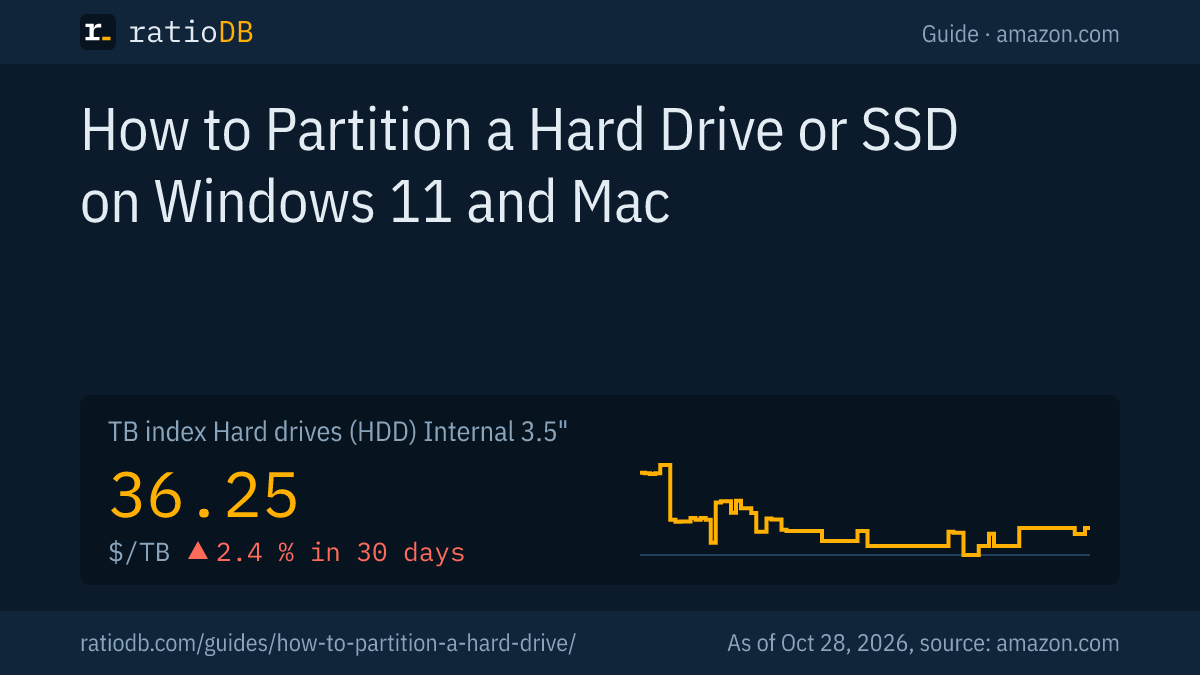
A 2nd drive is better if you need more space or want your data to survive a failure of the system drive. A partition is free but only divides the space you already have. On amazon.com an M.2 NVMe SSD currently costs $132.05 per TB according to the TB index, an internal 3.5-inch hard drive $36.25.
Cheapest new drives by size on amazon.com, as of Oct 28, 2026 at 1:17 AM UTC
| Capacity | Cheapest M.2 NVMe SSD | Cheapest 2.5" SATA SSD | Cheapest internal 3.5" HDD |
|---|---|---|---|
| 1 TB | Adata Legend 710 1 TB: $146.99 ($146.99 per TB) | SP Silicon Power A55 Boost 1 TB: $119.67 ($119.67 per TB) | Seagate Desktop HDD 1 TB: $67.00 ($67.00 per TB) |
| 2 TB | Crucial E100 2 TB: $249.00 ($124.50 per TB) | SP Silicon Power A55 Boost 7mm 2 TB: $234.97 ($117.49 per TB) | Seagate Desktop HDD 2 TB: $114.99 ($57.50 per TB) |
| 4 TB | Crucial P3 Plus 4 TB: $669.77 ($167.44 per TB) | Samsung 870 EVO 4 TB: $1,249.90 ($312.48 per TB) | WD Blue 4 TB: $179.99 ($45.00 per TB) |
| 8 TB | WD Black SN850X 8 TB: $1,946.99 ($243.37 per TB) | Samsung 870 QVO 8 TB: $1,459.99 ($182.50 per TB) | Seagate BarraCuda 8 TB: $264.00 ($33.00 per TB) |
The table shows the cheapest new drive at each size, limited to known brands for SSDs and to offers sold under the manufacturer's name for hard drives. A 1 TB M.2 NVMe SSD currently starts at $146.99 (Adata Legend 710 1 TB), a 2 TB model at $249.00 (Crucial E100 2 TB). For bulk storage, an NVMe SSD costs roughly 3.6 times as much per TB as a hard drive.
What do internal hard drives and SSDs cost per TB right now?
On amazon.com, internal 3.5-inch hard drives cost $36.25 per TB according to the ratioDB TB index, M.2 NVMe SSDs $132.05 and 2.5-inch SATA SSDs $122.93 per TB. The TB index is the median of the 10 cheapest new offers per product type.
The cheapest internal 3.5-inch hard drive per TB is HGST Ultrastar He6 6 TB at $23.08 per TB (6 TB). Browse internal 3.5" hard drives, M.2 NVMe SSDs and 2.5" SATA SSDs, or check the trend on the US SSD price history and US hard drive price history. Popular sizes: 2TB NVMe SSD, 8TB hard drive.
How does ratioDB compare drives?
ratioDB pulls amazon.com prices for every listed drive at regular intervals and converts them to price per TB, with 1 TB equal to 1,000,000,000,000 bytes. The TB index is the median of the 10 cheapest new offers per product type.
Every offer shows condition, price, capacity and timestamp. New, refurbished and used offers are never mixed in one calculation. The procedures in this guide come from the linked Microsoft and Apple pages, as of 26.10.2026. All rules are on the methodology page, all hard drives under hard drives and all SSDs under SSDs.
Hard drive partitioning FAQ
Can I partition a drive that already has data on it?
Yes. On Windows, shrink an existing NTFS volume in Disk Management and create a new volume in the freed space. Microsoft states that shrinking causes no data loss. Make a backup anyway before you start.
Does partitioning erase data?
Shrinking and extending do not, according to Microsoft. Deleting a partition does, and so does converting between MBR and GPT in Disk Management, because every volume must be deleted first. Back up before every step.
How many partitions can a hard drive have?
With GPT, Windows supports up to 128 partitions, according to Microsoft. With MBR you get 4 primary partitions, and more only as logical drives inside an extended partition.
How big should the Windows 11 partition be?
Microsoft requires at least 64 GB of storage for Windows 11 and notes that updates may need more space over time. Plan well beyond that for apps, and even more if you install games on the same partition.
Why is Extend Volume greyed out?
Microsoft requires the unallocated space to sit immediately after the volume, on the same disk, and the volume to use NTFS or ReFS. If another partition sits in between, Extend Volume is not available.
Should I partition my SSD?
You can, and it does no harm, but it adds no speed. A partition separates Windows and data but does not protect against an SSD failure. If you need more space, a 2nd SSD is the better move.
How do I split my C drive into C and D?
Right-click C: in Disk Management, choose Shrink Volume and enter the space to free in MB. Then right-click the new unallocated area, choose New Simple Volume and assign the letter D. Microsoft states that shrinking causes no data loss.
Sources
- Microsoft: Disk Management in Windows, Shrink a basic volume, Extend a basic volume, Change a disk's partition scheme, Windows and GPT FAQ, Windows 11 requirements
- Apple: Partition a physical disk in Disk Utility
- ratioDB: amazon.com prices, methodology