SSD Not Showing Up? How to Fix M.2 and SATA Detection Problems
When an internal SSD does not show up, the cause almost always sits in one of 4 places: the connection (SATA cable, power, how the M.2 card is seated), the slot (wrong M.2 type or a slot that shares lanes with SATA), BIOS settings and storage drivers such as Intel VMD, or a blank SSD that Windows has not set up yet. Only suspect a dead drive once all of that is ruled out.
This guide sorts the fixes by symptom, from checking the BIOS to a Windows installer that cannot find any drive. Every step comes from support pages by Seagate, Samsung, ASUS, MSI, Intel and Microsoft that we read for this guide. ratioDB does not run its own hardware tests. We compare prices and spec sheets. If the SSD really is dead or simply does not fit your slot, the live amazon.com prices further down (as of Oct 28, 2026 at 1:17 AM UTC) show what a replacement costs.
Why is my SSD not showing up?
An SSD does not show up when it lacks power or a data connection, is disabled in the BIOS, sits in the wrong M.2 slot, hides behind a storage controller that Windows has no driver for, or is brand new and not initialized. The symptom tells you where to look.
Seagate names 4 main reasons a system BIOS will not detect an internal SSD: the drive is not enabled in the BIOS, the SATA drivers are not installed properly, the data cable is faulty or unplugged, or the SSD itself is faulty. M.2 slot rules and Intel's VMD driver on newer systems add to that list. Match your symptom here:
| Symptom | Likely cause | Where to go next |
|---|---|---|
| SSD missing in BIOS | cable, power, disabled port, wrong slot | BIOS, SATA SSD, M.2 SSD |
| A SATA drive vanished after adding an M.2 SSD | the M.2 slot shares lanes with a SATA port | M.2 SSD |
| Windows Setup finds no drives | Intel RST or Intel VMD driver missing | Windows installer |
| SSD in BIOS but not in File Explorer | new SSD not initialized, no drive letter | Disk Management |
| Windows shows less capacity | decimal vs binary, not a fault | Capacity |
| Missing everywhere, even on a 2nd PC | SSD may be faulty | Faulty drive |
The table covers the usual cases. External drives on USB have their own guide: External hard drive not showing up. This one is about SSDs installed inside a desktop or laptop.
How do I check whether the BIOS detects my SSD?
Enter the BIOS at startup with the key your maker names, often Delete or F2, and open the list of storage devices. On ASUS boards it sits in EZ Mode under Storage Information. If the SSD is missing there, the problem is the connection, the slot or a setting. Windows is not involved yet.
The BIOS, usually called UEFI on modern PCs, is the motherboard's built-in firmware. If it cannot see a drive, neither can Windows. Here is how to check:
- Enter the BIOS: Seagate explains that most PCs briefly show a setup key at power-on, for example F2 on Dell systems. ASUS uses the Delete key on its motherboards. Your manual names the right key.
- Look at the drive list: On ASUS boards, EZ Mode lists all detected drives under Storage Information. ASUS notes that older boards may not list NVMe drives in PCIe mode there, and calls that normal.
- Is the port enabled? Seagate says a drive can be turned off in System Setup. Make sure the SATA port is set to auto-detect or enabled.
- Undo overclocking: ASUS recommends loading BIOS defaults (F5 on ASUS) if you overclock the CPU or memory, because unstable settings can hide drives.
If the SSD appears in the BIOS, the hardware works and you can skip to the Windows sections. If it does not, check cables and slot next.
What should I check on a 2.5 inch SATA SSD?
On a 2.5 inch SATA SSD, check the data cable, the power plug and the SATA port. Seagate suggests simply swapping a suspicious cable and using SATA cables shorter than 1 meter. ASUS adds trying a different power connector on the PSU and a different SATA port.
Work from cheapest to most effort:
- Seat the plugs: Seagate notes that SATA cables can work loose. Press data and power plugs firmly into the SSD and the motherboard.
- Swap the cable: Folded or pinched cables can break inside while looking fine outside. The easiest test, per Seagate, is another cable. If the problem stays, the cable was not the cause.
- Inspect the pins: Seagate recommends looking for bent or misaligned pins on the board and the drive.
- Different power plug: ASUS suggests a different SATA power connector from the PSU and, if needed, testing another power supply.
- Different SATA port: ASUS recommends moving the SSD to another SATA port on the motherboard. Your manual shows which ports are free to use.
For a clean Windows install on a SATA SSD, Samsung recommends switching the SATA mode in the BIOS from IDE to AHCI first and installing the operating system afterwards. Samsung adds that the exact setting depends on the motherboard. Seagate also mentions that very old Windows versions such as Windows 2000 and XP needed extra SATA drivers from the board maker. The guide How to install an SSD covers the installation itself.
Why is my M.2 SSD not detected by the motherboard?
Most of the time the M.2 slot does not match the SSD. An NVMe SSD needs a slot with an M key and PCIe, an M.2 SATA SSD needs a slot that supports SATA. ASUS gives the example of a board whose 2nd M.2 slot supports PCIe only, where an M.2 SATA SSD stays invisible.
M.2 only describes the shape of the card. 2 different protocols can run through the slot: SATA, the older protocol of 2.5 inch SSDs, and NVMe over PCIe, the faster one. Samsung explains the notches, called keys: a B key slot supports SATA or NVMe with up to 2 PCIe lanes, an M key slot supports NVMe with 4 lanes. Samsung's NVMe SSDs use the M key and, per Samsung, do not fit a B key slot.
Form factors, what they need, TB index and the cheapest 1 TB SSD on amazon.com, known brands, as of Oct 28, 2026 at 1:17 AM UTC
| Form factor | Needs | TB index | Cheapest at 1 TB |
|---|---|---|---|
| M.2 NVMe | M.2 slot with M key and PCIe | $132.05 | Adata Legend 710 1 TB: $146.99 |
| M.2 SATA | M.2 slot that supports SATA | $242.11 | no offer |
| 2.5" SATA | SATA port plus SATA power | $122.93 | SP Silicon Power A55 Boost 1 TB: $119.67 |
The usual M.2 traps:
- Wrong slot type: On ASUS's example board, M.2_1 supports SATA and PCIe while M.2_2 supports PCIe only. An M.2 SATA SSD in M.2_2 is not detected.
- Shared lanes: On the same board, M.2_1 shares lanes with the SATA6G_1 port. Populate M.2_1 and SATA6G_1 goes dark. ASUS suggests moving the SATA drive to SATA6G_3 or SATA6G_4. Your manual lists which ports share lanes on your board.
- Wrong adapter: Samsung states its NVMe SSDs are not compatible with PCIe x1 slots. Add-in adapter cards for regular PCIe slots exist, but Samsung recommends the original M.2 slot.
- Not seated properly: ASUS recommends reseating the M.2 SSD and checking that the retention screw is tight.
- Wrong length: Samsung's NVMe SSDs use the M.2 2280 size, 22 mm wide and 80 mm long. If the standoff only fits shorter cards, the SSD will not sit right.
A buying note: M.2 SATA SSDs currently cost more per TB than M.2 NVMe SSDs on amazon.com ($242.11 vs $132.05 per TB on the index). If your slot supports NVMe, NVMe is also the cheaper choice. The guide NVMe vs SATA explains the difference between the 2 protocols.
Why can't the Windows installer find my SSD?
When Windows Setup finds no drives, the storage controller driver is usually missing. ASUS and MSI name the Intel Rapid Storage Technology (IRST) and Intel VMD driver for Intel processors from the 11th to the 14th generation. You load it from a USB stick with "Load driver" in the installer.
Intel VMD (Volume Management Device) is an Intel feature that can be enabled in the BIOS and, according to ASUS and MSI, also carries RAID arrays. While it is on, the Windows installer only sees the SSD once the matching driver is loaded. Intel puts it in general terms: if the operating system lacks the driver for a storage controller, the installer cannot see the connected drives.
Option 1, load the driver (per ASUS, MSI and Intel):
- Get the driver: Download the IRST driver from your PC's or motherboard's support page. MSI calls it the "Intel Rapid Storage Technology (IRST) F6 Driver".
- Unzip to a USB stick: Extract the files to a USB flash drive and plug it into the PC.
- Load driver: In Windows Setup, at "Where do you want to install Windows?", click "Load driver".
- Pick the folder: Click Browse and open the driver folder on the stick. MSI says to use the VMD folder for Intel 11th gen or newer and the IRST folder for 10th gen or older.
- Select the controller: ASUS shows "Intel RST VMD Controller" here. Select it and click Next. The SSD then appears.
Option 2, turn VMD off: ASUS and MSI also describe disabling VMD in the BIOS, on ASUS under Advanced > VMD setup menu > Enable VMD controller set to Disabled. Both warn that RAID arrays stop working afterwards. MSI suggests this route only if loading the driver fails.
ASUS adds that from 15th generation Intel processors (Lunar Lake) onward, Windows uses the NVMe SSD without an extra driver. ASUS recommends Windows 11 version 24H2 or later for those systems.
SSD shows in BIOS but not in Windows: what now?
If the BIOS sees the SSD but Windows does not, the new SSD is usually not initialized yet. In Disk Management, right-click to initialize it and create a new simple volume. Never initialize an SSD that holds data you want to keep.
Microsoft's Disk Management help describes it like this:
- Open it: Right-click the Start button and pick Disk Management.
- Offline? If the disk shows as Offline, bring it online first.
- Initialize: Right-click the new SSD and choose Initialize Disk. Microsoft recommends GPT for modern systems with UEFI and MBR for older hardware without UEFI.
- Create a volume: In the unallocated area, create a new simple volume and format it.
Important: initializing and formatting make existing data inaccessible. If the SSD came out of another PC and its data should stay, do not initialize it. If only the drive letter is missing, assign one with a right-click, which changes no data. The guide External hard drive not showing up walks through every Disk Management status, and the steps apply to internal SSDs just the same.
Will a BIOS update fix an SSD that is not detected?
It can, especially on older motherboards paired with newer SSDs. ASUS lists updating to the latest BIOS as the first troubleshooting step when a drive does not appear after power-on.
ASUS points to its EZ Flash 3 tool for this. Other makers have their own methods. Read your board maker's instructions before updating and follow them exactly. If BitLocker is on, note your recovery key first: Microsoft explains that after updates from vendors other than Microsoft, Windows may otherwise ask for the key at startup.
ASUS lists one more step in the same article: enabling CSM in the BIOS under Boot > Launch CSM. CSM (Compatibility Support Module) is a compatibility mode for older boot methods. Switch it back if it changes nothing.
Why does Windows show less space than the SSD box says?
Windows shows less space because SSD makers count 1 GB as 1,000 MB while Windows counts 1,024 MB. Samsung explains this with the IDEMA standards, set by an industry association. A 1 TB SSD therefore appears as roughly 931 GB. That is not a fault.
The guide TB vs TiB shows the difference for every size. If far more is missing, say half the drive, part of the SSD may have no volume. Disk Management shows it as unallocated space. Per Microsoft, you add it to the partition with Extend Volume, as long as it sits directly after it.
How can I tell if my SSD is dead?
An SSD is probably dead if it does not appear in any slot, with any cable or on a 2nd computer. Seagate recommends testing it with the maker's diagnostic tool and using the warranty if it reports an error code.
Narrow it down:
- Cross-check with another drive: ASUS suggests testing with a drive you know works. If that one appears, the SSD is the problem. If it does not, look at the port or the motherboard.
- Another computer: Put the SSD into another PC or connect it with a USB adapter. If it appears there, the fault lies with the first PC.
- Maker's diagnostic tool: Seagate names SeaTools for its drives. Samsung offers its Magician software for Samsung SSDs, and other makers have their own tools.
- Warranty: If the tool cannot find the SSD or shows an error code, Seagate points to its warranty replacement process.
If the SSD holds important data you have no copy of, stop swapping it between machines and decide first whether a data recovery service should get it. How long SSDs last and what the TBW rating means is covered in SSD lifespan.
How much does a new SSD cost right now?
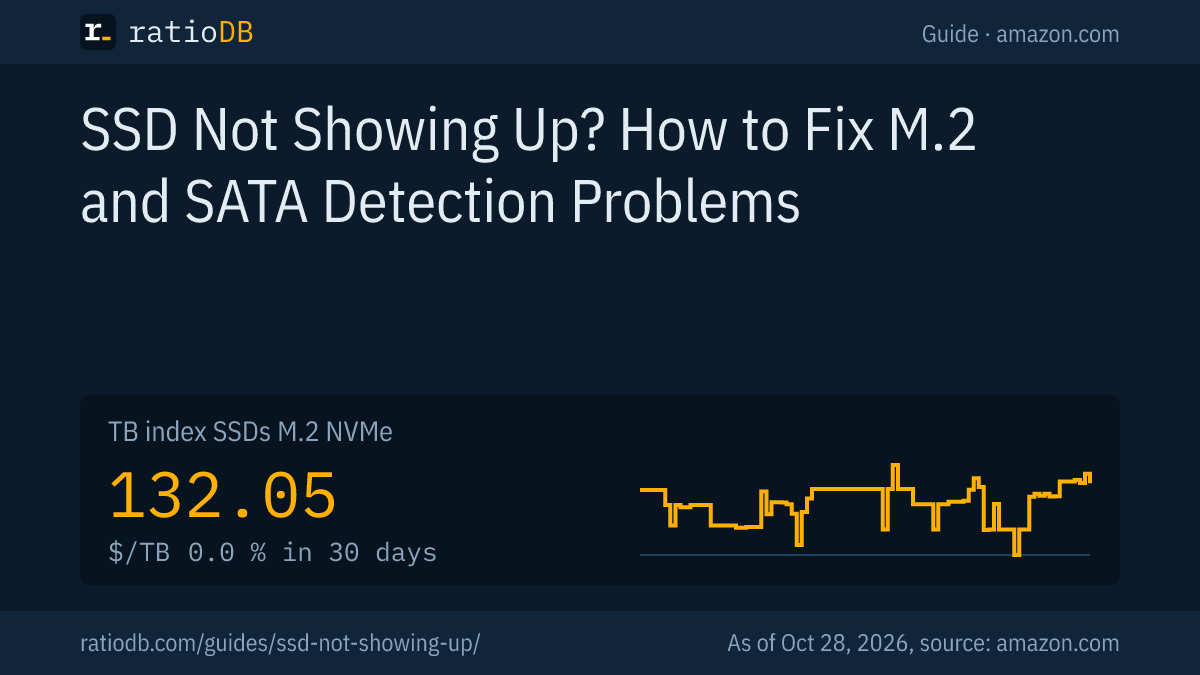
An M.2 NVMe SSD costs $132.05 per TB on amazon.com according to the ratioDB TB index, a 2.5 inch SATA SSD $122.93 per TB (as of Oct 28, 2026 at 1:17 AM UTC). The lowest price per TB among NVMe drives right now is Crucial E100 2 TB at $124.50 per TB.
Cheapest new SSD per capacity on amazon.com, known brands, as of Oct 28, 2026 at 1:17 AM UTC
| Capacity | Cheapest M.2 NVMe SSD | Cheapest 2.5" SATA SSD |
|---|---|---|
| 500 GB | Patriot P320 512 GB: $84.99 ($166.00 per TB) | Patriot Burst Elite 480 GB: $64.99 ($135.40 per TB) |
| 1 TB | Adata Legend 710 1 TB: $146.99 ($146.99 per TB) | SP Silicon Power A55 Boost 1 TB: $119.67 ($119.67 per TB) |
| 2 TB | Crucial E100 2 TB: $249.00 ($124.50 per TB) | SP Silicon Power A55 Boost 7mm 2 TB: $234.97 ($117.49 per TB) |
| 4 TB | Crucial P3 Plus 4 TB: $669.77 ($167.44 per TB) | Samsung 870 EVO 4 TB: $1,249.90 ($312.48 per TB) |
Prices come live from the ratioDB database and cover new single drives from known brands. Before you buy, check in your manual which form factor your slot takes. An SSD for the wrong slot will not show up either, no matter how new it is. Picks by spec sheet are in Best SSD, and price trends on the SSD price history page.
Browse every offer by size on 1 TB NVMe SSD, 2 TB NVMe SSD, 4 TB NVMe SSD, or by form factor on M.2 NVMe SSD, M.2 SATA SSD and 2.5 inch SATA SSD.
What are the most common reasons an SSD goes missing?
The most common reasons are an M.2 SATA SSD in a PCIe only slot, an NVMe SSD in a B key or PCIe x1 slot, a SATA port switched off by the M.2 slot, a missing VMD driver and a blank SSD that was never initialized.
| Mistake | Result | Fix per manufacturer |
|---|---|---|
| M.2 SATA SSD in a PCIe only slot | SSD invisible | ASUS: use a slot that supports SATA |
| NVMe SSD in a B key slot | does not fit | Samsung: use an M key slot |
| NVMe SSD in a PCIe x1 slot | not compatible | Samsung: use the original M.2 slot |
| M.2 and SATA share lanes | a SATA drive disappears | ASUS: move to another SATA port |
| VMD driver missing | Windows Setup finds nothing | ASUS, MSI: load the IRST driver |
| New SSD not initialized | missing in File Explorer | Microsoft: initialize in Disk Management |
| Loose or kinked SATA cable | SSD missing in BIOS | Seagate: swap the cable, under 1 meter |
How does ratioDB compare SSDs?
ratioDB pulls amazon.com prices for every listed SSD at regular intervals and converts them into price per TB, with 1 TB equal to 1,000,000,000,000 bytes. The TB index is the median of the 10 cheapest new offers per product type.
M.2 NVMe SSDs, M.2 SATA SSDs and 2.5 inch SATA SSDs sit in separate lists with their own index. Used and renewed offers are labeled and never count toward the index. ratioDB does not test SSDs. The instructions in this guide come from the manufacturer help pages linked below. All rules are on the methodology page, every SSD under SSD prices per TB.
Frequently asked questions when an SSD is not showing up
Why is my new SSD not showing up?
A new SSD only appears in File Explorer once it is initialized and has a volume in Disk Management. If it is already missing in the BIOS, check cables, power and the M.2 slot.
Why is my M.2 SSD not showing up in the BIOS?
Usually the slot does not match: M.2 SATA SSDs need a slot with SATA support, NVMe SSDs need one with PCIe and an M key. ASUS gives the example of a board whose 2nd M.2 slot supports PCIe only. Your manual shows which slot supports what.
Why did my hard drive disappear after I installed an M.2 SSD?
Some motherboards share lanes between an M.2 slot and a SATA port. ASUS gives an example where M.2_1 disables the SATA6G_1 port. Connect the hard drive to a different SATA port.
What do I do if Windows Setup finds no drives?
Load the Intel RST and VMD driver from a USB stick with "Load driver" in the installer. ASUS names this for Intel processors from the 11th to the 14th generation. Alternatively, turn VMD off in the BIOS, which disables RAID.
Do I need AHCI mode for an SSD?
For a clean install on a SATA SSD, Samsung recommends switching the SATA mode in the BIOS from IDE to AHCI and installing Windows afterwards. The exact setting depends on the motherboard, per Samsung.
Is my SSD broken if it is not detected?
Not necessarily. Most of the time it is the cable, the slot, the BIOS or a driver. Only if the SSD is also missing on a 2nd computer and in the maker's diagnostic tool is it probably dead.
How much does a new SSD cost right now?
On amazon.com the TB index sits at $132.05 per TB for M.2 NVMe SSDs and $122.93 per TB for 2.5 inch SATA SSDs (as of Oct 28, 2026 at 1:17 AM UTC). The table above lists the cheapest offers by size.
Sources
- Seagate: The BIOS does not detect or recognize the solid state drive
- Samsung: Internal SSD installation FAQ
- ASUS: Cannot find the hard disk drive or M.2 SSD after power-on, Cannot find drives when installing Windows
- MSI: Missing disk drives during Windows installation
- Intel: Load a storage driver during OS installation
- Microsoft: Disk Management in Windows, Extend a basic volume, Suspend BitLocker protection
- ratioDB: amazon.com prices, methodology