How to Format a Hard Drive on Windows 11 and Mac
To format a hard drive on Windows, right-click the volume in Disk Management or File Explorer and choose Format. On a Mac, select the drive in Disk Utility and click Erase. Formatting writes a fresh file system such as NTFS, exFAT or APFS and wipes access to everything on the drive. For SSDs and drives you have used before, a quick format is almost always the right choice.
This guide walks through the steps for Windows 11, the command line and macOS, explains quick versus full format, and helps you pick a file system. Every procedure comes from Microsoft and Apple support documentation. ratioDB compares prices and spec sheets and does not test drives itself. If you are setting up a new drive, the tables below show what external hard drives and SSDs cost per TB on amazon.com right now (as of Oct 28, 2026 at 1:17 AM UTC).
Data loss warning: Formatting erases the drive. Copy anything you want to keep to another drive first, and double-check that you selected the right drive before you click OK.
What does formatting a hard drive do?
Formatting writes a new, empty file system to the drive. The file system is the index that records where every file lives. Microsoft is blunt about the consequence: formatting a volume destroys any data on the partition.
A file system such as NTFS, exFAT or APFS defines how files, folders and permissions are stored. Without one, Windows and macOS cannot use the drive. Many new drives ship with a file system that does not fit how you plan to use them, for example a drive you want to move between a Windows PC and a Mac.
3 terms often get mixed up:
- Initialize: creates the partition table, GPT or MBR. You only need this on a brand-new, blank disk.
- Partition: splits the drive into one or more sections (partitions or volumes).
- Format: writes a file system to a partition. After that it gets a drive letter and shows up in File Explorer.
If all you want is to empty a drive and reuse it, only the 3rd step applies. For a new internal drive, Disk Management takes you through all 3.
Quick format vs full format: what is the difference?
A quick format deletes the file table and root directory, but the data itself stays on the drive. A full format, according to Microsoft, has written zeros to the whole disk since Windows Vista and scans for bad areas along the way. That is why it takes far longer.
Quick format and full format on Windows (based on Microsoft documentation)
| Feature | Quick format | Full format |
|---|---|---|
| What happens | new file table, old data physically remains | zeros written to the entire disk |
| Bad sector scan | no | yes |
| Time | much faster, per Microsoft | hours on large drives |
| Data recoverable | may be, with recovery tools | no, every sector is overwritten |
| Best for | SSDs and healthy drives | hard drives you suspect, drives you give away |
Microsoft advises using the quick format switch (/Q) only on volumes that were formatted before and that you know are in good condition. Dell's support article adds that after a quick format, the data may still be recoverable with data recovery tools. A full format, by contrast, overwrites every sector with zeros.
How long a full format takes depends on capacity and write speed. A 4 TB external drive has to write each of its 4,000,000,000,000 bytes 1 time. Plan for several hours and keep the computer awake until it finishes.
Which file system should I choose?
NTFS is the standard file system for Windows drives. exFAT suits external drives you plug into both Windows and Mac. APFS is the Mac default and, per Apple, optimized for flash and SSD storage. FAT32 is only for small volumes and older devices.
File systems and where they fit
| File system | Used by | Good for |
|---|---|---|
| NTFS | Windows | internal drives and backups on Windows |
| exFAT | Windows and macOS | external drives shared between both, per Apple for volumes over 32 GB |
| FAT32 (MS-DOS FAT) | nearly every device | per Apple for volumes of 32 GB or less |
| APFS | macOS | internal and external Mac drives, optimized for flash and SSD per Apple |
| Mac OS Extended | macOS | Macs running macOS Sierra and earlier |
Apple lists 4 APFS variants in Disk Utility: APFS, APFS (Encrypted), APFS (Case-sensitive) and APFS (Case-sensitive, Encrypted). Apple suggests plain APFS if you do not need encryption or case-sensitive names. On Windows, Microsoft's format command accepts FAT, FAT32, NTFS, exFAT, ReFS and UDF.
You can also change the allocation unit size (cluster size) when formatting. Microsoft recommends the default settings for general use, so leave it on Default unless you have a specific reason.
How do I format a hard drive on Windows 11?
On Windows 11, open Disk Management by right-clicking Start, right-click the volume and choose Format. Microsoft's instructions: keep the default settings, select OK, then select OK again to confirm.
The steps from Microsoft:
- Back up: Copy everything you want to keep to another drive.
- Open Disk Management: Right-click Start and select Disk Management, or press Windows plus R and run diskmgmt.msc.
- Pick the volume: Right-click the drive's partition and select Format.
- Check the settings: volume label, file system and allocation unit size. Leave "Perform a quick format" checked for SSDs, uncheck it for a full format.
- Confirm: Select OK and confirm the warning with OK.
File Explorer is faster for external drives: right-click the drive under This PC and choose Format. Microsoft confirms the same quick format checkbox there. In total Microsoft lists 4 ways to format a volume: the command line, diskpart, File Explorer and Disk Management.
If you are unsure which disk is which, go by the capacity shown in Disk Management. When in doubt, unplug every other external drive before you format.
How do I format a new drive that does not show up in File Explorer?
A brand-new, blank drive must be initialized and partitioned first. Microsoft's route: in Disk Management, right-click the disk, choose Initialize Disk, pick GPT, then right-click the unallocated space, create a New Simple Volume and format it.
Microsoft's steps:
- Initialize: Right-click the disk and select Initialize Disk. If it shows Offline, bring it online first.
- Pick a partition style: Microsoft recommends GPT for modern systems with UEFI firmware and for large drives with more than 4 partitions, and MBR only for older hardware or operating systems without UEFI.
- New Simple Volume: Right-click the unallocated area, choose New Simple Volume, and enter a size in MB or accept the maximum.
- Drive letter: Accept or change it.
- Format: Keep the defaults or set the file system and label, then Finish.
Microsoft notes that some USB disks cannot be initialized at all, they just get formatted and receive a drive letter. If a drive does not appear at all or reports a status such as RAW, do not rush into formatting it. The troubleshooting order is in External hard drive not showing up.
How do I format a drive from the command line?
Use the format command in an administrator command prompt, for example format E: /FS:NTFS /Q /V:Backup. /FS sets the file system, /Q runs a quick format and /V sets the volume label.
The main switches, according to Microsoft:
| Switch | What it does |
|---|---|
| /FS:filesystem | FAT, FAT32, NTFS, exFAT, ReFS or UDF |
| /V:label | volume label |
| /Q | quick format, no scan for bad areas |
| /A:size | allocation unit size, default recommended |
| /X | forces the volume to dismount first, open handles become invalid |
| /P:count | zeros every sector, then overwrites it count more times with random numbers |
For an external drive E that you want to use on both Windows and Mac: format E: /FS:exFAT /Q /V:External. Double-check the drive letter, because a typo hits the wrong drive. Microsoft also notes that /Q overrides /P, so a quick format never runs the extra overwrite passes.
How do I format a hard drive on a Mac?
On a Mac, open Disk Utility, choose View > Show All Devices, select the drive, click Erase, set the scheme to GUID Partition Map, choose a format and a name, then click Erase. Apple warns that erasing a storage device deletes everything on it.
Apple's steps:
- Open Disk Utility: It lives in Applications > Utilities. To erase the startup disk, start up in macOS Recovery first.
- Show all devices: Choose View > Show All Devices, so you see the physical drive and not only its volumes.
- Select the drive: Click the top-level entry for the drive in the sidebar, then click Erase.
- Scheme: Choose GUID Partition Map. If the Scheme menu is missing, Apple says you selected a volume instead of the device.
- Format and name: APFS for Mac-only drives, exFAT for drives shared with Windows.
- Erase: Click Erase, then Done.
For some drives, Disk Utility offers Security Options that write over erased data several times. Apple states that these options are not available for SSDs and recommends turning on FileVault encryption for them instead. Which external drive fits a Mac is covered in Best external hard drive for Mac.
How should I format an SSD?
Format an SSD the same way as a hard drive, with quick format checked. A full format writes zeros across the whole disk, according to Microsoft. On an SSD that only costs time and write cycles, with no everyday benefit.
SSDs store data in flash cells that tolerate a limited number of writes. Manufacturers rate this as TBW (terabytes written, the maximum amount of data the maker guarantees can be written). A full format of a 2 TB SSD writes 2 TB in one go. That uses up part of the rated write budget and gives you nothing in return.
So for an SSD: quick format for daily use. If you plan to sell or give away an SSD, formatting is not enough, because a quick format leaves the data in place. SSD makers ship their own erase functions in their drive tools for that purpose. How many writes SSDs can take is explained in SSD lifespan.
Can I format the drive Windows is installed on?
Not from inside the running Windows. Microsoft states that you cannot format a disk or partition that is currently in use, including the partition that contains Windows. To wipe the system drive, reset the PC or reinstall Windows.
You have 2 options for drive C:. The first is Reset this PC in Settings under System > Recovery, choosing Remove everything. The 2nd is a clean install from a USB installer. Both remove all programs and files, so back up first.
A secondary data drive (D:, E: and so on) can be formatted at any time, as long as no program is using it. If Windows reports the drive is in use, close every program and File Explorer window that has it open.
Does formatting erase data permanently?
Only a full format overwrites the data, with zeros. A quick format removes the index, and Dell notes the data may still be recoverable with recovery tools. A quick format is therefore not enough before you sell a drive.
That cuts both ways. If you quick formatted the wrong drive by mistake, stop writing to it immediately, because every new file can overwrite old data. A recovery tool or a professional lab has the best odds while the drive is left untouched.
If you are passing a drive on, you need a method that reliably overwrites or scrambles everything. On Windows that means a full format or the /P switch of the format command, and on an SSD the manufacturer's erase function. Safest of all is a drive you encrypted from day one, for example with BitLocker or FileVault.
Why does Windows show less space after formatting?
Windows counts in binary units. A 1 TB drive holds 1,000,000,000,000 bytes, but Windows divides by 1,099,511,627,776 and shows about 0.91 TB. The file system itself only takes a small amount of space.
Rated capacity, what Windows shows and the cheapest new offers on amazon.com, as of Oct 28, 2026 at 1:17 AM UTC
| Capacity | Windows shows about | Cheapest external hard drive | Cheapest external SSD |
|---|---|---|---|
| 1 TB | 0.91 TB | SanDisk 1 TB: $120.00 ($120.00 per TB) | Verbatim Pocket 1 TB: $149.99 ($149.99 per TB) |
| 2 TB | 1.82 TB | WD Elements 2 TB: $127.00 ($63.50 per TB) | TeamGroup T-Force M200 2 TB: $249.99 ($125.00 per TB) |
| 4 TB | 3.64 TB | Seagate Expansion 4 TB: $175.00 ($43.75 per TB) | WD My Passport 4 TB: $719.99 ($180.00 per TB) |
| 5 TB | 4.55 TB | WD My Passport 5 TB: $218.00 ($43.60 per TB) | no offer |
| 8 TB | 7.28 TB | Seagate Expansion 8 TB: $279.99 ($35.00 per TB) | SanDisk Desk 8 TB: $899.99 ($112.50 per TB) |
The "Windows shows about" column is calculated: capacity in bytes divided by 2 to the power of 40. The offers are the cheapest new drives from known brands at each size. If much more space is missing than the table suggests, check Disk Management for unallocated space on the drive.
What do external hard drives and SSDs cost per TB right now?
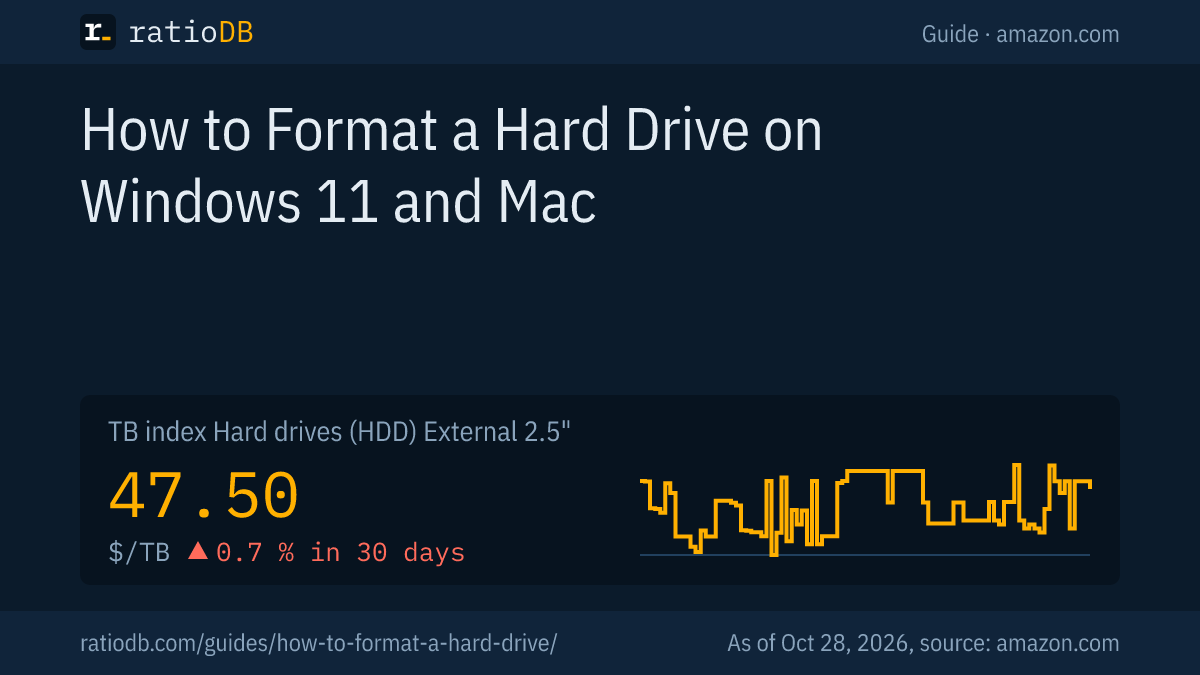
On amazon.com, external 2.5-inch hard drives cost $47.50 per TB according to the ratioDB TB index, and external SSDs $125.50 per TB. That makes an external SSD about 2.6 times as expensive per TB. The TB index is the median of the 10 cheapest new offers.
The cheapest external hard drive per TB from a known brand is Seagate Expansion 8 TB at $35.00 per TB (8 TB). Among external SSDs, SanDisk Desk 8 TB leads at $112.50 per TB (8 TB). For backups and large archives a hard drive is far cheaper per TB, while an external SSD is faster and handles bumps better. Browse external 2.5" hard drives, external 3.5" hard drives and external SSDs, or follow prices over time on the US hard drive price history. Popular sizes: 4TB external hard drive, 2TB external SSD.
How does ratioDB compare drives?
ratioDB pulls amazon.com prices for every listed drive at regular intervals and converts them to price per TB, with 1 TB equal to 1,000,000,000,000 bytes. The TB index is the median of the 10 cheapest new offers per product type.
Every offer shows condition, price, capacity and timestamp. Multipacks are divided by their total capacity, and new and used offers are never mixed in one calculation. The procedures in this guide come from the linked Microsoft, Apple and Dell pages, as of 26.10.2026. All rules are on the methodology page.
Hard drive formatting FAQ
How do I format an external hard drive on Windows 11?
Plug the drive in, open File Explorer, right-click the drive and choose Format. Pick NTFS for Windows-only use or exFAT for Windows and Mac, keep quick format checked and confirm. Everything on the drive is erased.
Does formatting a hard drive erase everything?
It removes the file system and with it access to every file. After a quick format the data physically remains and may be recoverable with recovery tools. A full format overwrites the whole disk with zeros, according to Microsoft.
How long does it take to format a hard drive?
A quick format is much faster than a normal format, per Microsoft. A full format writes every sector and takes several hours on large drives, depending on capacity and write speed.
Should I quick format or full format an SSD?
Quick format. A full format writes zeros across the whole SSD and spends write cycles with no everyday benefit. To securely erase an SSD before selling it, use the manufacturer's erase tool.
What format should an external drive use for Windows and Mac?
exFAT. Apple recommends exFAT in Disk Utility for Windows volumes over 32 GB, and Microsoft's format command offers exFAT as well. APFS is meant for Macs and NTFS for Windows.
Why won't Windows let me format drive C:?
Windows is running from it. Microsoft states that a partition in use, including the one that contains Windows, cannot be formatted. To wipe it, reset the PC under Settings > System > Recovery or reinstall Windows.
Should I choose GPT or MBR?
GPT and MBR are partition styles set when you initialize a new disk. Microsoft recommends GPT for modern UEFI systems and large drives, and MBR only for older hardware without UEFI.
Sources
- Microsoft: Disk Management in Windows, format command, Change in the behavior of the format command since Windows Vista
- Apple: Erase and reformat a storage device in Disk Utility, File system formats available in Disk Utility
- Dell: How to Clear and Wipe a Hard Drive
- ratioDB: amazon.com prices, methodology